GETTING STARTED
QUITTING A GAME IN PROGRESS
During the game, press START to display the Pause Menu.
•
Press +Control Pad Down to select Exit Game.
•
To confirm exiting the game, highlight Yes, then press the A Button again.
STARTING UP
Using the Nintendo GameCube™ Controller
MENU/SUB-MENU NAVIGATION
Throughout this manual, Up, Down, Left and Right will signify pressing Up, Down, Left and Right on the +Control Pad.
To navigate through the game menus (i.e. Options), use the +Control Pad (Up, Down, Left or Right depending on the menu) to highlight a selection.
MAIN MENU
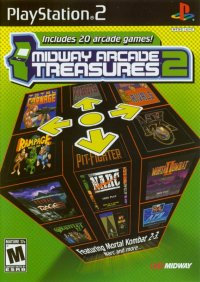
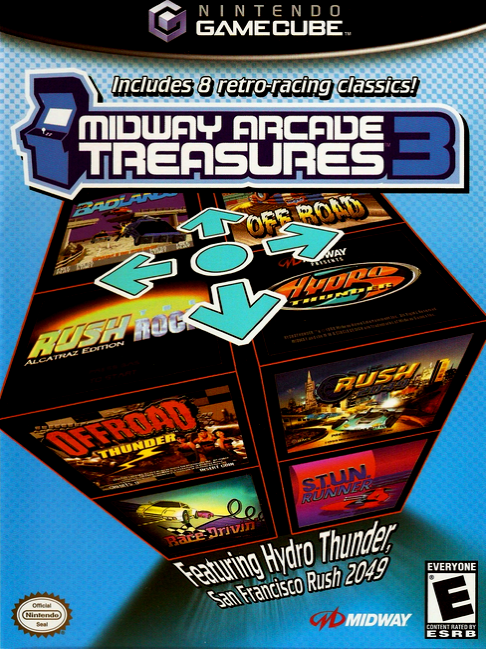
The Main Menu displays each of the 9 games included in Midway Arcade Treasures 3. •
Press the +Control Pad Up or Down to highlight a game.
•
A preview will be displayed on the cabinet.
•
Press START to select the game.
Options
Once a game is selected, that game's Options will become available by pressing the X Button. You can use this menu to adjust each game's Nintendo GameCube Controller Setup, as well as use Save/Load and adjust Autosave options. Some games include Game Settings and Bonus Content as well. Game Settings
Some of the games include adjustable game settings, but they will be different based on the game you select.
•
To make changes to game settings, press the +Control Pad Up or Down to highlight an option.
•
Then press the +Control Pad Left or Right to make changes.
Controller Setup
Game controls are available after selecting a game, within each game's Options Menu.
•
Press the X Button to view a selected game's option menu.
•
Then select Controller Setup.
Bonus Content
The Bonus Content menu provides information about the game you've selected. Some of the games will include a Gallery option that contains original game promotional and advertising material.
SAVE/LOAD GAMES
Saving Games
Midway Arcade Treasures 3 lets you save High Scores and Settings to your Nintendo GameCube™ Memory Card. Data will be automatically loaded from your Memory Card each time you start your Nintendo GameCube™ system. This prevents you from having to go through the menus to adjust the settings to your liking each time you want to play a particular game. Loading Games
If you start the game without a Memory Card inserted, you can insert your Memory Card and load any saved high scores and game settings. To do so, select Load from any game's Options menu.
Autosave
To make things easier, make sure Autosave is turned on. This option will automatically save your high scores and settings when you exit a game.
Note: If previously loaded data already exists, the game will prompt you to select whether you'd like to overwrite the old data.
It is advised that you do not insert or remove peripherals or Memory Cards once the power is turned ON. Make sure there is enough free space on your Memory Card before commencing play. Do not add or remove a Memory Card while saving is in progress.
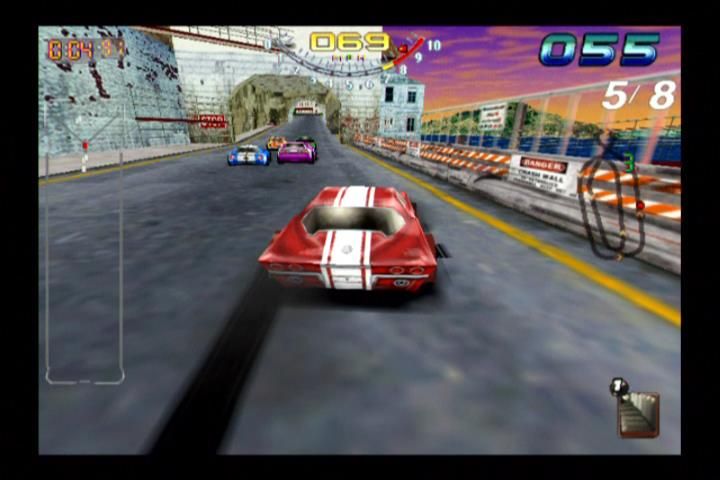
RUSH 2049
•
Shift Up (Manual Transmission)
•
Shift Down (Manual Transmission)
Track and Car Differences
Before you begin driving, you may want to test out a few different cars and tracks first. Not all cars handle the same. Some are bulkier than others, while some tend to slide around more.
Tracks on the other hand, are totally different. Each track contains many jumps, shortcuts and sharp turns. With the Track Options you can even race on the tracks in the opposite direction.
Crash and Burn
When a car crashes, it will explode. You are then placed back on the track, unless the Death option is turned ON. These crashes waste valuable time and could easily cost you a race.
Shortcuts and Alternate Paths
Each track features many different shortcuts and secret paths to help you jump ahead of the pack. It will take a while to find them all, but if you play each track in Practice Mode, you'll have the time to look for them. Most shortcuts and secret paths appear almost instantly.
Gold and Silver Coins
Secret cars, new car parts, tracks and gameplay modes are awarded as you collect Silver and Gold coins.
Jumps
Each track is loaded with jumps. Some jumps are natural hills and others are man-made. Remember that the faster you approach a jump, the further distance you'll fly.
Jumping correctly can help you get in front of other cars or even reach shortcuts. Jumping the wrong way can get you into trouble.
Try to hit each jump straight on, as you're more likely to land squarely. If you do get into trouble while you're airborne, don't panic. Each car in the game is equipped with a set of wings.
Flying
Flying is a fun but crucial part of this game. Depending on what controller setup you have, press the button that corresponds with your wings while you are airborne. Wings will emerge from the side of your car and allow you to glide for a while. While you are in the air, hold down the wing button.
As you hold the Wing button, move the +Control Pad Left or Right
.png)

_2.png)