SETTING UP
PSO EP1&2PLUS is a one to four player game. Connect Nintendo GameCube™ Controllers to Controller Socket 1, 2, 3 and 4 in order, depending on the number of players. You will not be able to play properly with the controller connected out of order.
USING PROGRESSIVE SCAN TV
This game can display a higher resolution image on TVs that support progressive scan mode (EDTV, HDTV). You need a compatible TV and a Nintendo GameCube™ Component Video Cable. To activate progressive scan mode, press and hold the (B) Button while the Nintendo GameCube™ logo is displayed until a message appears. Select YES to activate the mode. SAVE FILES
PSO EP1&2PLUS is compatible with Nintendo GameCube™ Memory Cards (sold separately). There are 6 types of save files. Never turn OFF the Nintendo GameCube™ power or remove the Memory Card while game data is being saved. Erasing the System File or Character File may prevent you from using all remaining save files. SAVE FILES THAT ARE CREATED AUTOMATICALLY
(Can be used only with the Memory Card inserted into Memory Card Slot A.)
•
Character File: 11 blocks
•
Guild Card File: 10 blocks
If you have EP3, you can synchronize Guild Card contents between EP1&2 (PLUS) and EP3. Synchronization starts when you start EP3 and when you quit the game, updating each file. Only Guild Card files in Memory Card Slot A can be synchronized.
SAVE FILE FOR NETWORK SETTINGS
•
SEGA Network Info.: 4 blocks
If you have an existing SEGA Network Info. file from any PSO Series for Nintendo GameCube™, you can use it. It is recommended to create this file on the same Memory Card as other game save files, as all game-related save files are saved to Memory Card Slot A. OTHER FILES
•
Snapshot File: 15 blocks (Can be used only with the Memory Card inserted into Memory Card Slot B.)
•
Download Quest Files: Size vary according to the size of the Quest.
GAME MENU
WHAT IS PSO?
EP1&2PLUS is a network role-playing game set aboard the starship "Pioneer 2" and on Planet Ragol. Online, you can meet players worldwide and overcome language barriers using the five-language "word select" feature.
You can organize teams for online play or embark on Hunter's Guild quests, chatting to exchange information. EP1&2PLUS also offers an offline mode.
WHAT'S NEW WITH EP1&2PLUS?
•
3 additional offline quests for Episode 2
•
Episode 2 Challenge (5 stages) for the offline Multi Mode
STARTING UP PSO FOR THE FIRST TIME
The End User License Agreement will be displayed on first startup. Select Agree to proceed. Next, adjust the Nintendo GameCube™ calendar setting. If the calendar is correct, select NO to continue. Select YES to adjust the calendar. You cannot purchase the Hunter's License if the calendar/clock is not adjusted correctly.
SAVING
A Memory Card is required to save PSO game data. Without a Memory Card, you cannot play this game. See p.4 for save file types.
To save game data, online or offline, select Quit Game (→p.51) from the Main Menu. Never turn OFF the Nintendo GameCube™ power or remove the Memory Card while saving. Doing so will corrupt game data. STARTING A GAME
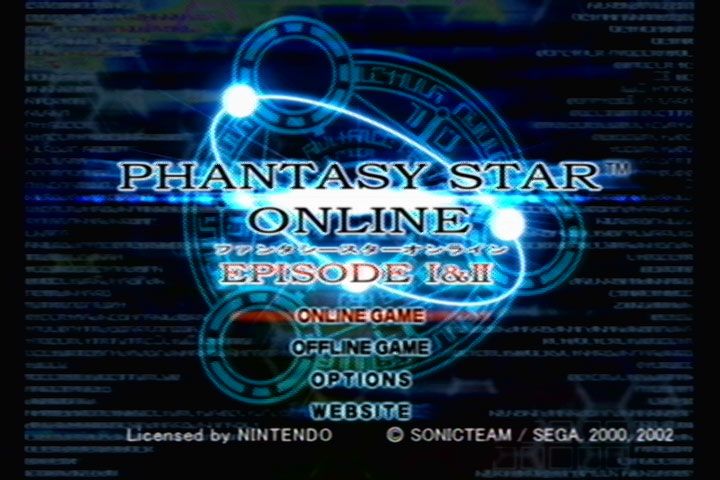
From the Title Screen, press START/PAUSE to display the Game Menu. Use the + Control Pad ▲▼ to select a mode and press the Button to start.
ONLINE GAME
The first time you select this mode, you need to configure Network ISP settings. Follow the setup procedure and save settings to your Memory Card.
After configuring settings, it is suggested to purchase the Hunter's License before returning to the PSO Main Menu. See "Purchasing a Hunters License" (p.15) for more information.
If settings are configured and you have a Hunter's License, select "Return to the game link" to go back to the Title Screen. Select ONLINE GAME to create/select a character and connect online.
FLOW TO STARTING THE ONLINE GAME
•
SELECT ONLINE GAME DURING THE TITLE SCREEN
•
NETWORK SETUP SCREEN (P.10)
•
PURCHASE HUNTER'S LICENSE (P.15)
•
CHARACTER SELECT SCREEN (P.18)
•
PURCHASE HUNTER'S LICENSE REMINDER SCREEN (P.19)
•
ENTER SERIAL NUMBER/ACCESS KEY/PASSWORD (P.19)
•
HAVE PLAYED BEFORE (SAVE DATA EXISTS ON MEMORY CARD)
•
CHARACTER SELECT SCREEN (P.18)
•
PURCHASE HUNTER'S LICENSE REMINDER SCREEN (P.19)
•
ENTER SERIAL NUMBER/ACCESS KEY/PASSWORD (P.19)
OFFLINE GAME
Play the game without connecting online. Two modes are available: SINGLE MODE (play by yourself) and MULTI MODE (play with up to 4 players). See p.33 for details.
OPTIONS
Change game settings. Use the + Control Pad to select a menu item and press the Button to enter. Use the + Control Pad to select a setting and press the Button to change it. Press the Button to return to the previous screen.
.png)


_2.png)
.png)
.png)

_1.jpg)