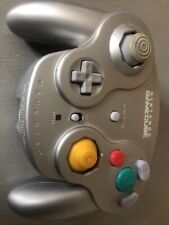
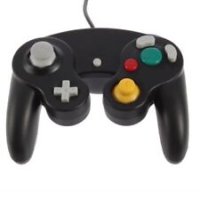
Setting Up
1. Make sure the POWER Button is OFF on your Nintendo GameCube™. 2. Insert the RESIDENT EVIL® 4 Nintendo GameCube™ Game Disc 1 as described in the instruction manual. 3. Insert the Nintendo GameCube™ Controller into Controller Socket 1. 4. To save games, insert a Nintendo GameCube™ Memory Card into Memory Card Slot A or B. 5. Press the POWER Button ON. The Title Screen will appear.
IMPORTANT: Make sure not to touch the CONTROL STICK while powering on.
Changing Discs
RESIDENT EVIL® 4 is contained on two game discs. When you complete Disc 1, a screen appears prompting you to switch to Disc 2.
•
Press the OPEN Button to open the Disc Cover.
•
Remove Disc 1 and insert Disc 2.
You must insert Disc 1 to start the game.
IMPORTANT: Once you progress to Disc 2, if you do not save before turning off the power, your progress will only be saved up to the end of Disc 1 and you will not be able to continue from Disc 2.
Getting Into the Game
Use the Control Stick or + Control Pad to highlight your choice on the Main Menu, and press the A Button.
Starting a Game
•
START - Press START/PAUSE to start a new game from the beginning.
•
LOAD - Load your saved progress and continue your game.
•
OPTION - Change various game settings.
NOTE: When you complete the game, the next time you start a new game you'll be able to select a difficulty level and enjoy a brand new challenge.
Attache Case
Organizing Items in Your Attache Case
•
Highlight the item you want to move, then press the X Button.
•
Move the cursor to an empty space.
•
Press the A Button to complete the move.
•
Press the L and R Buttons to rotate the selected item.
Temporary Space
When you don't have enough space for every item, you can place extra items in the Temporary Space.
Map Screen
Press the Z Button on the Status screen to display the Map.
•
SELECT MARKER: Select the item you want to see and it will appear on the Map, showing you its location.
Combining Items
By combining related items, you can free up space in your inventory and even power up your weapons.
Combining Herbs
•
Highlight the herb you want to combine, press the A Button and select COMBINE.
•
Line it up with the second herb.
•
Press the A Button to combine the original herbs into a new herb.
Weapons Dealer
Talk to the Weapons Dealer to buy and sell items.
•
BUY - Purchase weapons and parts.
•
TUNE UP - Increase the firepower of your current weapons.
•
SELL - Trade in jewels and other treasures for money.
NOTE: If you don't have enough space in your Attache Case, you may not be able to make purchases.
Game Over & Continue
Game Over
Getting attacked by enemies and falling into enemy traps depletes your Health Meter. When the meter reaches zero, your game is over.
Continue
Even if your game is over, you can choose to continue the same game. To do that, select YES on the Continue screen.
Saving & Loading
Saving Your Progress
Use typewriters you'll find in the game to save your progress to a Memory Card.
You must have a Nintendo GameCube™ Memory Card inserted into Memory Card Slot A or B in order to save your progress. Each saved game requires 9 or more blocks of free space on a Memory Card. Do not insert or remove the Memory Card while saving game data.
Loading Saved Data
Load your saved game progress by selecting LOAD GAME on the Main Menu, or RETRY OR LOAD on the Option screen. (To open the Option screen in mid-game, press START/PAUSE.)
You must have a Nintendo GameCube™ Memory Card containing saved RESIDENT EVIL® 4 game data inserted into Memory Card Slot A or B in order to load a saved game. Do not insert or remove the Memory Card while loading game data.
 (Disc 1).png)


.png)
_2.png)
 (Disc 1).png)
.png)
 (Disc 2).png)