GETTING STARTED
*Note: Illustration may not match all PlayStation 2 console types. For owners of SCPH-70000 series PlayStation 2 systems, refer to the setup instructions supplied with your system.* Set up your PlayStation®2 computer entertainment system according to the instructions in its Instruction Manual. Make sure the MAIN POWER switch (located on the back of the console) is turned ON.
Press the RESET button. When the power indicator lights up, press the OPEN button and the disc tray will open. Place the GUILTY GEAR ISUKA™ disc on the disc tray with the label side facing up. Press the OPEN button again and the disc tray will close.
Attach game controllers and other peripherals, as appropriate. Follow on-screen instructions and refer to this manual for information on using the software.
MEMORY CARD (8MB)(for PlayStation®2)
To save game settings and progress, insert a memory card (8MB) (for PlayStation®2) into MEMORY CARD slot 1 or MEMORY CARD slot 2 of your console. You can load saved game data from the same memory card or from any memory card containing previously saved games.
GETTING INTO THE GAME
PROGRESSIVE SCAN MODE
While playing GUILTY GEAR ISUKA, you will be able to enjoy a higher quality picture if you have:
•
a TV that supports progressive scan mode (EDTV, HDTV) and has video input capability, and
•
a component AV cable (for PlayStation®2).
If you do not have a progressive scan mode TV, or do not use the correct component AV cable, the game picture may not display properly.
For instructions on how to connect the component AV cable to your console, please see the component AV cable instructions or PlayStation 2 owner's manual. Be sure to set the Component Video Out settings to Y CB/PB CR/PR in the console's system configuration. *Some TV sets are not progressive scan mode enabled even though they have video input capability. To find out about your TV, see your TV manual or contact the manufacturer.*
SELECTING PROGRESSIVE SCAN MODE
1. Hold down the and buttons while your game is starting up. You'll see a message asking if you want to switch to progressive scan mode.
2. To make the switch, use the directional buttons to select YES and press the button to confirm.
3. If the picture displays correctly, select YES once more to preserve your setting.
If the picture does not appear correctly, the game will return to the previous menu after 15 seconds if no buttons are pressed.
DISPLAYING THE MAIN MENU
1. When the Title Screen appears, press the START button to call up the Main Menu, which has the options you'll use to modify and get into your game.
2. Select a mode with the directional buttons, and press the button to confirm your choice.
ARCADE MODE
In Arcade Mode you take on the computer in a series of battles. All characters have a Survival Level that increases as you damage your opponents. Arcade Mode ends when you defeat the boss character who bursts into the game at level 999.
Up to four players can play together in Arcade Mode. To join the game, press the START button on an unused controller.
ARCADE MODE GAME FLOW
1. SELECT THE MODE - Select ARCADE in the Main Menu and confirm by pressing the START or button.
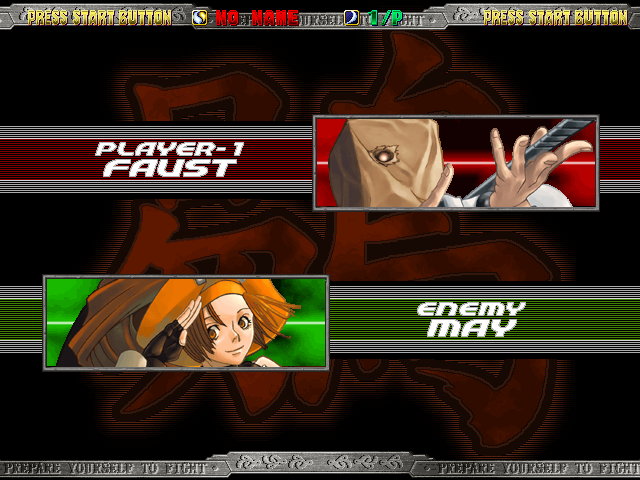
2. SELECT A CHARACTER - In the Character Select Screen, cycle to the character you want to play as and press the X, □, △, O, L1 or R1 button. Each button gives the character a certain pre-defined color.
•
To randomly select a character, cycle to RANDOM and press the X button.
•
To load Color Edit data stored on your memory card, select the color by pressing the L2 or R2 button. (See page 19 for details on Color Edit Mode.)
3. SELECT A TEAM COLOR – Use the directional buttons to select one of the four team colors.
4. CHARACTER POSITION - The team color will be displayed along with your character's starting position.
WHAT'S SO IMPORTANT ABOUT TEAM COLOR?
While not used in 1 Player Mode, color is very important in multiplayer modes.
2 PLAYER MODE
Both players select a color for their team. To cooperate with the computer, select the same color as a computer character.
3-to-4 PLAYER MODE
When every player selects a different team color, it's a free-for-all. To team up with other characters, select the same color (three characters max per color). In team battle (except for a 2 VS 1 Match), you cannot damage or get damaged by teammates.
MATCH FORMAT
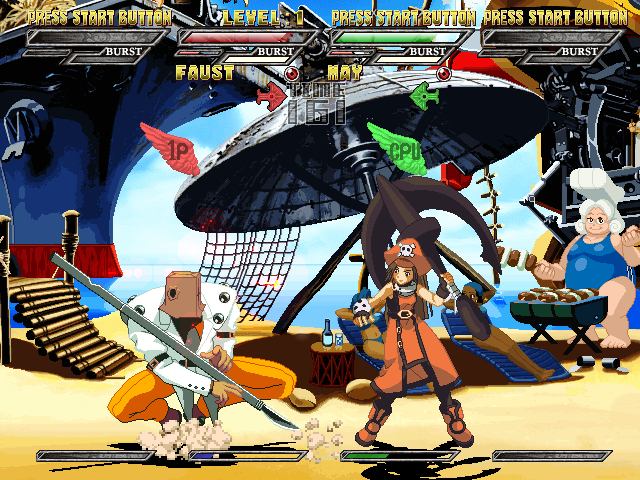
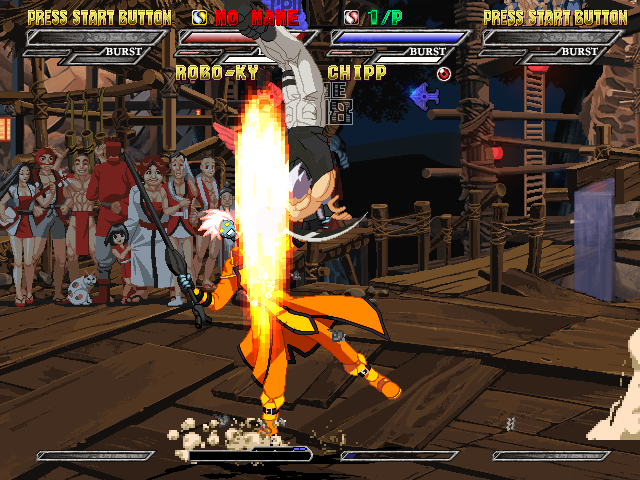
The basic format of a match is based on the Two Planes Battle. Characters fight while moving back and forth between the front and back planes.
The character or team that survives the match wins. If time runs out first, the character or team with the most remaining Strength and Souls wins the match.
SOUL SYSTEM
A Soul is displayed as a red circle under the Burst Gauge. One Soul is equivalent to one full Strength Gauge. The game automatically uses Souls when your Strength Gauge drops to zero.
When you team up with another player, you share Souls, so Joint Soul applies. The allocated number of Souls at the beginning of a match is determined
.png)

.png)



_1.png)


.png)
