Console Instructions
Top View
Front View
Set up your PlayStation game console according to its Instruction Manual. Make sure the power is off before inserting or removing a compact disc. Insert the "BOARD GAME Top Shop" disc and close the disc cover. Insert game controllers and turn on the PlayStation game console. Follow on-screen instructions to start a game. Operating Instructions
The following diagram illustrates when a Multi-Tap (sold separately) is connected to Controller Port 1 or Controller Port 2 of the PlayStation game console. Precautions for using the Multi-Tap
Connect the Multi-Tap to Controller Port 1 or Controller Port 2. Next, connect the controllers to the controller ports on the Multi-Tap.
When the Multi-Tap is connected to Controller Port 1, always make sure to connect a controller to Controller Port 1-A on the Multi-Tap first and then connect additional controllers to each of the Controller Port B, C and D.
If a Multi-Tap or controller that was connected when the game was saved is not connected while it is being loaded, that location will automatically be controlled using Controller Port 1.
Top Shop
1. To play the game you roll the pencil and advance through the map.
2. You may then choose to either open, upgrade or make a delivery to your stores. You may upgrade a store by combining or buying a rival's store.
3. Top Shop is a game in which you compete for money and assets in order to win.
4. Many events take place during the game and these events often impact the outcome.
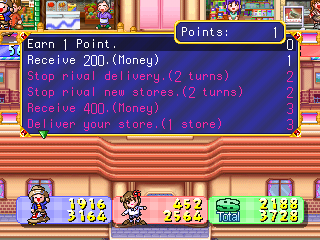
5. Accumulate points in order to perform different events.
6. With good judgment, guts and a little luck you may achieve victory!
Victory
Top Shop determines wins and losses by the amount of assets accrued at the end of the game, from greatest to fewest.
The game ends when:
•
A player reaches the target assets as specified at the beginning of the game.
•
The number of bankrupt players (those who have lost money and assets) reaches the number specified at the beginning of the game.
The game's initial settings, such as the amount of money and number of players, can be changed before the game begins.
Stores
There are 44 different types of stores in the game. The stores level can be upgraded by connecting them in blocks of up to four squares.
This allows an increase in the amount of merchandise that can be displayed in your store, giving you the ability to order and sell expensive items.
Store Examples
Starting the Game
When the title screen appears following the opening screen, press the START button.
Select Play Mode
Free Play
Choose this mode when challenging multiple players. A setting screen used to determine the number of assets and money will be displayed. You may adjust it to fit your needs.
Story Mode
Single player game that follows a storyline where the player must attempt to clear the various maps. Once you've cleared this mode some hidden goodies will become available. (See page 19 for details on the memory card, system data, etc.)
Load
Used to resume a previously saved game.
Option
Menu screen used to change various settings.
Starting the Game
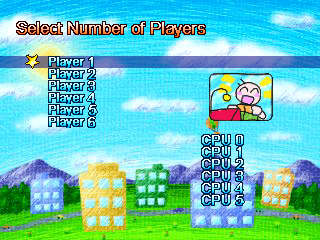
First select the number of human players, and then select the number of computer players, if applicable. The number of participants ranges from two to six.
Each character has their name, which you may change. To do so, erase the character name by pressing the button or "BACK," then use the Directional button to enter the name you'd like. The name can be up to six characters long.
To return the name to the given name, select "DEFAULT." Select "END" to choose the name. If you don't want to change the name, simply choose "END." When the character and name are acceptable, select "Next" to proceed.
Choose a character from the characters presented. When a computer character participates in a game, the character's personality is reflected in his or her actions.
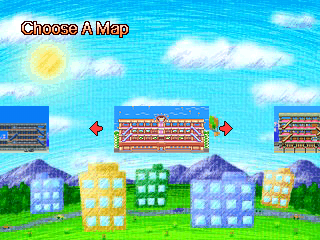
Select the map in which the game will be played.
The target assets and amount of money on hand are set to standard values for easier game play. To change these values, select the category using the up and down Directional buttons, then change the values using the left and right Directional buttons. Use the same process to change the number of bankrupt players.
Please note:
•
If there is too much money on hand, it can decrease negotiations between the players.
•
If the target assets are too low, the game may end just when it's about to get exciting.
•
The order of play is randomly determined and cannot be changed.
Press the button to begin the game.
Commands
The following screen is displayed when the player's turn arrives. Select a command using the Directional buttons, press the button to enter your choice.
There is a minimum of one computer player when playing a one-player game.


.png)

.png)
