Setting Up
Set up your PlayStation® game console according to its Instruction Manual. Insert the disc and close the Disc cover. Turn the PlayStation® game console ON with the POWER button. It is advised that you do not insert or remove peripherals or Memory Cards once the power is turned on. Make sure there are enough free blocks on your Memory Card before commencing play. Roll Away only supports a Memory Card in Memory Card slot 1.
Console Top View
Console Front View
Getting Started
After the start up sequence, you'll come to the Main Menu which automatically highlights the 1 PLAYER option. If you wish to go straight into a new game, press the button and you'll go straight to the first level.
How to Use the Controller in Roll Away
•
Directional buttons: Use to move your ball
•
LEFT: Turn ball to the left
•
RIGHT: Turn ball to the right
•
button: Makes the ball jump. To jump forward 2 spaces use the button and the UP Directional button at the same time.
•
START button: Pause the game and display the Pause menu.
Tips
•
When turning, press once for a 90 degree turn, press twice to do fast 180° degree turns.
•
Press UP and JUMP and keep them pressed to make many jumps in a row.
Using a DUAL SHOCK™™ Analog Controller
The controls for the DUAL SHOCK Analog Controller are identical to those for the Controller. You will also experience the added sensation of the built-in DUAL SHOCK vibration feature.
Feel the thud as you plummet to a platform hundreds of feet below you, the throbbing of your heartbeat as you pick up a lethargy pill, or the shudder of collapsing blocks as they disintegrate from beneath you. Main Menu
Use the UP and DOWN Directional buttons to highlight an option and press the button to select:
•
1 PLAYER: Takes you to the 1 PLAYER menu.
•
2 PLAYER: Takes you to the 2 PLAYER menu.
•
SCORES: View the best scores so far.
•
OPTIONS: Set the game to your own preferences.
Options Menu
•
FX: Use the LEFT/RIGHT Directional buttons to adjust the volume for the sound effects.
•
CD: Use the LEFT/RIGHT Directional buttons to adjust the volume for the background music.
•
ADJUST SCREEN: Lets you adjust the position of the screen.
•
TURN DELAY: Turns the delay after 90 degree turns ON or OFF.
•
VIBRATION: If you are playing using a Dual Shock Analog Controller you can toggle the DUAL SHOCK function ON or OFF.
•
BACK: Return to previous screen.
1 Player Menu
Here you'll find the following options:
•
ARCADE: Begin with an easy level (but watch out for the time limit at the top).
•
TIME TRIAL: Similar to ARCADE but you play to beat the ideal time.
•
LOAD GAME: Restore a previously-saved game.
•
BACK: Return to the previous screen.
2 Player Menu
Here you'll find the following options:
•
COPYCAT: A game of follow-the-leader.
•
TIME TRIAL: Same as 1 PLAYER - TIME TRIAL but players take alternate turns against the clock.
•
BACK: Return to the previous screen.
Pause Menu
If you press the START button in-game you will pause the game and bring up the Pause Menu where you'll find the following options:
To reset the game during gameplay, press the start button, the pause menu appears, select "Quit Game", the "Quit-Are you sure?" option appears, and press the button to reset the game or the button to continue gameplay.
Save Game
At certain points in the game you will reach a SAVE POINT which will ask you if you wish to ENTER THE SAVE GAME MENU. Press the button to enter the menu or the button to continue to the next level without saving.
Use the LEFT or RIGHT Directional buttons to highlight one of the four available save files and press the button to save. Press the button to continue without saving.
Note
Do not insert or remove Memory Cards once the power is turned on. Make sure there is at least one free block on your Memory Card before commencing play. Roll Away only supports a Memory Card in Memory Card slot 1.
Load Game
Select LOAD GAME from the 1 PLAYER Menu. Use the LEFT or RIGHT Directional buttons to highlight the save you wish to load (the graphic below the save files shows how far you've progressed through the game on each of the four available saves), then press the button to confirm the selection.
Press the button to return to the 1 PLAYER menu.
How to Play Roll Away
1. Arcade
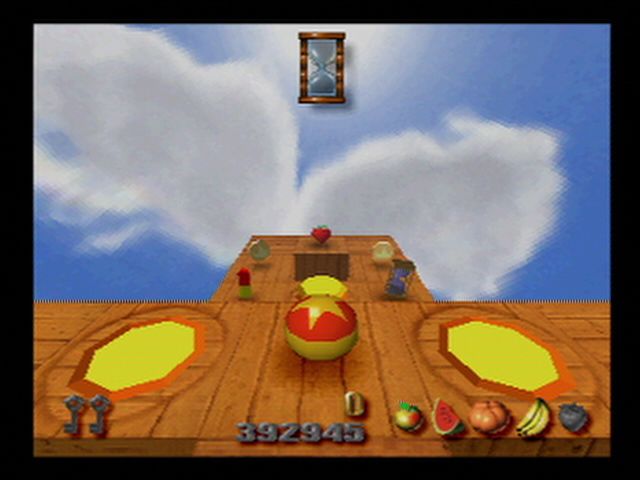
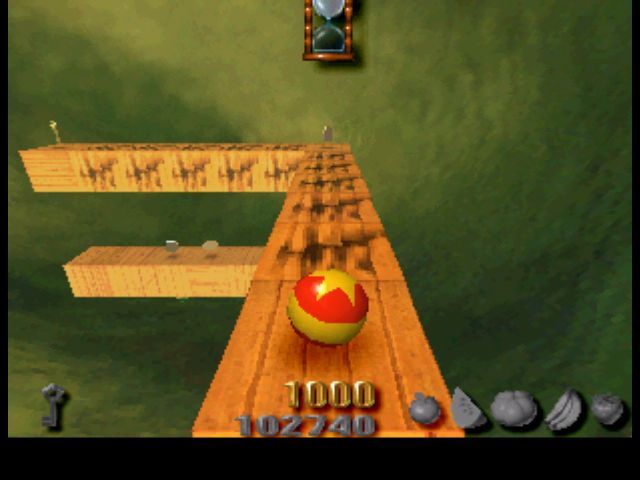
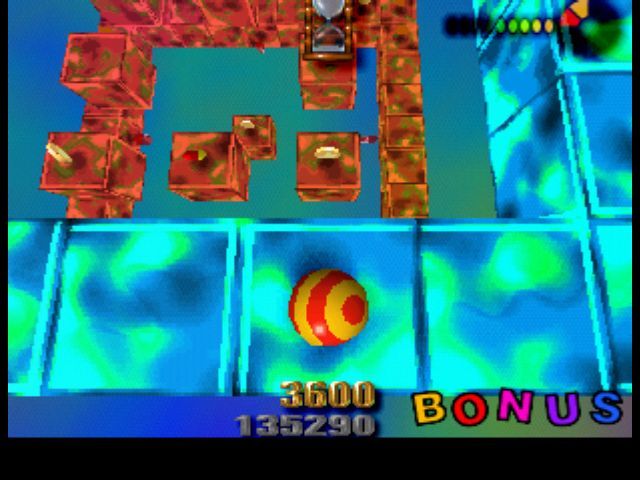
The objective of each level is to collect the key or keys that open up the EXIT. Along the way there are numerous objects to collect, which will add to your overall score, as well as traps and enemies to avoid.
.png)

.png)
