GETTING STARTED
Running NASCAR® Racing
Set up your PlayStation™ game console according to its Instruction Manual. Make sure the power is off before inserting or removing a compact disc. Insert the NASCAR® disc and close the CD door. Insert game controllers and turn on the PlayStation™ game console. Follow on-screen instructions to start a game. THE MAIN MENU
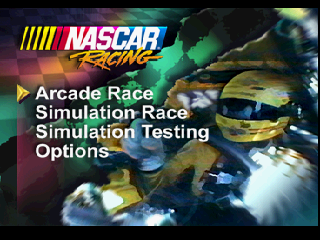
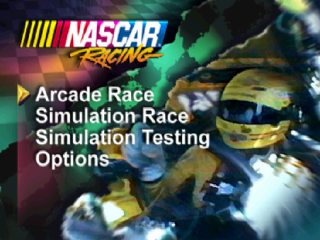
Use the D-pad Up and Down buttons to highlight an option. Press X to select the highlighted option.
Arcade Race/Simulation Race
NASCAR® Racing offers two styles of play from the Main Menu: Arcade and Simulation Racing. Both modes can be played as a single race or as a Championship Season. There are significant differences between the two modes.
Arcade Race
Simulation Race
•
3 Driving Sessions: Practice, Qualify, and Race
•
Realistic Stockcar physics
•
Garage Options with unlimited car setup options
Selecting Arcade Race
Selecting Arcade Race will bring you to the Car Selection screen. Here you can choose the car that best suits your skill level. Use the D-pad Left and Right buttons to highlight the desired car, then press X to select that car. After selecting your car, you will be brought to the Track Selection screen.
Selecting Simulation Race
Selecting Simulation Race from the Main Menu will also bring you to the Track Selection screen. Here you can pick any single track or enter a Championship Season. Use the D-pad Left and Right buttons to scroll through the different tracks, then press X to select the current track.
NOTE: HOLDING DOWN THE R1 BUTTON WHILE MOVING LEFT OR RIGHT WILL SCROLL THROUGH THE TRACK SELECTIONS QUICKLY.
Simulation Testing
Simulation Testing allows you to drive, with realistic physics, on any track without any other cars. This mode is useful for tweaking car setups in the Garage or developing strategies for unfamiliar courses. All standard game controls apply in this mode.
Options
From the Main Menu, the Options Menu is available. Here you can change controller configurations, alter the difficulty level, access driving help features, and adjust many other features to suit your tastes.
OPTIONS MENU
Use the D-pad Up and Down buttons to select an option. Press X to select the highlighted option.
Controls
The Controls option offers three different configurations for each supported controller. By pressing the Left or Right buttons on the D-Pad, you can view the different configurations. Pressing X will select the displayed configuration.
Player Info
The Player Info menu allows you to enter your name, which will appear in all of the standings screens. Use the direction buttons to highlight a letter and press X to select it. Select END when finished.
Opponent Info
Here you can view the car model for each opponent. Press Left or Right on the control pad to cycle through the drivers. Press X when you are done.
Realism
This sub-menu allows you to configure different gameplay elements to suit your tastes and skills. Use D-pad Up and Down buttons to select an option. Use Left and Right to change a setting. Select Return and press X when you are finished.
Realism Options
•
Shifting: Allows you to set Shifting to Automatic or Manual.
•
Braking Help: Sets Braking Help to On or Off. Turning Braking Help on is very useful when learning a new track.
•
Race Length: Lets you set the length of the race as a percentage of the real life NASCAR® race.
•
Yellow Flags: Turning Yellow Flags On will bring out a yellow flag, or caution, after an incident, which is a good time to pit.
•
Pace Lap: Turns Pace Lap On or Off. Setting this option to Off will start the race from a stopped position. Turning this option On will start the Race from a rolling start.
•
Car Damage: Allows you to set the amount of damage your car will take.
•
Oppt. Strength: Sets your opponent strength to match your skill level.
Sound Music
The Sound Music option uses two sliders to control the volume of sound effects or in-game music. Use D-pad Up and Down to move sliders. Use Left and Right, or X, to switch between the two or when finished.
Memory Card
The Memory Card option allows you to save all of your game options and also allows you to delete individual car setups from the memory card.
Credits
Allows you to view the names of all the fine men and women involved in making NASCAR® Racing.
THE RACE OPTIONS MENU
Pressing the START button while racing in either mode will pause the game and bring up the Race Options Menu. Some of these options, however, are not available in Arcade Mode. Use the control pad Up, Down, Left and Right to highlight an option. Press X to select the highlighted option.
Race Options Descriptions
•
Resume: Return to the racetrack.
.png)

.png)


.png)
.png)
.png)

.png)
