Console Ports and Buttons
PlayStation 2 Setup
Set up your PlayStation®2 computer entertainment system according to its Instruction Manual. Ensure the MAIN POWER switch (on the back of the console) is on.
Press the RESET button. When the power indicator lights up, press the OPEN button to open the disc tray. Place the Call of Duty: Finest Hour disc on the disc tray with the label side up. Press the OPEN button again to close the disc tray. Attach game controllers and other peripherals as appropriate. Follow on-screen instructions and refer to this manual for software information.
Memory Card
To save game settings and progress, insert a memory card (8MB) (for PlayStation®2) into MEMORY CARD slot 1. You can load saved game data from the same memory card or any memory card (8MB) (for PlayStation®2) containing previously saved games.
Controller Layout
•
left analog stick (L3 button when pushed down)
•
right analog stick (R3 button when pushed down)
Menu Navigation
To select menu options, use the directional buttons to navigate. Highlight the desired option and press the button to accept. Follow on-screen button prompts and press the button to accept and the button to go back. Call of Duty Finest Hour™ supports the DUALSHOCK®2 analog controller. Load Profile
After starting Call of Duty: Finest Hour, you'll see the Load Profile screen. If this is your first time playing, create a new profile. •
Select an empty slot with the directional buttons and press the button.
•
Use the directional buttons to move the cursor and press the button to select letters for your profile name.
•
When finished, select Done to go to the Main Menu.
Main Menu
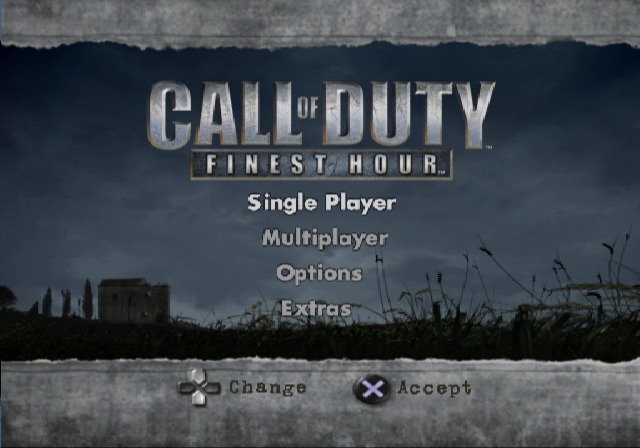
From the Main Menu, you can select from the following choices:
Single Player
Take control of an Allied soldier in fierce battles. Fight across the Eastern Front, survive the North African desert, and navigate the rubble of the Western Front.
Multiplayer
Fight with or against players from around the world in up to 16-player games. Read the Multiplayer section for information on configuring Call of Duty: Finest Hour™ for online play. Options
Customize your game settings in the options menu.
•
Difficulty: Choose from Easy, Medium, or Hard. This changes enemy damage, ammo pickup size, first aid kit capacity, and health pickup amount.
•
Vibration: Turn controller vibration off or on.
•
Subtitles: Select on to display subtitle text for all cinematic voice-overs.
•
Sound: Select Mono, Stereo, or Dolby Pro Logic® II sound output.
•
Turn/Look Speed: Adjust sensitivity for turning or looking around. Choose from Slower, Normal, or Faster speeds.
•
On: Moving the right analog stick up makes your character look down, and vice versa.
•
Off: Moving the right analog stick up makes your character look up, and vice versa.
•
Controls: Choose between 5 preconfigured controller settings. Press the button to view layouts.
•
Hint Messages: Turn in-game hint messages off or on.
•
Friendly Fire: With this on, you cannot shoot near your allies.
•
Aim Assist: With this on, your aiming will have a slight "sticky" effect for easier targeting.
•
Screen Calibration: Adjust your television's brightness for optimal gaming.
•
Profiles: Load, save, or create new player-created profiles.
Extras
This menu offers bonus content:
•
Gallery: View behind-the-scenes movies and concept art.
•
Credits: See the names of the people who brought you Call of Duty: Finest Hour. •
Cheats: Enable various unlocked cheats here.
Playing the Game
Single Player Campaigns
In Single Player campaigns, you play as an Allied soldier. Your squad's success, mission completion, and survival depend on your movement, shooting, and wits.
Each mission begins with a cinematic explaining the situation and mission goals. Listen carefully to this information.
Saving and Loading
To save a game, you need at least 65 KB of free space on your memory card (8 MB) (for PlayStation®2). Use the PlayStation 2 Internal Memory Card Manager to check free memory or delete existing games. Temporary checkpoints are available throughout many missions. A message appears when these automatic checkpoints are reached. If you die, you'll restart at the last checkpoint. Once a mission is completed, it unlocks on the Single Player Mission Select screen and your progress is saved.
•
Note: If you quit during a mission, you'll restart at the beginning of that mission next time you play. Each profile saves its progress separately.
Crosshair
Use the crosshair to aim your weapon. When running or walking, your crosshair widens, indicating reduced accuracy. The wider the crosshair, the less accurate your shots.
When you stop moving, your weapon steadies and your crosshair narrows. It's often best to fire when completely stopped for accurate shots and ammo conservation. Crouching or lying prone also keeps
.png)


.png)
.png)
.png)

_1.png)
_1.png)



_1.png)


_1.png)

.png)





_1.png)