Starting the Game
Choosing Your Side: GDI or the Brotherhood of Nod
You can play one of two sides: GDI (the Global Defense Initiative peacekeeping force) or the Brotherhood of Nod, a secretive terrorist organization that has remained hidden for centuries… until now. Choose the side you wish to play by inserting the appropriate CD ROM.
If you choose the Brotherhood disc, you will fight against GDI. If you choose GDI, you will fight against the Brotherhood. Each side has its own characteristics and style of playing, as well as radically different units, buildings, and tactics.
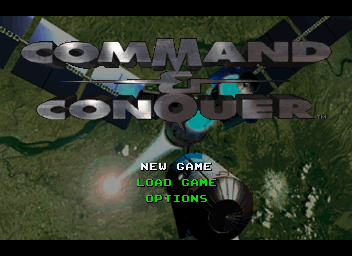
Start/Options Screen
On this screen you have three options. Use the D-Pad to highlight the desired option, then press the Start button to select the option.
•
NEW GAME: The New Game option starts out a fresh GDI or Nod campaign (depending on which CD you have inserted) from the beginning.
•
LOAD GAME: This takes you to the Enter Password screen. Use the D-Pad to scroll through the alphabet and press A to select each letter. Once you have entered the complete password, move the cursor to the OK button and press the A button.
•
OPTIONS: The Options menu has Controller Config and Sound options. Select the Controller Config option to customize your Controller buttons.
Controller Config
Button Mapping:
To change controller settings, use Left and Right to change the highlighted setting and press Start to select.
---
Playing the Game
Ordering Your Troops Around
To get your troops to act, press A button when cursor button is on top of a unit. A bracket will appear around the selected unit and the unit's health will be displayed above the unit. Move the cursor to the location on the game map where you want the unit to go.
If the cursor is over a potential target, it will change to the targeting cursor. Pressing the A button here will cause the unit to attack the target. Otherwise, it will move the unit to that location, unless it is impossible (e.g. a cliff or trees).
To cancel out of this mode (or any mode), press the B button and the unit will be deselected.
How to Select a Group of Units
To save time, you can combine your troops into groups. Press and hold the A button, then move the cursor to include all the troops you want selected. A white box outline indicates the range of this selection.
Release the A button, and all the units within the white box will be selected. You can give that group an order the same way you'd give a single unit an order.
Sidebar
From the main game screen pressing the C button will open the sidebar and take your cursor to it.
•
If you press L-Shift + C the sidebar will open but will not be made active - this is useful for keeping an eye on production status or using the radar display.
•
L-Shift + C again turns this option off.
You can build units and buildings by positioning your cursor on the corresponding icons in the Sidebar and pressing the A button. The sidebar will also show you a radar map of the area (if you have communications centers) and also tell you how much power your base is producing versus how much it needs.
Credit Indicator
Within the sidebar is the amount of credits you may spend. This indicator keeps track of the amount of money you have available to build structures and units. Your total credits will decrease as you build or repair units and structures. Credits will increase when a building is sold or when a Harvester unloads Tiberium at a Refinery.
Production and Non-Production Missions
There are two types of missions: production and non-production.
•
Production missions: You are given either a construction site or a Mobile Construction Vehicle (MCV).
•
Non-production missions: You must complete the mission with the units provided. (This may sometimes lead to production situations. For instance, if you begin with an Engineer unit and manage to capture an enemy production structure, then the mission type may change.)
Building Constructing your own base is critical to the success of many missions. You must constantly maintain and defend this base during combat; a strong base is often necessary to win.
Deploying your MCV
To begin building your base, you will need a Construction Yard. Unless the Yard is set up when the mission begins, you will have to deploy your Mobile Construction Vehicle (MCV).
Move the cursor to the MCV and press the A button to select it. Then move the Deploy cursor to the area where you want to set up the new Construction Yard. If you try to deploy the MCV where there isn't enough room, the deploy cursor will not appear.
If there is enough room, press the A button to deploy the MCV, and it will turn into a Construction Yard.
Sidebar Icons and Building
Once the Construction Yard is set up, you will have new construction options on the sidebar. Press the C button to reveal the sidebar. In the upper portion of the sidebar, you will see the symbol of your side (GDI or Nod). Later, this area becomes a radar display when you've built a Communications Center and have enough power to support it.
Underneath the sidebar credits
 (Disc 2).png)

 (Disc 1) (GDI Disc).png)
 (USA).png)
 (USA).png)