Slide Turns and Drift Turns
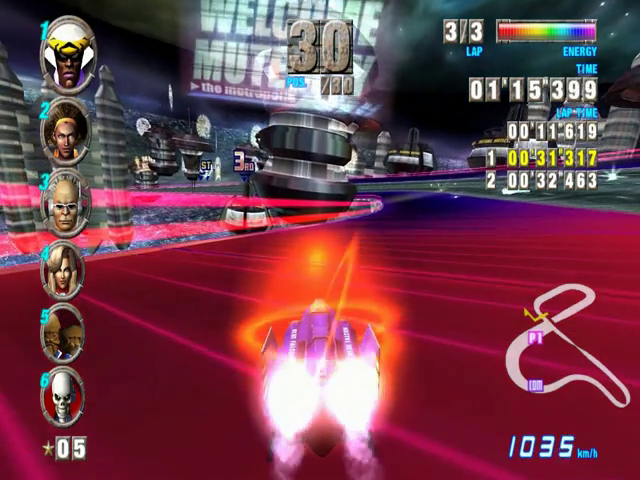
Use Slide Turns and Drift Turns to maneuver around tight corners that are impossible to handle using only the Control Stick.
Differences Between the Two Turns
Using the Slide Turn will reduce your speed during turns, making it easier for machines optimized for Maximum Speed to take a speedy curve.
Drift Turns will allow you to increase speed while taking the turns, which is advantageous for machines optimized for Acceleration.
Changing the Camera Angle
Change the camera angle during the race by using the + Control Pad. There are four different viewpoints to select from.
Attacking Rival Machines
You can bump and harass your rivals by using Spin Attacks and Side Attacks. If you force a rival machine to retire with an attack, a portion of your energy meter will recover.
Spin Attack
•
Tilt the Control Stick in the direction you wish to attack and press the Z Button to send your machine into an attack spin.
•
This attack will bump your rivals off-course.
Side Attack
•
This attack is most effective when you use it with the Control Stick as you inch toward a rival machine.
Getting Started
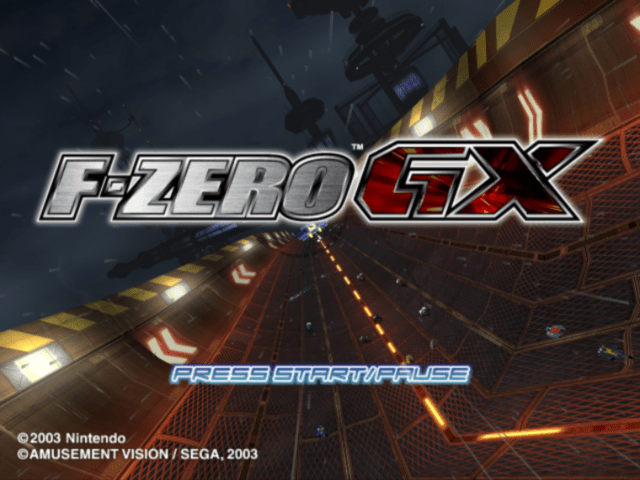
Insert a Memory Card in Slot A, set your Game Disc in the Nintendo GameCube, close the Disc Cover, and turn on the POWER Button. When the title screen appears, press START/PAUSE to start your game.
Registering Your Player Name
If you are playing for the first time, you should first register your Player Name. Use the Control Stick to select the characters then press the A Button to enter them or the B Button to cancel.
Enter up to eight characters to create your Player Name. Once you have finished, select "END" to confirm your entry.
Creating Game Data
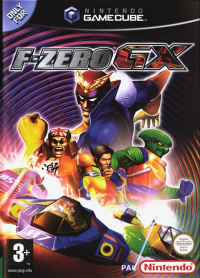
In order to save, you need to create Game Data for F-ZERO GX on the Memory Card inserted in Slot A. You need 4 blocks of free memory to create your Game Data.
The progress of the game will then be automatically saved to your Memory Card.
Title Screen
When you're finished creating the Game Data, the title screen will appear. Press START/PAUSE to start your game.
60Hz MODE
60Hz mode (unlike 50Hz mode) is not supported by every TV. On TVs that support 60Hz mode (PAL60 compatibility) this game can be displayed at 60Hz for an even clearer display with higher quality.
To activate 60Hz mode, select 60Hz MODE when "This version is compatible with 60Hz mode. Please select mode." is displayed.
If you have chosen 60Hz MODE and your television does not display this mode correctly, please turn OFF the power to the NINTENDO GAMECUBE and then turn the power ON again before selecting 50Hz mode. Important Save File Information
See the chart below to view the number of blocks used for this game on the Memory Card. Reserve blocks of free memory in your Memory Card to save the following files.
Memory Card Files
•
Content: Game Progress, Options Settings
•
Content: Customised Machine (Pg. 27)
•
Used blocks: 3 blocks per data
•
Content: Race Replay (Pg. 22)
•
Used blocks: 3-13 blocks per data
•
Content: Emblems (Pg. 28)
•
Used blocks: 3 blocks per data
Save File Notes
•
The progress of Grand Prix, Story and Options settings is automatically saved as the Game Data.
•
Save as many Ghost Data, Replay Data, and Emblem Data as you can fit on the Memory Card.
•
The file size of the Replay Data is determined by the total time of the replay footage. Depending on the length of the replay, you may not be able to save.
Memory Card Instructions
•
Do not remove the Memory Card or turn the console OFF while the file is being saved. Doing so may damage your console or Memory Card.
•
Refer to the Nintendo GameCube Instruction Booklet to see how to delete files and format your Memory Card. Mode Selection
The Select Mode screen will appear once you create (or load) your Game Data. Use the Control Stick to select one of the nine modes then press the A Button to enter.
•
GRAND PRIX (Pg. 15): Play the main mode of F-ZERO GX.
•
VS BATTLE (Pg. 23): Race two to four human opponents.
•
TIME ATTACK (Pg. 24): Try to set a record time.
•
PRACTICE (Pg. 25): Take a practice run on the circuit.
•
STORY (Pg. 26): Play as Captain Falcon and clear missions to progress through his story.
•
REPLAY (Pg. 26): View the replay scenes saved on your Memory Card.
•
CUSTOMIZE (Pg. 27): Create an original machine and emblem or go to the F-ZERO