Navigating the Options Menu
Choose from a variety of Options, which include Game Settings, Control Setup, Save, Load, Delete, Reset Scores and Auto-save.
Use the analog stick or directional buttons ↑ and ↓ to highlight an option and the L and R buttons to cycle through the games. Press the ⓧ button to select an item.
Once selected, use the analog stick or directional buttons ← and → to make the adjustment and press the ⓧ button to accept. Pressing the ⓤ button will return you to the previous menu.
Options settings will be saved automatically upon returning to the Game Select Screen as long as the Autosave function is enabled. If not, manually save your settings by selecting Save in the Options Menu.
Game Settings
Game Settings vary depending on the game you choose. You can choose between two preset settings (Normal, Hardcore), or create your own Custom settings. Below are some of the settings that can be adjusted:
•
Lives: Adjust the number of lives you start with.
•
Difficulty: Manually set the game's difficulty. This setting varies depending on the chosen game.
•
Bonus Life: Set the score amounts where an extra life will be rewarded.
•
Continues: Adjust the number of continues.
Control Setup
Choose this option to view each game's unique controls or reassign and map the controls to different buttons on your controller. For two player games, each player will have to individually access the Control Setup option in order to change their controls.
Once you are finished configuring the Control Setup, select DONE by pressing the directional button → and press the ⓧ button to confirm your choice. You can also cancel and return to the Options screen by selecting CANCEL, or restore the default button configuration by selecting DEFAULT.
Note: You can also access the Control Setup option by pressing the START button during gameplay to pause the game and select it from the Pause Menu.
Mapping Controls
Changing the controls and mapping them to different buttons on your controller is super easy. Simply highlight the ability/button you want to change using the directional buttons ↑ and ↓ and press the button you want to swap it with.
You can even add multiple buttons to the same ability. However, you cannot alter the directional button controls. The Unassigned list will display buttons that are not in use.
Note: Control Setup is slightly different for vertical games allowing you to remap your analog stick.
Rapid Fire
Certain games will have a Rapid Fire option. You can toggle this option ON/OFF by highlighting it and pressing the ⓧ button.
Enabling the Rapid Fire option will allow you "auto-fire" and shoot very fast simply by holding down the fire button. The Rapid Fire button will only affect the shooting or firing function of the game selected and will be mapped to whichever button it's been assigned.
Save and Load Options
•
Save: Select Save to manually save your game settings, which include button configuration, unlocked bonuses and high scores. You don't need to manually save your settings and scores unless the Autosave function has been turned OFF.
•
Load: Select Load to manually load your game settings, which include button configuration, unlocked bonuses and high scores. Choosing this option before saving will cause any unsaved scores and settings to be lost.
•
Delete: Deletes existing save data and clears any items you have previously unlocked.
•
Reset Scores: Selecting this option will reset the High Scores for the selected game back to its default High Score table.
Autosave
Toggle Autosave ON/OFF. This is a global setting for all 20 games in the Capcom® Classics Collection. Autosave occurs when you exit the Options Menu for a game in the Game Select Screen; when you have beaten a game or unlocked a Bonus item; or when you exit a game after a game over.
High Scores
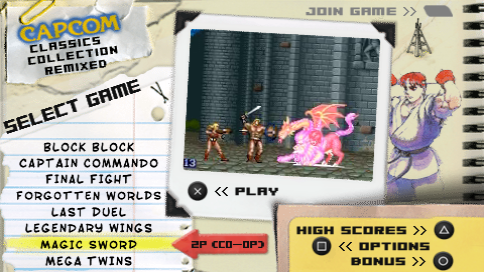
Press the Ⓐ button at the Game Select Screen to view the High Score tables for the currently highlighted game.
Pressing the analog stick or directional buttons ⬅ and ➡ will cycle through the different High Score tables for the selected game's difficulty settings (Normal, Hardcore and Custom).
Pressing the analog stick or directional buttons ⬆ and ⬇ will scroll the score table, while pressing the L and R buttons will cycle between the High Score tables for each individual game.
Join Game
Press the R button at the Game Select Screen to open the Join Game Menu and join an Ad hoc multiplayer game being hosted by a nearby opponent. By default, anyone running the Capcom® Classics Collection will be hosting a multiplayer game if they have not disabled Wi-Fi via the WLAN switch. Start Menu
Press the ⓧ button when you're ready to play your selected game from the Game Select Screen. Once the game has loaded, press the START button again to access the Start Menu.
At the Start Menu, you can choose to start a game and begin playing, join a wireless game via the PSP™ system's Ad hoc mode, access and adjust the game's settings and exit the game and return to the Game Select Menu. Note: On cooperative titles, you can choose to start a single player game (with Cooperative Mode automatically enabled if the WLAN switch is set to ON) by pressing Start Game and others can join you later.
Note: On two-player alternating games, you can choose 2P START GAME, allowing you to play two player sharing the PSP system between you and a friend. This option is only available for select titles and will automatically appear in the Start Menu if the game includes it. Pause Menu
Press the START button during gameplay to pause a game