Console Top View
Console Front View
Setting Up Your PlayStation
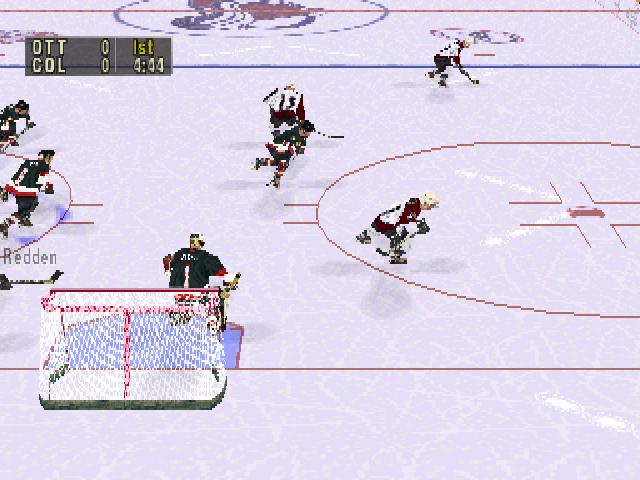
Set up your PlayStation® game console according to the instructions in its Instruction Manual. Make sure the power is off before inserting or removing a compact disc. Insert the NHL Face Off '99 disc and close the CD door. Insert game controllers and turn on the PlayStation® game console. Follow on-screen instructions to start a game. Setting Up The Game
Main Menu
From the Main Menu, use the directional arrow pad (D-pad) Up/Down to highlight a menu option and Left/Right to cycle through the available options. Press ☒ to bring up the next menu and △ to cancel and return to a previous menu.
The SELECT button returns you to the Main Menu from any screen.
Quick Start
Quick Start allows you to start an Exhibition game quickly without having to set up the game.
•
Press △ to go back to the Main Menu if you decide to set up your game format after selecting Quick Start.
Select Game
Use this option to play an exhibition, set up a practice game, start a season, or go straight to the playoffs.
Exhibition
Use exhibition games to sharpen your skills and prepare yourself for a lengthy regular season. Exhibition results are not recorded in season standings.
Before starting a game, go to Rosters to change the makeup of your roster and Options to set up game attributes.
Select Team
Choose your team and an opponent from a selection that not only includes the entire NHL, but a number of international teams as well.
•
D-Pad Up/Down to select Away Team or Home Team.
•
D-Pad Left/Right to choose a team for each.
•
D-Pad Up/Down to Rosters, then D-Pad Left/Right to select Current or Original Roster. A Current Roster is one that has been changed by trades, releasing players, creating players, etc.
•
Press ☒ to bring up the Controller Setup screen.
Controller Setup
Use this screen to assign your controller to a team, login your team initials, choose a configuration setup for your controller, and select your team jersey style. Be sure to login so that team records can be recognized and recorded.
•
D-Pad Left/Right to assign your controller to a team.
To Login:
•
D-Pad Left/Right to select a letter and press ☒ to lock it in. To move back and delete a letter, press ◯.
•
Press START to end your login.
To select a jersey style:
•
D-Pad Up/Down to choose the Home, Away, or Third jersey style for your team.
To set the configuration of your controller:
•
D-Pad Left/Right to set the configuration to one of three controller settings.
•
Press ☒ to set the configuration.
•
Press START to start the game.
Season
A Season allows you to play an entire regular season. If you're good enough, at the end of a season, your team will be sent to the playoffs.
New Single-Team
New Single-Team allows a single user to play an entire season. Selecting it will bring up the Schedule screen for the season.
During a Single-Team season, games can be simulated for the entire league by pressing ◯. If a game chosen to be simulated is a game later in the schedule, all games prior to it will also be simulated. When a game is finished, go to Memory Card to save your season.
•
D-Pad Left/Right to select a team.
•
D-Pad Up/Down to select a game from the schedule to play.
•
Press ☒ to bring up the Controller Setup screen. See Controller Setup above for details.
New Multi-Team
New Multi-Team allows more than one user to play in the same season. Also, games can be played out of the scheduled order in a Multi-Team season. See New Single-Team to set up a Multi-Team game.
During a Multi-Team season, games can be simulated for the entire league or just for a particular team. Be sure to select the Sim Team function to only simulate a game for that team.
989 Sports Tip
At any time during a season, press R1 to end the season.
Continue
Continue a season at the next scheduled game or skip to a different game further down on the schedule. Remember, games can be simulated. To use the Continue Season option, you must have already started a Season and saved the results on the Memory Card. The season must be loaded prior to selecting this option. See Season for more details of how to set up a season game.
Skipping games in a Single-Team season will simulate all games prior to it. However, in a Multi-Team season, all games skipped can still be played.
Team Stats
View the team stats for the entire league.
•
D-Pad Left/Right to cycle through the league's teams.
•
D-Pad Up/Down to view the team's entire list of stats.
Player Stats
View individual stats of every player from each team. See the Abbreviations of Player Stats for abbreviation descriptions.
•
D-Pad Left/Right to cycle through the





.png)
_1.jpg)
.png)


.png)

.png)
.png)

.png)
.png)
.png)

.png)
.png)
.png)