Using the Remote Control Menu
This mode focuses on watching Bomberman's daily life, offering various channels. Press the A button to open the menu and the O button to close it. Channels
•
Channel 1 - Watch Battle
•
Channel 2 - Watch Baseball
•
Channel 3 - Watch Tennis
•
Channel 5 - Edit: Use parts from the Gumball Machine to change Bomberman's appearance.
•
Channel 6 - Options: Change various game settings.
•
Channel 7 - Calendar: Displays the calendar. Today's date is circled in red. Press R1 for the next month, L1 for the previous month.
•
Channel 8 - Name Entry: Enter a name for your Bomberman.
•
Channel 9 - Gumball Machine: Use 100 "bon" (money) to buy a gumball. Gumballs may contain comic strips or parts for Bomberman editing.
•
Channel 10 - Schedule: Create a personal school schedule. Press A to enter edit mode. Use R1 or L1 to change a selected box's color.
•
Channel end - End Live Mode: Ends Live Mode and returns to the title screen.
Using the Controller in Text Input Screens
Text Input screens appear on several channels in Live Mode.
•
Use directional buttons to select letters.
•
Press X to make your choice.
•
Use the [] button to switch among candidates. •
Use directional buttons to select characters and X to make the final choice.
•
Use the ^ Move Mode to change the input location.
BATTLE
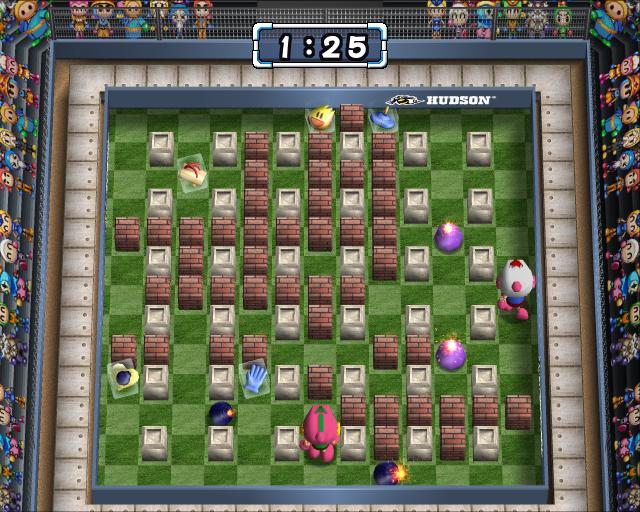
This is the classic Bomberman game. Up to four players can play head-to-head with a multitap (sold separately). Enjoy exciting 3D battles.
Display Changes Depending on the Rules
•
Points Earned: Display changes based on Battle Mode.
•
No display in Normal Battle and Crown Battle modes.
•
Points earned by each player are displayed in Star Battle and Point Battle modes.
Controller Functions
•
L1 & L2 buttons: Displays your Player Number above Bomberman's head when pressed.
•
R1 & R2 buttons: Displays your Player Number above Bomberman's head when pressed.
•
Directional buttons: Moves your character and selects Menu Items.
•
△ button: Stops Bomb Kick bombs. •
○ button: Detonates Remote-Controlled Bombs and cancels Menu selections. •
✕ button: Selects Menu Items, places bombs and is used for the Power Glove. •
☐ button: Activates Line Bomb, Bomb Punch and Bomb Jump. *A digital controller or Analog Controller (DUALSHOCK®) can also be used.
HOW TO PLAY (1)
Select Battle Mode
•
Use directional buttons to select your preferred Battle Mode.
•
Press the ✕ button to make your choice. •
Rules for various modes are described starting on page 12.
Select Characters
•
Choose participating players.
•
Press the △ button to choose whether the character wears a helmet. •
Press the ☐ button during character selection to load a character created in Live Mode. Select Field
•
Select the background from Stadium, Open, or Coliseum.
•
Press the △ button to set the camera angle. HOW TO PLAY (2)
Select Stage
•
Select from a total of 24 different stages.
•
Press the △ button to change the size to Normal, Large, or Small. Select Rules
Once the stage is selected, you may set the rules.
•
Win: Selects whether players compete for a number of wins (Wins) or total points by ranking (Points).
•
Wins/Games: The number of games in a match.
•
Time: Displays the Time Limit for a match.
•
Pressure Block: Sets whether pressure blocks appear.
•
Slots: "Yes": Players retrieve items in slots at the start of a game.
•
Knack: "Yes": Players who are out can attack from outside the field. "Super": You are revived if you defeat an enemy from outside the field.
•
Position: Sets whether the starting position is fixed or random.
•
Interlopers: Sets whether interloper characters appear and take control of a player coming into contact with their panel. The player is then affected by various disabilities.
•
Tile Pattern: Selects the tile pattern for blocks within the stage.
•
Set "Slots" to "Yes" to retrieve Items at the start of a game.
Select Items
•
Press the L1 button to set the Items that you want to appear on stage. •
Press the ▲ button to make your choice. Select Handicap
•
Press the R1 button to set the Items allotted to each player from the start. After Battle Replays
•
After a battle, you are asked to save replay data.
•
Saved replay data can be replayed in Replay Mode.
BATTLE ITEMS
Items that appear are different depending on the stage. Different items with the same symbol (▲ or ★) after their name cannot be used at the same time. The item selected last takes priority.
•
Bomb Up: Increases the number of bombs you can place at a single time. Maximum of 10 bombs.
•
Bomb Down: Decreases the number of bombs you can place at a single time.
.png)

.png)



_1.png)





.png)


.png)

.png)
.png)
.png)
.png)
