Setting Up Your System
Set up your PlayStation®2 computer entertainment system according to its Instruction Manual. Ensure the MAIN POWER switch (on the back of the console) is on.
•
When the power indicator lights up, press the open button to open the disc tray.
•
Place the Pro Race Driver™ disc on the disc tray with the label side facing up. •
Press the open button again to close the disc tray.
•
Attach game controllers and other peripherals as appropriate.
•
Follow on-screen instructions and refer to this manual for software information.
Loading the Game
The controller in port 1 controls game loading and the menu system.
•
You will see the LANGUAGE SELECTION screen, followed by credits screens.
•
Select your language with the left and right directional buttons.
•
Press the X button to confirm and continue to the MAIN MENU.
Memory Cards
The term 'memory card' in this booklet refers to the Memory Card (8Mb) (for PlayStation®2) - (product code SCPH-10020 E). Other Memory Cards, such as Memory Card (SCPH-1020 E) designed for PlayStation® system, are not compatible.
Ensure sufficient space on your memory card before playing.
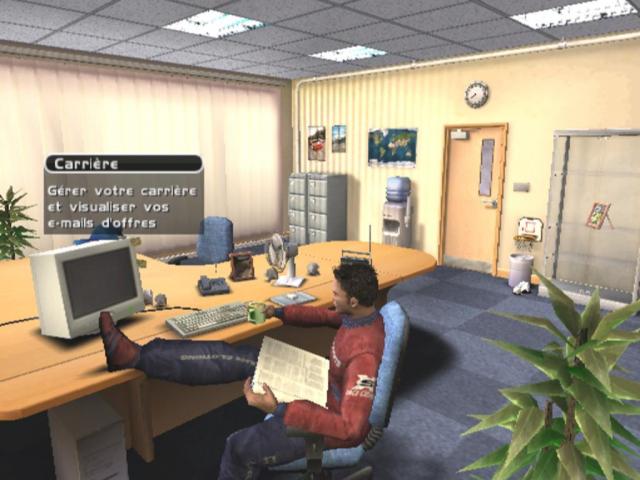
Drivers' HQ
Welcome to the HQ. Here's a quick tour:
•
To Drivers' Lounge - Free Time
Career
Manage your entire career and get job offers here.
Driver Profile
First, set up a user name to access your mail.
•
In the Drivers' HQ, highlight the Computer Terminal and press the X button.
•
Highlight a 'New User' slot to create a new profile, or choose an existing profile and press the X button.
New User
•
Enter your name by highlighting each letter with the directional buttons.
•
Press the X button to enter each highlighted letter into the title bar.
•
Select 'áàäå' to add accents to the previous letter.
•
Select 'Aa' to change the case of the next letter.
•
To delete characters, select '←'.
•
When finished, select 'Done' to continue to the Desktop.
Email Offers
All incoming messages land in your Inbox, including Single Day Events, Job Offers, and Personal mail.
•
Browse mails using the up and down directional buttons.
•
As you highlight a mail title on the left, the message content displays on the right.
•
To accept a job or test drive offer, highlight the message and press the X button.
Progress
The Progress screen shows the entire Championship structure, from the Super Sports Tier to the World Championship.
•
To check details of unlocked race series or review performance in completed series, highlight the series logo using the directional buttons and press the X button.
Log-off
•
Select 'Log-off' to close the computer and return to the Drivers' HQ.
•
Press the button to leave the computer without logging off.
Managing Your Career
Test Drive
To join a team, you need a Test Drive to prove your skills. If you meet the team's criteria, they will likely offer you a position for the rest of the series.
Your performance in Test Drives affects job offers. Good performance leads to better offers, while poor performance attracts lesser teams.
•
Open and accept an offer that interests you.
•
Race day will arrive, and you'll be in the garage waiting to hit the track (see Getting Ready to Race).
Progressing Your Career
The Test Drive was the easy part. To progress your career, you must score points by finishing in the top six places. Points are awarded as follows:
Check the Championship structure under 'Progress' on the HQ computer to see how many points you need for the next tier. Get contracts for individual series via email and keep racing to earn enough points to move up. High finishing positions in the top six will help you advance.
All your successes, failures, and scores are saved to your profile on the HQ computer and loaded each time you log on.
Career successes unlock more elements for other game modes, such as cars and tracks. Keep racing and winning to get the full set.
Pro Race Driver Map
Take on the best drivers in the world. If you're good enough to be a threat, they'll contact you.
Language
•
Use the left and right directional buttons to change the game's language option.
Bonus
•
If you have a Bonus Code, enter it here.
•
Use the directional buttons to highlight each letter.
•
Press the X button to enter each letter and spell out the code.
Graphics
•
Use the left and right directional buttons to change, activate, or deactivate on-screen settings.
•
Select 'Reset to Defaults' to restore original settings.
Sound
•
Use the directional buttons to adjust your game's sound settings.
Controllers
To set up controllers for each player:
•
Select the player name to enter Controller Options.
•
'Player 1' refers to the controller in port 1 or 1-A (with Multitap), or the first occupied port.
•
'Player 2' refers to the controller in port 2 (or the


_1.png)
_2.png)
_1.png)


_1.png)
_1.png)





_1.png)
.png)
.png)


.png)
_1.jpg)

