open button
memory card slot 2
memory card slot 1
controller port 1
controller port 2
USB connectors
disc cover
on/standby/
reset button
IR receiver
GETTING STARTED
Set up your PlayStation®2 computer entertainment system according to the instructions in its Instruction Manual. Make sure the MAIN POWER switch (located on the back of the console) is turned ON.
Press the RESET button. When the power indicator lights up, press the OPEN button and the disc tray will open. Place The Da Vinci Code™™ game disc on the disc tray with the label side facing up. Press the OPEN button again and the disc tray will close.
Attach game controllers and other peripherals, as appropriate. Follow on-screen instructions and refer to this manual for information on using the software.
Owners of SCPH-30000 and SCPH-50000 series consoles should refer to the setup instructions supplied with the console.
Before commencing play, it is recommended that you select your preferred language from the console's System Configuration Menu.
Memory Card (8MB)(for PlayStation® 2)
Throughout this manual, the term 'Memory Card' is used to describe the Memory Card (8MB) (for PlayStation®2).
To save game settings and progress, insert a Memory Card into MEMORY CARD slot 1. You can load saved game data from the same Memory Card or any Memory Card containing previously saved game data. Make sure there is enough free space on your Memory Card before commencing play.
QUICK START
To start your game as quickly as possible, follow these instructions.
•
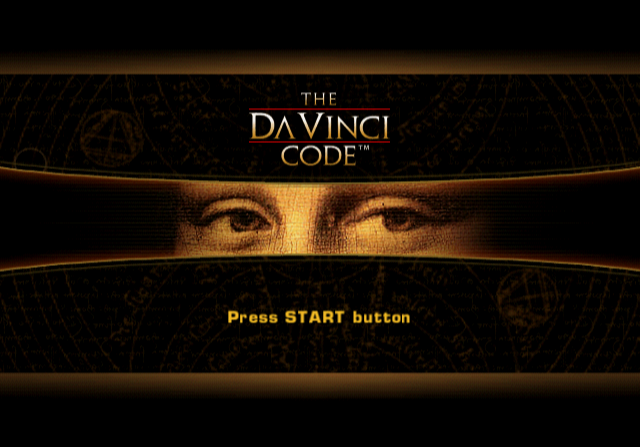
The Main Menu will appear. The New Game option will be highlighted, push Select button.
•
Move to an Empty Saved Game slot and push Select button.
•
Push Select button to reserve that game slot for your new game.
•
Push Select button again to confirm that your saved game slot is now reserved.
•
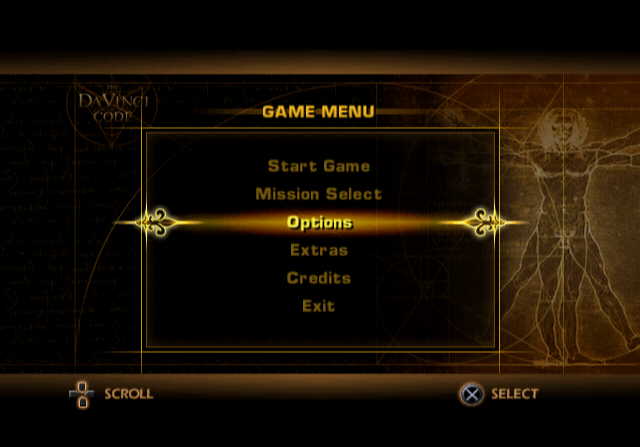
From the Game Menu, Start Game will now be highlighted. Push Select X button to start your game.
MAIN MENU
SCROLL
SELECT
•
New Game - This allows you to select a new save slot where your new game will be saved.
•
Load Game - This brings up your list of saved games and allows you to load one of them into memory.
LOADING A SAVED GAME
SCROLL
SELECT
BACK
•
To load a saved game, select Load Game from the Main Menu.
•
Your saved game list will appear, select the saved game you wish to load.
•
Once selected the Game Menu will appear. From the Game Menu, select Start Game and the saved game you selected will load.
PAUSE MENU
SCROLL
SELECT
During gameplay you can push START button to pause the game and bring up this menu. All of the options here are the same as the Game Menu with the following exceptions.
•
Objectives - This will display your primary mission objectives for the level. If you are unsure of what to do, consult your objectives.
•
Restart - This restarts the level you are currently playing.
•
Quit - This will quit the game and return you to the Game Menu.
•
Save - You may save your game after you have reached a save checkpoint by using this option. Any progress you have made after a checkpoint will be lost. Look for the message "Checkpoint reached," to determine if you are at a point where you can save the game without losing progress.
NAVIGATION
•
Use your LEFT ANALOG STICK to move around the world.
•
Use your RIGHT ANALOG STICK to rotate the camera around your character.
•
When an object or person is interactive, a message will appear at the bottom of the screen telling you what button to push to interact, and what sort of interaction will take place.
INVESTIGATION
PAN
Note
EXIT
•
CAMERA CONTROL - Use the LEFT ANALOG STICK to pan the camera around the object or objects you are investigating.
•
OBJECTS OF INTEREST - When you pan the camera over an object of interest it will highlight and an examine message will appear at the bottom of the screen telling you to push button. If you do, your character might discuss the object of interest and give you interesting and useful information. Some objects will automatically be picked up when you investigate them so that you can examine them further in your inventory.
INVENTORY
SCROLL
BACK
SELECT
BASICS Push R2 button to access your inventory. You can move the LEFT ANALOG STICK up or down to move through the items in your inventory. Push the button to select an item and bring up three menu options.
•
USE This allows you to use the current object you have selected in your inventory upon an object or place within the world.
•
COMBINE - Selecting combine will bring up a secondary inventory menu allowing you to select another object from inventory. Once you select the second object, the two objects will combine when they are compatible.
•
EXAMINE - Allows you to rotate an object to examine it from all sides. This also brings up anything interesting about the object that Robert or Sophie might notice.
PLAYER INTERACTIVE SEQUENCES
There are a variety of sequences that require special motions on the analog sticks as well as rapid button presses. Pay attention to
.png)

.png)



.png)

.png)



.png)