MEMORY CARD slot 2
MEMORY CARD slot 1
USB connector
S400 i.LINK connector
controller port 1
controller port 2
disc tray
RESET button
OPEN button
Setting Up Your PlayStation 2
Set up your PlayStation®2 computer entertainment system according to the instructions in its Instruction Manual. Make sure the MAIN POWER switch (located on the back of the console) is turned ON.
Press the RESET button. When the power indicator lights up, press the OPEN button and the disc tray will open.
Place the Airforce Delta Strike™ disc on the disc tray with the label side facing up. Press the OPEN button again and the disc tray will close. Attach game controllers and other peripherals, as appropriate. Follow on-screen instructions and refer to this manual for information on using the software.
Game Rules
The following conditions lead to failure of a mission. Specific missions may also impose further conditions that must be fulfilled. Be sure to pay attention to each briefing, and to the instructions of your operator during the mission.
The mission will fail if:
•
Your aircraft's damage gauge reaches zero.
•
You crash into the ground, the ocean, a building or some other obstruction.
•
You leave the mission range without receiving specific orders to do so.
•
You take longer than the allowed mission time.
•
A target that you are meant to be protecting is destroyed.
The following conditions lead to Game Over:
•
Failing the first mission.
•
Failing to carry out a mission designated vital within the specified time limit.
Starting the Game
1. Set up the PlayStation®2 console correctly. Turn on the MAIN POWER switch and press the ON/RESET button.
2. Press the OPEN button to open the disc tray and then insert the "Airforce Delta Strike™" game disc. 3. Insert a memory card (8MB) (for PlayStation®2) into MEMORY CARD slot 1.
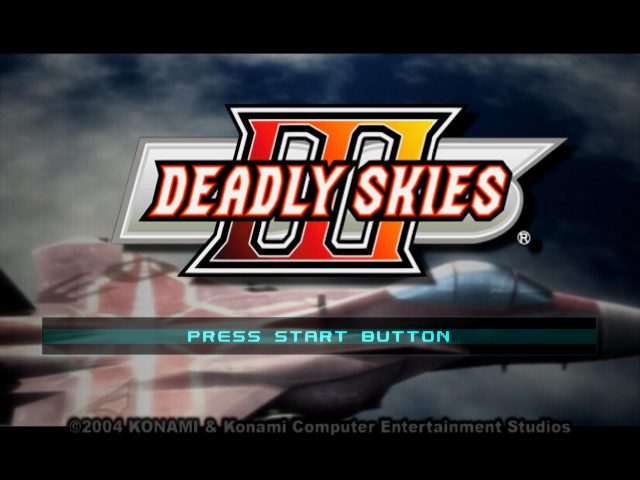
4. Press the OPEN button again to close the disc tray. After a moment, the Konami logo, Konami Studio, and licensee logos will appear, followed by a video and the title screen. A memory card (8MB) (for PlayStation®2) is required to save the game. At least 100KB of free space is required to save the game. For details on using a memory card (8MB) (for PlayStation®2), please see the console user manual.
Memory Card (8MB) (for PlayStation®2)
To save game settings and progress, insert a memory card (8MB)(for PlayStation®2) into MEMORY CARD slot 1 of your PlayStation®2 system. You can load saved game data from the same memory card or any memory card (8MB) (for PlayStation®2) containing previously saved games.
Title Screen Menu
Pressing the START button on the title screen will display the title screen menu. Use up and down on the left analog stick to highlight a selection, and press the button to confirm it.
•
NEW GAME: Start a game from the beginning. Select this option when playing the game for the first time, or when you wish to start again from the beginning.
•
LOAD GAME: Load a previously saved file, and then select an option from the main menu.
•
CONFIG: Alter various game settings, including control settings.
Main Menu
•
CONTINUE: Restart the game from the previously saved position.
•
FREE MISSION - Pg.40: Replay any mission that you have cleared at least once during the main game.
•
AIRCRAFT VIEWER - Pg.41: View all the playable aircraft that you have obtained, along with various other types of aircraft that appear in the game.
•
CHARACTER PROFILES - Pg.41: View profiles of the characters that appear during the game.
•
MOVIE VIEWER - Pg.41: Watch any movie that you have seen during the game.
•
REPLAY VIEWER - Pg.41: View a saved replay.
System Save
Save system data. You cannot save your progress through the game from this option-only your Config settings, Free Mission scores and other such system data.
System Load
Load system data. You cannot load your progress through the game from this option-only your Config settings, Free Mission scores and other such system data.
Config - Pg.34
Alter various game settings.
Back to Title Menu
Return to the title menu.
*Some of these options may not be available when you first play the game.
Gameplay
Progress through the game generally follows the same overall pattern.
Briefing Room
If you go to the Briefing Room from the Airbase menu, a list of the missions you can participate in will appear. Selecting the mission you wish to join will then allow you to view its briefing.
After the briefing, the route to the mission point will appear on the World Map. Then select the character you wish to use and an aircraft to take off in. You are now ready to launch.
World Map Screen
The location of bases, your next target, and completed missions will be displayed on the World Map. Selecting a route and pressing the confirmation button will allow you to move around the map. Head toward the mission location.
3D Combat Screen
Carry out the specifics of the mission within the time limit by flying your aircraft within the 3D mission range. The purpose and targets of each mission will be explained in the briefing and during the game, so pay close attention to your operator at all times.
Once the combat is over