Starting the Game
*Note: Illustration may not match all PlayStation 2 console types. For owners of SCPH-70000 series PlayStation 2 systems, refer to the setup instructions supplied with your system.* 1. Set up your PlayStation®2 computer entertainment system according to the instructions in its Instruction Manual.
2. Make sure the MAIN POWER switch (located at the back of the console) is turned ON.
3. Press the RESET button. When the power indicator lights up, press the OPEN button and the disc tray will open.
4. Place The Sims™ 2 disc on the disc tray with the label side facing up. Press the OPEN button again and the disc tray will close. 5. Attach game controllers and other peripherals, as appropriate.
6. Follow on-screen instructions and refer to this manual for information on using the software.
Creating Fashions for Your Sims
Customize your Sim's appearance using the Fashion Designer. From selecting multiple layers of clothing to determining how your Sim wears a selected item, you decide whether your Sim is a fashion force or a fashion faux pas.
Head
From spunky baseball caps to funky sunglasses. Specify how your Sim wears their hat or what color lenses they like for their glasses.
Tops
Select and combine undershirts, overshirts, and jackets, then specify if it's tucked in, buttoned or zipped, etc.
Bottoms and Shoes
Select pants or a skirt—are the pants cuffed, Capri-length, or short shorts? Then find the perfect pair of shoes for your outfit.
Accessories
The right accessories can make an outfit. Choose belts, tattoos, and jewelry.
You can return to the Fashion screen by using dressers and wardrobes in the game.
•
Choose your Sim's skin tone and body type, morph their body shape and head, select a hair style and color, and add makeup/facial hair and tattoos
•
Design and choose your Sim's clothing
•
Determine your Sim's Aspiration—Romance, Wealth, Knowledge, Popularity, Creativity (see p. 5)
•
Adjust your Sim's personality
Game Screen
•
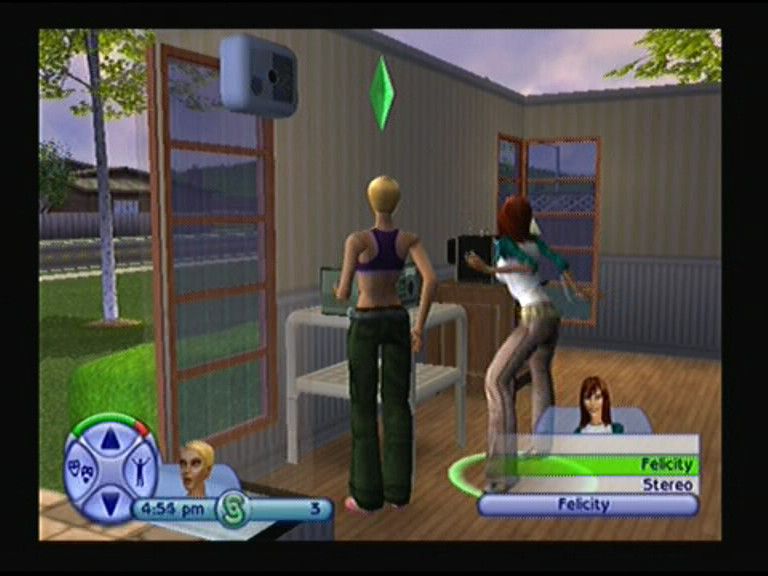
Press the button to bring up the tool tips for any of the sub menus
•
Your Sim's mood: more green indicates they're happy, a lot of red indicates unhappy
•
Press D-button to close a sub menu
•
Wants and Fears (D-button)
•
Simoleons (money) your Sims have
Pause Menu
To access the Pause menu, press the START button while in-game.
•
Review your Sim's progress in Story mode
•
See what kind of relationships your Sim has with other Sims
•
Build new structures and demolish old ones
•
Review your Sim's current Wants and Fears
•
Access information about your Sim's career, skill levels, and personality
•
Access the Buy Catalog for shopping (and selling!) made easy
•
Save or quit a game, adjust volume levels, enable free will, and more
•
EyeToy® USB Camera—Access EyeToy features
Needs and Mood
Mood
Your Sim's overall Mood meter displays a summary of their needs. The more green that shows, the happier they are. The more red, the less happy. Unhappy Sims have a hard time socializing, going to work, or satisfying their needs autonomously. Grumpy Sims won't get promoted or build skills. Sims you can't control may have bad moods too, which is why they may not be receptive. Stay in the green!
Needs
Keep your Sim socialized by interacting with other Sims, talking on the phone, or chatting online.
Eating and sleeping increase your Sim's need for the toilet. Find a bathroom to avoid an embarrassing puddle.
Some activities cause your Sim's hygiene to decline. Hit the showers or wash your hands.
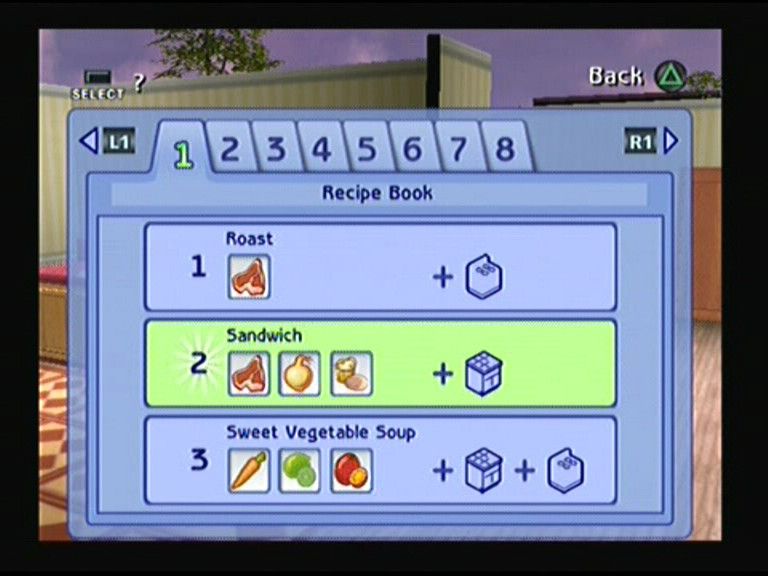
Quiet a Sim's rumbling tummy by eating some tasty vittles. Some food recipes satisfy hunger better than others.
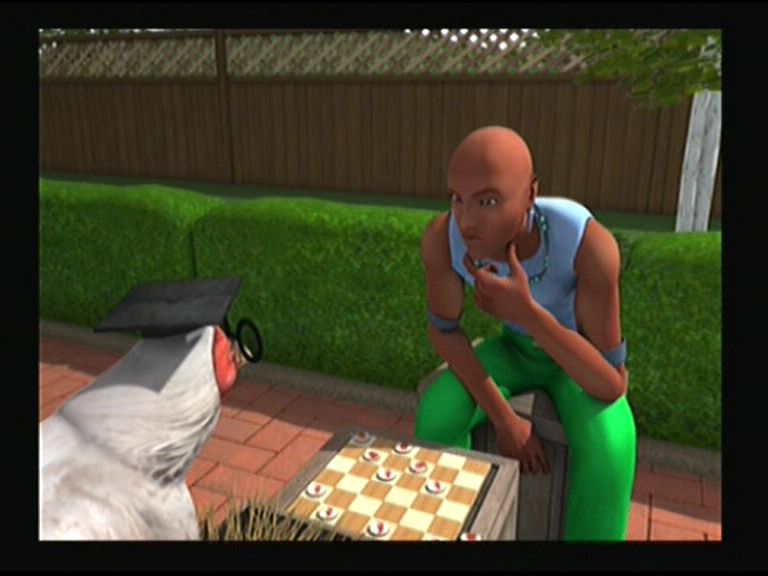
Find something entertaining for your fun-deprived Sim to do: watch TV, dance, or play a game.
Take a snooze or eat some energizing food.
Lounge on a sofa, rest in a chair, or bask in bed.
A bright, well furnished environment keeps your Sim's Room score high. Dirty and rundown locations leave your Sim feeling flat.
Death
Beware, extremely low needs can send your Sim on a vacation with the Grim Reaper (a very hungry Sim starves to death, for example). Your Sim might also make their final exit if they try to interact with an object that they aren't skilled at using (e.g., cooking on the stove or repairing the TV). To rejoin the land of the living, your Sim can purchase a RETURN TO LIFE ticket from the Grim Reaper or outperform the Grim Reaper in a challenge. Ghosts
Until your Sims can cash in on a reincarnation, they remain ghosts. Ghosts have limited interaction options (they can't use objects) but can walk through walls and can also interact








 (En,Fr,De,Es,It,Nl).jpg)




_1.jpg)




_1.jpg)


.png)


.png)


_1.png)