Getting Started
Set up your PlayStation®2 computer entertainment system according to its Instruction Manual. Make sure the MAIN POWER switch (located on the back of the console) is turned on.
Press the RESET button. When the power indicator lights up, press the open button and the disc tray will open. Place the SOCCER AMERICA INTERNATIONAL CUP™ disc on the disc tray with the label side facing up. Press the open button again and the disc tray will close.
Attach game controllers and other peripherals, as appropriate. Follow on-screen instructions and refer to this manual for information on using the software.
Multitap
•
multitap connector (for PlayStation®2)
Game Modes
•
INTERNATIONAL CUP - Select a nation and compete against 18 other worldwide soccer powerhouses in a tournament.
•
HOT-B CUP - Select a nation and compete in an elimination tournament against 32 other worldwide soccer teams.
•
WORLD RANKING - Build the U-23 team and strengthen the team by accumulating points for skills and techniques executed on the field of play.
•
LEAGUE PLAY (Single or Multiplayer)
•
Group A: European League with 14 teams.
•
Group B: African League with 4 teams.
•
Group C: American League with 6 teams.
•
Group D: Asian/Oceanian League with 10 teams.
•
GLOBAL LEAGUE - Choose the number of teams to compete: 4, 8 or 16 teams. Multiplayer modes are active in this section.
•
SHOOT OUT (Single or Multiplayer) - Shoot out against a rival team.
Options Menu
Before entering one of the game play modes, the Options menu may be utilized to change the setup of SOCCER AMERICA INTERNATIONAL CUP™.
Sound
Adjust sound settings.
•
Sound Effects Set On/Off and volume level.
•
Commentary Set On/Off and volume level.
•
Music Set On/Off and volume level.
Controls
Select controller configuration.
•
A type ("Easy Play" mode)
"Easy Play" mode enables players to compete using the X button for the primary game controls. This feature is excellent for players who are familiarizing themselves with the game, allowing them to compete at a high level without having to execute standard button functions.
Vibration
Select On/Off.
Load/Save
Load and save data. Change settings for automatic saves.
Select a Language
Select English or Spanish modes of the game.
Name Edit
Change players' names and customize any major team's roster.
Screen
Change screen orientation.
Game Settings
•
TIME Select real time running clock length.
•
LEVEL Select skill level: Very easy/easy/normal/hard or very hard.
•
HANDICAP Select handicap level.
Locker Room
Once a player has selected a game play mode, team and settings, the locker room will appear. This menu allows the player to fine-tune strategies and elements used during the game. This menu is accessible before the kickoff, half time and during breaks in game play.
Change Players
Select a player to be changed/substituted and select a replacement that is eligible to participate. Each player shows three attributes: Offensive Skill Level (OF), Defensive Skill Level (DF) and Strength/Energy Level (ST).
Select Kickers
Select player(s) to kick free kicks, corner kicks and penalty kicks.
Formation
Select desired Defender, Midfielder and Forward formations. Offensive Power (OF) and Defensive Power (DF) are indicated below:
•
3-4-3 OF=4, DF=1 Strong attack
•
3-5-2dv OF=2.5, DF=2.5 Midfield strength formation 1
•
3-5-2 OF=2.5, DF=2.5 Midfield strength formation 2
•
3-6-1 OF=2, DF=3 Strongest midfield bias
•
4-3-3 OF=3, DF=2 Balanced offensive and defensive formation
•
4-4-2dv OF=2.5, DF=2.5 Standard formation 1
•
4-4-2 OF=2.5, DF=2.5 Standard formation 2
•
4-5-1 OF=1.5, DF=3.5 Counter attack formation
•
5-3-2 OF=1, DF=4 Strong defensive formation.
Strategy
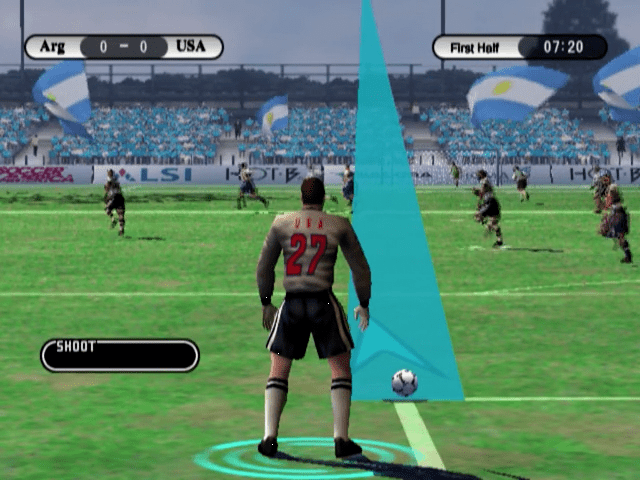
Selected strategy may be viewed and changed with the L1 button during game play. The selected strategy will appear at the corner of the screen if activated by the L1 button.
•
LEFT SIDE ATTACK - Left Defender will attack on the left side of the field near the stop line.
-






.png)


_1.jpg)











.png)




.png)