GETTING STARTED
PlayStation®2 System
Set up your PlayStation®2 computer entertainment system according to its instructions. Ensure the system is turned on (on/standby indicator is green). Insert the PES 2013 disc label side up. Attach game controllers and other peripherals. Follow on-screen instructions and refer to this manual for software usage.
Memory Card (8MB) (for PlayStation®2)
To save game settings and progress, insert a memory card (8MB) into MEMORY CARD slot 1. You can load saved game data from the same memory card or any memory card (8MB) containing previously saved games.
SYSTEM SETTINGS
This menu offers useful functions like button configuration and data management.
PES Data Control
Use this option to load and save Option Files, copy and delete data, and import data from a PES 2012 Option File. If Auto Save is active, all settings adjustments will be automatically saved to your Option File.
Button Configuration
Tailor controller settings to your preferences. Highlight an action with directional buttons and perform the desired swap with the button. Use the button to switch between offense and defense controls. Press the button to load saved Button Configuration settings from the Option File.
Sound Settings
Adjust commentary, music, and sound effect options.
Screen Settings
Reposition the game display on your television or monitor.
Language
Select the language for in-game text and commentary.
GALLERY
Visit the Gallery to watch saved replays, view your track record, and create music playlists. Choose "Credits" to see the team behind PES 2013.
PES-Shop
Spend PES "points" on bonus features. Points are awarded after every match, regardless of result, but in greater quantities for winning tournaments and leagues. You only receive points the first time you win a particular competition, so spend wisely.
TRAINING MODE
Practice basic controls or master advanced techniques.
Step-by-Step Training
This mode offers challenges to improve your play. Pick a level (Beginner or Intermediate) and follow on-screen instructions.
Free Training
Choose a team and play practice matches against up to eleven reserves.
EDIT MODE
Customize teams and players, or create your own club. Use the button (look for the prompt at the bottom of the screen) for detailed instructions.
GAME SETTINGS / FORMATION SETTINGS
•
You control all the action on and off the pitch.
•
You control the players on the pitch and the AI handles substitutions and tactics.
•
The AI controls the players on the pitch and you act as manager.
•
For cooperative play, other players simply choose the same side as you.
2: Change Cursor Settings
This option sets how frequently the player cursor switches.
•
Assisted: Eight speeds to choose from; fewer blue blocks mean slower cursor changes. You can also switch manually.
•
Semi-Assisted: Cursor moves automatically only when attacking. To change manually when defending, press the L1 button.
•
Unassisted: All cursor switching is executed by pressing the L1 button.
•
Select Player: The cursor is fixed on one player and cannot be changed.
3: Goalkeeper Cursor
If "ON", you can directly control your goalkeeper's basic movement while defending by pressing the button and L1 button simultaneously.
4: Cursor Display Settings
Choose how the player cursor appears. "Default" shows the controller number (1 to 8), "User Name" displays the identity registered in the Option File, and "Player Name" shows the name of the individual under your control.
5: Load All Settings
Useful for matches against human opponents. With memory cards (8MB) (for PlayStation 2) containing personal Option Files in MEMORY CARD slot 1 and MEMORY CARD slot 2, you can automatically load settings and button configuration data for both players. SELECT TEAM/STRIP SELECTION/GENERAL SETTINGS
After finalizing Player Settings, select teams and uniforms. Before kick-off, modify General Settings like Game Level, Match Time, and Rule Settings.
FORMATION SETTINGS
Select your team, pick (and edit) a formation, and adjust strategic settings. The tactical flexibility is vast, but you can bypass features. This chapter introduces key features. Use the in-game Help function by pressing the button when the Help icon appears.
MAIN MENU
An easy-to-use front end to traditional Formation Settings.
•
Start Match: Start the game.
•
Simple Settings: Configure strategy by selecting keywords. PES 2013 AI configures tactics and line-up.
•
Auto Settings: PES 2013 AI suggests a formation, tactics, and first team.
•
Manual Settings: Access "classic" Formation Settings to configure every aspect of your team's tactics.
•
Disable Main Menu: Go straight to the Manual Settings screen on future visits.
MANUAL SETTINGS
Changing the Formation Display
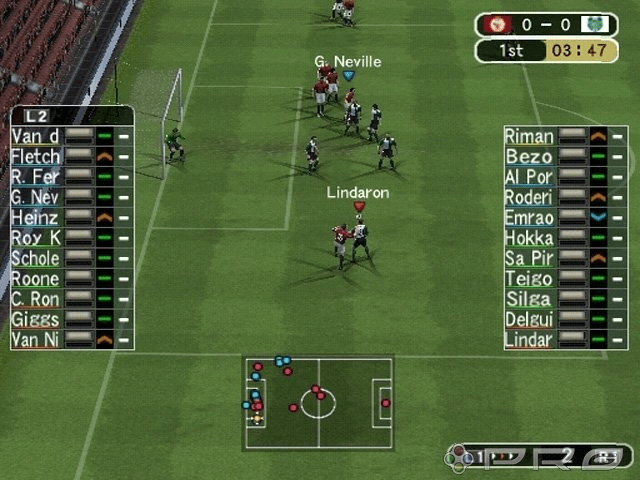
Press L2 or R2 to toggle different "pages". Default shows current formation. You can also view shirt numbers, movement directions (areas players cover when in possession), and defensive instructions (longer arrow means more focus on breaking up attacks).
Changing the Status Display
Press L1 or R1 to switch through pages. These show player positions, stamina and condition, yellow and red cards, and set-piece takers. In Master League mode, or with "Cumulative Fatigue" active, an additional gauge appears beneath stamina bars for successive matches. As it




_1.png)





.png)


.png)

.png)


_1.jpg)












_1.png)