GETTING STARTED
Set up your PlayStation®2 system according to the instructions. Ensure the system is on (on/standby indicator is green).
•
Press the OPEN button to open the disc cover.
•
Place the ProStroke Golf disc with the label side facing up.
•
Attach game controllers and other peripherals.
•
Follow on-screen instructions and refer to this manual.
MEMORY CARD
To save game settings and progress, insert a memory card (8MB) (for PlayStation®2) into MEMORY CARD slot 1. You can load saved game data from the same or any compatible memory card.
It is advised not to insert or remove accessories or memory cards once the power is turned on.
This game requires at least 67 Kb of free memory to save a profile and 3407 Kb to save a full course. Ensure sufficient free space before playing.
ProStroke Golf only supports memory cards (8MB) (for PlayStation®2) in memory card slot 1. Make sure the required memory card is inserted into Memory Card slot 1 before beginning play.
PlayStation®2 Components
CREATING A PROFILE
Before playing, you need to create a Golfer Profile. This profile holds every detail of your golfer's career and allows you to chart their progress.
•
Enter a name for your golfer using the on-screen keyboard.
•
Choose a player model and customize their appearance (hats, shirts, gloves, trousers, shoes).
•
Select 'OK' and press the button.
After saving, your golfer is ready for their first round. All achievements and failures are recorded and can be viewed from the 'View Profile' screen on the main menu.
QUICK PLAY
If you want to play immediately, select Quick Play from the menu and press the button. This mode allows you to play a single round of golf on any course.
MAIN MENU
Quick Play
Allows you to jump straight in and play a quick round of golf on any of the available courses.
Game Modes
Play Round
Play a fully customizable round of golf, from the number of holes to wind strength. Choose Match or Stroke play against various computer difficulties or up to 3 friends.
Select which player uses which controller from the setup screen menu. Player one will start their round, then player two, and so on.
Play Tournament
Set up a custom tournament against up to 68 computer-controlled opponents of variable difficulty.
WTG Career
Take your golfer from obscurity to glory in ProStroke Golf's career mode.
Training
Learn everything from your first swing to complex draw, fade, and punch shots in the ProStroke Golf training mode.
Course Designer
Create your own course with the comprehensive and easy-to-use course designer. Share your creation or stage your own tournaments.
Options
Customize your settings in ProStroke Golf.
View Profile
Keep track of your golfer's career progress.
Change Profile
Create a new profile or load an existing profile from the memory card (8MB) (for PlayStation®2).
SETTING UP THE SHOT (CADDIE VIEW)
Use the Left Analog Stick to adjust your aim by moving the yellow target marker. The marker shows distance, height, and the currently selected club.
•
Press L1 to cycle up clubs.
•
Press R1 to cycle down clubs.
•
Press the button to toggle view between golfer and ball landing point.
•
When satisfied with aim, press the button to change to swing view.
PLAYING THE SHOT (SWING VIEW)
You are now looking down the club shaft at the ball from a golfer's eye view.
•
Press the button to look down the hole and check your aim.
•
To change aim, press the button to return to Caddie View.
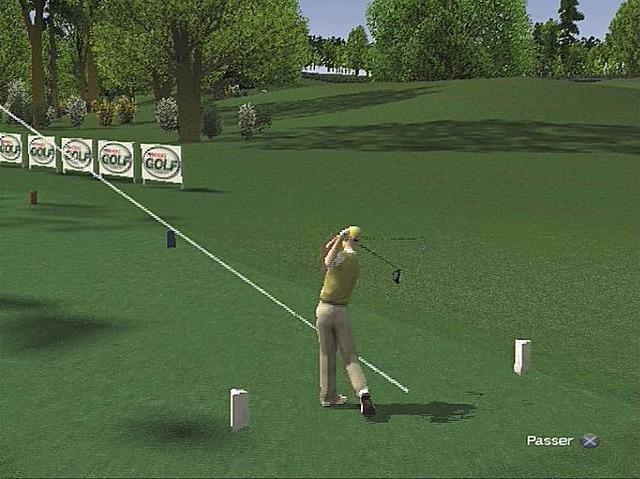
To begin the backswing, move the Right Analog Stick to the right. The swing meter will rise. As it reaches the required power, move it swiftly back to the left in a straight line to hit the ball.
Moving the Right Analog Stick up or down during the downswing will cause your golfer to lean, resulting in a hook or slice. Moving it in a straight line (without wind) will result in a straight shot.
If you decide not to play the shot during the backswing, allow the Right Analog Stick to re-center, and your club will return to the address position.
MOVING THE BALL POSITION AND ALTERING YOUR STANCE
In Swing mode, the directional buttons adjust ball position and golfer's stance, affecting the shot in four ways:
•
Right directional button: Moves the ball back in your stance, hitting it earlier in the swing. This lowers the trajectory as the clubface closes more. Use with the Left Analog Stick for 'punch' and 'chip and run' shots.
•
Left directional button: Moves the ball forward in your stance, hitting it later in the swing. This raises the trajectory as you hit the ball 'on the up'. Use with the Left Analog Stick for high trajectory 'flop' shots.
•
Up directional button: Moves your front foot forwards, closing your stance and changing your swing plane to in-to-out, adding draw (right to left movement) to the ball. Adjust your aim right to compensate.
•
Down directional button: Moves your front foot backwards, opening your
.png)


.png)