GETTING STARTED
Note: Illustration may not match all PlayStation 2 console types. For owners of SCPH-70000 series PlayStation 2 systems, refer to the setup instructions supplied with your system. Set up your PlayStation®2 computer entertainment system according to the instructions in its Instruction Manual. Make sure the MAIN POWER switch (located on the back of the console) is turned ON.
Press the RESET button. When the power indicator lights up, press the OPEN button and the disc tray will open. Place the SHADOW OF ROME™ disc on the disc tray with the label side facing up. Press the OPEN button again and the disc tray will close.
Attach game controllers and other peripherals, as appropriate. Follow on-screen instructions and refer to this manual for information on using the software.
Memory Card (8MB) (for PlayStation®2)
To save game settings and progress, insert a memory card (8MB)(for PlayStation®2) into MEMORY CARD slot 1 of your console. You can load saved game data from the same memory card or from any memory card containing previously saved games.
•
You must be using a memory card with at least 166KB of free space in order to save your game data. You can save up to 10 SHADOW OF ROME games on a memory card before you have to overwrite older game data.
•
Do not remove the memory card or turn off the power while saving or loading game data. Doing so could damage your game data.
GETTING INTO THE GAME
As you play SHADOW OF ROME, your control will switch between the two main characters, Agrippa and Octavianus, at various points in the game. Each character offers his own style of play. Agrippa's parts focus on gladiatorial combat, while Octavianus' parts focus on stealth action and information gathering. Press the START button on the Title screen to display the Main Menu. Use the left analog stick to select options and press the button to confirm your selection.
•
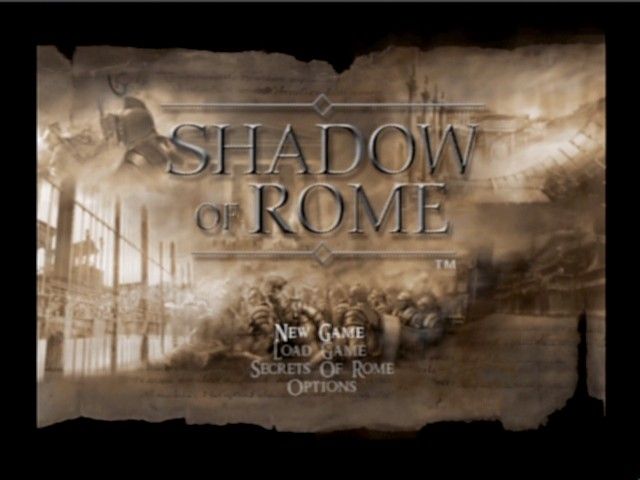
NEW GAME: Begin a new game.
•
CONTINUE: Resume the current game from the last save point.
•
LOAD GAME: Resume a game from any SHADOW OF ROME saved game on your memory card.
•
BATTLE SELECT: Replay any battle you have cleared.
•
SECRETS OF ROME: View secrets that are revealed as you progress.
•
OPTIONS: Adjust the game's option settings of the game. The Options Menu is also accessible through the Pause Menu.
ENDGAME
•
AGRIPPA - GAME OVER: Agrippa's Game Over occurs when his Vitality Gauge is fully depleted. A Game Over may also occur if he fails to fulfill the requirements of a Gladiatorial Match. •
OCTAVIANUS - YOU FAILED: Octavianus' game ends if he is attacked by an enemy. Octavianus may also fail if he is discovered in certain missions. When the game ends, you have the option to:
•
CONTINUE: Continue from the last Continue Point passed. Continue Points are certain points (such as before a Gladiatorial Match, or when you arrive in a new area) from which you can continue play.
•
QUIT: Return to the Title screen. Your game data is not saved when you quit.
CHARACTER MOVEMENT
•
Move the left analog stick in the direction you want to go. Push it lightly and the character will walk. Push it farther and he will run.
CAMERA MOVEMENT
The camera rotates around the character in the direction you push the right analog stick. This function is not available when the Camera Lock icon is on screen.
ATTACKING
Press the button to attack with your Main Weapon and the button to attack with your Sub Weapon.
LOCKON
Press the R1 button to lock-on to a particular enemy. You move in relation to the enemy position for as long as you hold down the button.
CROUCHING
Press and hold the L2 button to crouch. You can move while crouching.
THROWING WEAPONS
•
AGRIPPA: While holding a main weapon, press the button to throw it. Press the R1 button (lock-on) to make it easier to aim before throwing.
•
OCTAVIANUS: Press the button to throw certain items (apples, stones, etc). Sub Weapons cannot be thrown.
PICKING UP WEAPONS
•
Pick up weapons by pressing the button near them. When you get near a weapon, its name and durability are displayed.
DROPPING WEAPONS
Press the directional buttons to drop your Main Weapon. Press to drop your Sub Weapon. Press ↑ to drop your helmet.
FIRST PERSON VIEW MODE
Hold the R2 button to enter First Person View Mode. Then press the directional buttons ↑/ to zoom the camera in/out. This comes in handy when aiming weapons before throwing them.
ACTION ICONS
SEARCH
•
When you are near an item or object that can be examined, the Search icon appears. Press the button to examine the object.
ACTION
The Action icon appears when you are near an object such as a ladder or crate that can be climbed up or down. Press the button to initiate the action. TALK
When you are near a person you can speak to, the Talk icon appears. Press the button to hail the person or listen in on a conversation.
.png)

.png)



.png)

.png)


.png)
