System Setup
Set up your PlayStation®2 computer entertainment system according to its Instruction Manual. Ensure the MAIN POWER switch (on the back of the console) is on.
•
When the power indicator lights up, press the Open button to open the disc tray.
•
Place the Spider-Man 2™ disc on the disc tray with the label side facing up. •
Press the Open button again to close the disc tray.
•
Press the RESET button to reset the game.
•
Attach game controllers and other peripherals as appropriate.
•
Follow on-screen instructions and refer to this manual for software information.
Memory Card
Spider-Man 2™ requires a memory card (8MB) (for PlayStation®2) to save your games. A saved game's data takes up 200KB. You can obtain a memory card (8MB) (for PlayStation®2) from the retailer where you purchased your PlayStation®2 computer entertainment system or this game.
Menu Navigation
Use the ↑ and ↓ directional buttons to navigate menu options. Highlight the desired option and press the X button to accept.
Follow on-screen button prompts to select menu options. Press the X button to accept and the △ button to go back.
Controller Support
Spider-Man 2™ supports the DUALSHOCK®2 analog controller. When the MODE INDICATOR is on, the left analog stick works the same as the directional buttons. Note: Spider-Man 2™ only supports controller port 1. Explore the City
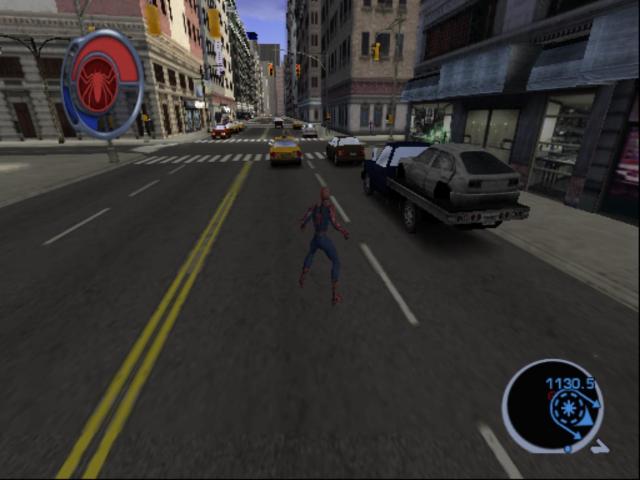
This time around, you get to go everywhere. Climb to the top of skyscrapers or dive down to the busy streets. Swing around Times Square or run inside the buildings of Manhattan. You and Spider-Man have free rein over the city. Create a Profile
Start by creating a user profile to save your game progress.
•
Use the directional buttons to navigate and press the X button to select letters.
•
Choose Enter on the keyboard to start the game.
Login Screen
Pause Menu Screens
Use the Pause Menu to access all game screens during play.
•
Use the L1 and R1 buttons to cycle through the Pause Menu screens.
•
Use the directional buttons and the X button to highlight and select options.
•
Press the START button to return to your game.
From the Pause Menu you can access the following screens:
Missions
Go to the Missions screen to check the To Do List to stay up to date on what you've done and what you have to do next.
Save/Load
Save, load or start a new game.
To save your game, press START to access the Pause Menu. Press the R1 button to get to the Options Menu and then choose Save.
You can choose to save your game in 1 of 3 slots. You can save your game whenever you want. When you load the game the next time, you'll get all your stuff back. Good times to save are whenever you finish a chapter, do well at a challenge or find a hard-to-reach secret token.
Options
Here you can turn the Score Display, Controller Vibration and Easy Swinging mode on and off; change the sound settings; view or change the controller configuration; and invert the right analog stick's camera controls.
Swing Boost
When swinging, press the L2 button to get a swing speed boost. If you press the L2 button at the bottom of your swing, you'll get the maximum boost.
Citizens in Distress Missions
While swinging through the city you'll see civilians with a green ? icon over their heads. You can choose to approach them and begin a mission.
First, walk up to the civilian, face them and press the button. They'll tell you that someone's being attacked, robbed or just needs help. Completing these missions earns Hero Points that you can spend in one of the Upgrade Stores.
Random Crimes
Sometimes while swinging around the city you'll notice random crimes occurring. You can choose to intervene and stop the crime or continue on your way if you're too busy. It's not mandatory, but stopping these crimes earns Hero Points.
Zoom Map
If you're outdoors, you can press the SELECT button to show the zoom map. (The game will remain paused for as long as you want to look at the map.) Then use the following controls:
•
Control: directional buttons or left analog stick
Action: Move the map around
Action: Zoom out so you can see more area
Action: Zoom in so you can see more detail
•
Control: L1 and R1 buttons
Action: Show challenges, hint markers or locations nearby.
•
Control: Δ or the SELECT button
Action: Leave the zoom map
Hero Points
Spider-Man can earn Hero Points by doing a number of heroic things: stopping petty crimes, saving helpless civilians, beating up the super villains and many more... Use the Hero Points you earn to upgrade Spider-Man's combat, webbing and swinging abilities in one of the Upgrade Stores in the city. Icons in the Game
•
Story Mission Objective (Blue)
•
Civilian Offering Information (Green)
•
Objective for To Do List
•
Camera Icon (Yellow) (used in Daily Bugle Missions)
•
Citizens in Distress Mission Waypoint (Yellow)


_1.png)

_1.png)


_1.png)



.png)



_1.png)

_1.png)





_1.png)








_1.png)