GETTING STARTED
Set up your PlayStation®2 computer entertainment system according to the instructions in its Instruction Manual. Make sure the MAIN POWER switch (located on the back of the console) is turned ON.
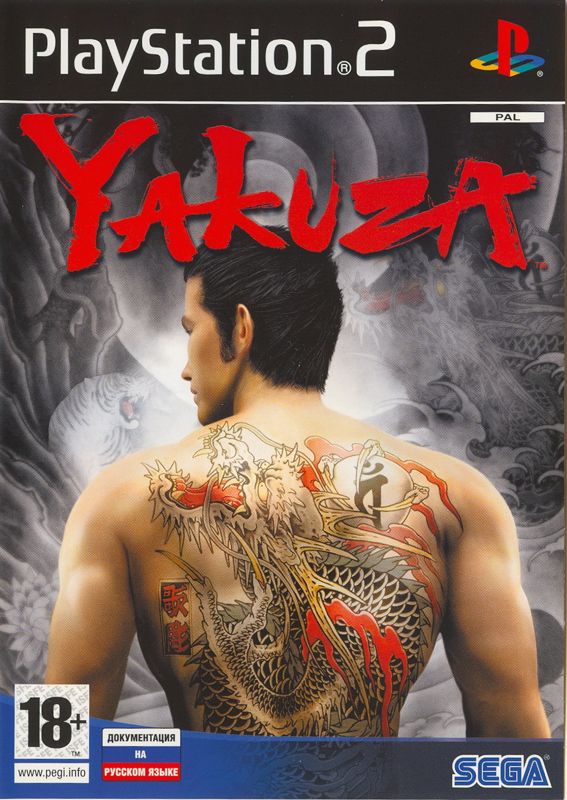
Press the RESET button. When the power indicator lights up, press the OPEN button and the disc tray will open. Place the YAKUZAT™ disc on the disc tray with the label side facing up. Press the OPEN button again and the disc tray will close.
Attach game controllers and other peripherals, as appropriate. Follow on-screen instructions and refer to this manual for information on using the software.
Memory Card (8MB) (for PlayStation®2)
To save game settings and progress, insert a memory card (8MB) (for PlayStation®2) into MEMORY CARD slot 1 of your PlayStation®2 system. You can load saved game data from the same memory card or any memory card (8MB) (for PlayStation®2) containing previously saved games.
New game data will be created automatically the first time you play. A minimum of 135KB free space is required to create game data. Do not remove the memory card (8MB) (for PlayStation®2) while loading or saving is in progress.
Saving is performed manually in this game. You can save your game progress at a hideout or at a Save Point (p.12). You will also be prompted to save at the end of each chapter.
CONTROLLER
DUALSHOCK®2 ANALOG CONTROLLER CONFIGURATIONS
Yakuza is a one-player game compatible with the DUALSHOCK® and DUALSHOCK®2 analog controllers. Connect the controller to controller port 1.
•
Controls are set in ANALOG mode (mode indicator: ON) and cannot be switched to digital mode by using the ANALOG mode button. The LED display is always lit in red.
•
This game supports the vibration function present on the controller. This can be set ON/OFF from the Vibration option in the Options menu (p.7).
MENU CONTROLS
•
Left analog stick/directional buttons: Select Menu Items
•
○ button: Enter Selection (Confirm)
PAUSING THE GAME
•
START button: Open Pause Menu (p.30)
•
SELECT button: Pause without Pause Menu (p.11)
For other controls, please refer to p.10 for controls in the Adventure Mode and p.18 for controls in the Battle Mode.
STARTING THE GAME
When you start the game, the opening demo movie will be played, followed by the Title Screen. Press the START button to bring up the Title Menu. Choose from the following menu items.
NEW GAME
Start the game from the beginning. The Chapter One Title Screen will be displayed, and the story will begin.
LOAD GAME
Load the Game Data, and continue the game. When this is selected, the game verifies the data, and a list of saved data will be displayed. Select data, and press the ○ button to load.
•
Data: The Chapter where the game was saved.
•
Difficulty: The Difficulty Level of the game. Please also see GAME OVER on p.8 for details on the Difficulty Level of this game.
•
Play time: The elapsed time of the game.
•
Saves: Indicates the number of saves made since the beginning.
OPTIONS
Change various game settings. When the Options Screen is displayed, use the directional buttons/left analog stick to select the Menu Item, and press the ○ button. The Options Menu Items can also be selected from Settings in the Pause Menu (p.30).
•
Screen Size: Selects the screen size between Wide (16:9) and Normal (4:3). By default, this is set to Normal.
•
Vibration: Toggles ON/OFF the vibration function of the game.
•
Subtitles: Toggles ON/OFF the display of the captions. By default, this is set to ON.
•
Sound: Selects the sound output of the game from Stereo/Mono/Dolby Digital.
•
Color Bars: Displays Color Bars. Use this as a guide to manually adjust your TV settings.
•
Skip Event: If this is set to ON, you can cut scenes by pressing the START button.
•
Back: Return to the Title Screen.
For Dolby Digital surround sound during select movie scenes:
This game also contains Dolby® Digital surround sound during select movie scenes. Connect your PlayStation®2 to a sound system with Dolby Digital surround sound using a digital optical cable.
Your sound system will automatically detect Dolby Digital during select movie scenes, and Dolby Pro Logic® II during gameplay. If it does not, please refer to your sound system's instruction manual. You may need to enable Dolby Digital and/or Dolby Pro Logic II in the audio options menu of the game. The audio from the analog stereo cables of the PlayStation®2 may be disabled during Dolby Digital.
FLOW OF THE GAME
The
.png)

.png)
.png)
.png)













_1.png)