Saturn™ Backup Ram
Since you cannot save games directly on a compact disc, the Sega Saturn™ is equipped with Internal Backup RAM. Most CD games have a save feature that uses it. If you are having difficulty saving games, you may need to delete some previously saved data or copy some of the save data to a Backup RAM cartridge. If your memory is full, you will need to make room by deleting save data from the Backup RAM. Accessing the Memory Manager
To access the System Settings menu quickly, when you turn on your Sega Saturn™, hold down the Right and Left Shift buttons on the controller. If the game unit is already turned on, press the RESET button while holding down the Left and Right Shift buttons. From the System Settings Screen, select Memory Manager. From this screen you can either delete specific, any, or all of the save data files in the System Backup RAM. The box below describes in detail how to delete save data. Remember, once save data is deleted it can never be recovered...so don't come crying to us if you delete something you really wanted.
Deleting Selected Data
To delete specific save data on your SEGA Saturn™, select the REMOVE ITEM option from the System Memory box and press the "A" button. The Delete screen will then appear. Next, decide which file you wish to erase. •
If you select YES, the save data file will be erased, freeing up more memory for you to save games.
•
If you select NO, you will return to the "Remove" screen without losing any save data.
Deleting All Save Data
To clear all of the save data files on your SEGA Saturn™, select the CLEAR option from the System Memory box and press the "A" button. •
If you select YES, all of the save data will be erased. Once erased, you can NEVER get it back.
•
If you select NO, you will return to the Memory Manager screen without losing any save data.
NOTE: If the message NOT REMOVED! appears, there may be a problem with the system's backup memory. For assistance in fixing this problem, call 1-800-USA-SEGA.
Starting the Game
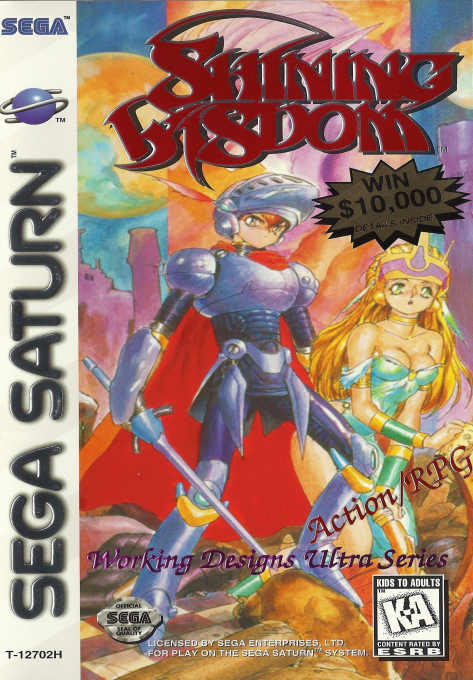
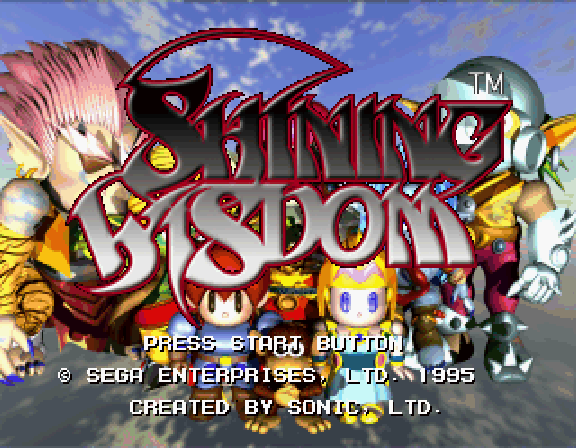
If the START button is pressed during the opening animation, the Title Screen will appear. To begin playing Shining Wisdom, press the START button at the title screen.
After pressing the START button at the title screen, the Guodo Valley Fairy will appear. If there is no Shining Wisdom save data, the Fairy will ask for a character name at the Name Registration Screen. If there is already Shining Wisdom save data present on the backup RAM, then the load screen will be displayed.
NO SAVE DATA
The default name for the character is Mars; however, another name can be entered if desired. The character name can be up to eight characters in length. To name the character, move the cursor over the desired letter, then press the "C" button. The selected letter will then appear in the name box. Continue entering letters until the desired character name is displayed. To correct a mistake, select "DEL" or press the "B" button. After entering the desired character name, select "END." The game will then begin.
EXISTING DATA
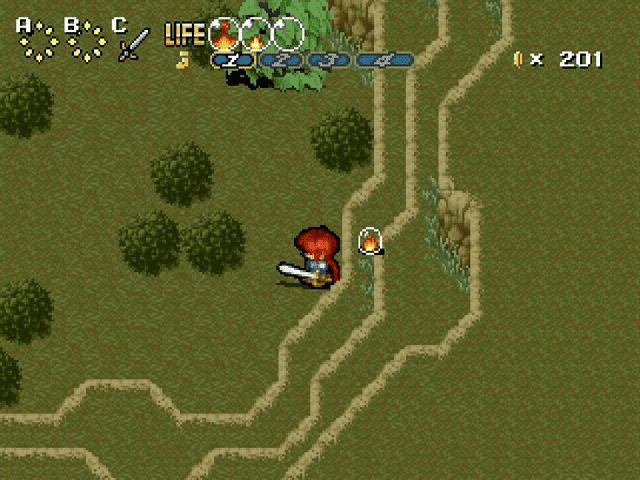
The Load Screen is divided into two different sections. The left side displays all save data, as well as the "New Game" option. The right side displays the following: character's name, game time, life bubbles, equipped items, start location, and save data location ("System" or "Cartridge Memory").
To start from the beginning of the game, select "New Game." After selecting "New Game," the Name Registration Screen will be displayed. After a name has been entered, select "END." The game will then begin.
After selecting the desired game, the Action Menu will appear. The Action Menu allows the game to be loaded, to be copied to/from System and Cartridge Memory, or to be deleted. These three options are described in detail on the following page. Load Menu
START Load the selected game. After receiving some parting wisdom from the Gudo Valley Fairy, the game will start from the selected save location. To load games from the Backup RAM cartridge, first make sure that the RAM cartridge is firmly inserted into the cartridge slot of the Saturn before the system is turned on. NEVER INSERT THE CARTRIDGE WHEN THE UNIT IS TURNED ON! COPY Copy games to/from backup RAM. Save data can be copied to/from the System/Cartridge Memory. Copies of the save data can also be made to the same memory location. In order to use the Backup RAM cartridge, first make sure that the RAM cartridge is firmly inserted into the cartridge slot of the Saturn before the system is turned on. NEVER INSERT THE CARTRIDGE WHEN THE UNIT IS TURNED ON! To copy a game, first select which save data to copy from the Load Screen. Next, the Action Menu will be displayed. From the Action Menu, select "COPY." Then choose where the selected data should be copied. Once a decision is made, a copy of the save data will then be saved to that memory location. DELETE Delete selected save data. If a game save is no longer needed, it can be deleted from the System or Backup RAM. To delete a game, first select which save data to delete from the Load Screen, then press the "C" button. The Action Menu will be displayed. From the Action Menu, select "DELETE." The decision must then be confirmed with a "YES/NO" answer. •
YES Deletes selected save data. If "YES" is selected, the save data will be deleted from the System or Backup RAM. Remember, if you agree