Starting Up
1. Set up your Sega Saturn™ system as described in its instruction manual. 2. Place the Virtual Open Tennis™ disc, label side up, in the well of the CD tray and close the lid.
Important Note: Your Sega Saturn™ CD contains a security code that allows the disc to be read. Be sure to keep the disc clean and handle it carefully. If your system has trouble reading the disc, remove it and wipe it carefully from the center outward. Player Setup
By using the 6Player adapter (sold separately), up to four players can play the game at one time.
•
When playing alone: Connect the control pad to Control Port 1.
•
When two people are playing: Connect control pads to Control Port 1 and Control Port 2, respectively. You can still play when connecting the 6Player adapter to Control Port 2.
•
When three or four people are playing: Connect a controller to Control Port 1 and connect the 6Player adapter to Control Port 2. Then connect additional control pads into the 6Player adapter.
*Note: When two or more people are playing simultaneously, please purchase separate control pads. For more information on connecting the 6Player adapter, refer to the manual that comes with it.*
System Operations
1. Turn on the TV or monitor and the Sega Saturn™. The Sega Saturn™ logo appears on screen. If nothing happens, turn the system off, ensure it is set up correctly, and try again. 2. To stop the game in progress or after the game ends, press the Reset Button on the console to display the on-screen Control Panel.
Controller Functions
•
D-Pad: Moves the player and changes the direction of the ball being hit; makes the player dash in the selected direction when combined with other buttons.
•
A Button: Hits flat strokes and flat serves.
•
B Button: Hits top-spin strokes and top-spin serves.
•
C Button: Hits slice strokes and sliced serves.
•
X Button: Hits flat lobs and flat serves (Auto).
•
Y Button: Hits top-spin lobs and top-spin serves (Auto).
•
Z Button: Hits flat lobs, slice serves (Auto).
•
Start Button: Pauses the game.
Starting a Game
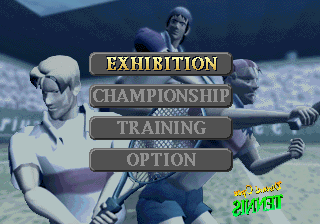
At the Title Screen, press the START BUTTON to access the Mode Selection Screen. Select your mode, set any options, then begin!
Mode Selection
Press UP or DOWN on the D-Pad to select your desired mode. Finalize your selection by pressing the A or C Button.
•
EXHIBITION MODE: Play one match against the computer or another human player with selectable match parameters.
•
CHAMPIONSHIP MODE: Compete in a championship tour around the world.
•
TRAINING MODE: Practice different tennis techniques.
•
OPTION MODE: Alter various game settings.
Exhibition Mode
Selecting Exhibition Mode leads to the Play Menu to set match parameters. Use the D-Pad UP/DOWN to navigate options and LEFT/RIGHT to change settings. Press A/C to confirm.
•
STYLE: Choose SINGLES or DOUBLES.
•
PLAYER: Select up to four players. Mixed doubles matches are possible by teaming up with the computer.
•
SET: Set the number of sets per match to 1, 3, or 5.
•
COURT: Select from three court types:
•
LAWN: Low ball bounce; very fast ball movement.
•
HARD: High ball bounce; fast ball movement.
•
CLAY: Medium ball bounce; slow ball movement.
Player Select: Each human player chooses from ten available players. Finalize your choice with the A/C Button.
Championship Mode
Selecting Championship Mode leads to the Tournament Select screen.
•
"Challenger's Cup Virtual Open": For beginners.
•
"Imagineer World Championship": For advanced players.
Training Mode
Select this mode to practice techniques. You can choose between Service, Return, Smash, or Can Game drills.
Service Training
1. Move the tennis player to the service spot on the baseline using the D-Pad.
2. Toss the ball up by pressing A/B/C. Pressing X/Y/Z will automatically execute the toss and strike action.
3. Use the D-Pad to aim the service while striking. Holding the D-PAD longer directs the ball further to the outside of the court.
4. Time the press of A/B/C carefully to serve the ball into the opponent's court.
Return Training
1. After the on-screen countdown, the ball machine will feed you balls.
2. Move closer to the ball using the D-Pad and press A, B, C, X, Y, or Z to return it. Use the D-Pad at the moment of impact to control the direction.
*Tip: The MARKER feature (found on the Options Screen) indicates where the next ball will head, helping you return difficult shots.*
Smash Training
1. The ball machine serves high lobs for overhand smash practice.
2. Move close to the ball using the D-Pad and press A, B, C, X, Y, or Z to hit it back. Use the D-Pad at impact to control direction.
Can Game
This is an accuracy competition to hone overhead smash skills. Control the player similarly to service training. Hitting the can on
.png)

.png)
.png)
