Options
FIFA Soccer 96 offers fifteen game modifying options. How to Adjust Options
•
From the Options screen, use the D-Pad ↑↓ to highlight the desired option.
•
Use the D-Pad ←→ to cycle through choices.
•
Press C to accept all changes.
•
Press Z to cancel menu choices.
*Note: All default settings are listed in bold in this manual.*
Half Length
You determine the length of each half by choosing 2, 4, 6, 8, 10, 20, or 45 minute halves.
Language
Six language options are available: ENGLISH, DEUTSCH (German), FRANÇAIS (French), ESPAÑOL (Spanish), ITALIANO (Italian), and SVENSK (Swedish).
Game Type
SIMULATION games reproduce the effects of fatigue. Players in ACTION games don't tire at all.
Fouls
•
OFF: The referee doesn't call any fouls.
•
NO BOOKINGS: The ref calls fouls but won't book players.
•
NORMAL: A tackle or push could result in the ref reaching for a yellow or red card.
Off-Side
The Off-side rule states that there must be at least two defending players (including the goalie) between an attacker and the goal when the ball is played to him in the opposition half. This only applies when the attacking player is in a position to interfere with the play. A player can't be Off-side in his own half of the field, or directly from a Throw-In or a Corner Kick. When a player is caught Off-side, the referee signals a free kick and the Off-side icon appears along with the offending player's name. Select ON or OFF.
Injuries
With this option ON, all players are susceptible to injury. Injured players are indicated by a red cross on the substitution screen. Select ON or OFF.
Skill Level
If you're a newcomer to FIFA Soccer 96, start out at the SEMI-PRO level; the CPU assists in ball control. PRO gives you total ball control and freedom of passes. Time Display
The Time Display can be turned ON or OFF.
Player Numbers
Keep Players Numbers ON and the jersey number of a player appears at his feet.
Pitch Condition
As a rule of thumb, the drier the pitch conditions, the quicker the ball rolls and the higher it bounces. Select DRY, DAMP, DRENCHED, or RANDOM.
Clock
Choose between CONTINUOUS or OUT OF PLAY. With CONTINUOUS selected, time ticks off toward the final whistle even when the ball is out of play.
Music
The music playing during menu screens can be toggled ON/OFF.
SFX (Sound Effects)
Team chants and other game sounds can be toggled ON/OFF.
Play By Play
Listen to a play by play of your game with this option ON.
Stereo
If you have a surround sound system available, hear stereo sound with this option ON.
Restore
Select RESTORE from the Game Select screen to complete a League, Tournament, or Playoff in progress.
---
Starting a Friendly Game
If you want to quickly begin a FIFA Soccer 96 game, familiarize yourself with the Command Summary and select FRIENDLY from the Game Select screen. Play an exhibition game by pairing teams from any part of the world, including Custom Teams. Team Select
From the Team Select screen, choose any two teams, regardless of Country or League, to be matched up in the ensuing game.
1. To select a league, D-Pad ↑ to highlight the league then D-Pad ← → to cycle through league choices.
2. To select a team, D-Pad ↓ to highlight the team then D-Pad ← → to cycle through team choices.
3. To select the challenging league and team, press A.
4. When complete, press C or START. The Scouting Report appears.
*Note: The 13th league features Custom teams. You can edit 8 pre-existing Custom Teams.*
Scouting Report
The Scouting Report rates each skill level with a gold bar. The longer the gold bar for a given category, the higher the team's skill rating in that aspect of their play. The four skills rated are Shooting, Passing, Running, and Defence. There is also an Overall rating.
*Note: The Controller Select screen appears automatically.*
Controller Select
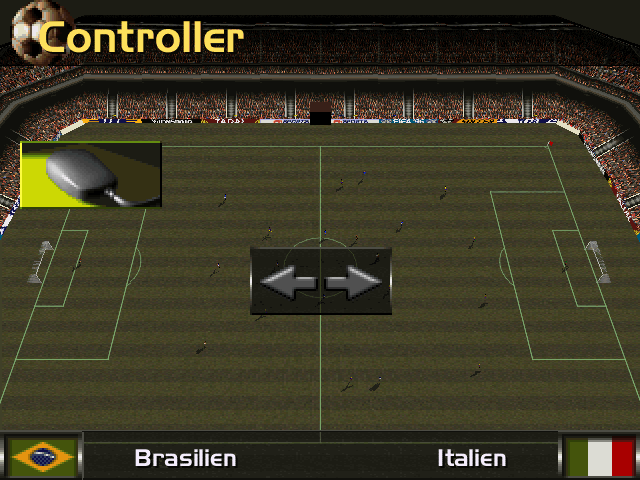
From the Controller Select screen, you can determine which team you wish to represent in the game. The two teams are displayed on the Controller Select screen: home team on the left, away team on the right. Icons representing each controller appear in the middle.
How to Select Teams
•
From the Controller Select screen, D-Pad ←→ to place your controller icon under the desired team.
•
When you've set up the controller, press C to advance to the Pregame screen.
---
Pregame Menu
The Pregame screen appears just before a game begins. From this screen, you can select your team's coverage, strategy, formation, starting lineup, and other options. The menu items include:
**How to Change
.png)

.png)
.png)









 (En,Fr,De,Es).png)

.png)

 (En,Fr,De).png)




 (Rev A).png)
.png)
.png)

