Setting Up Your PlayStation
Set up your PlayStation game console according to its Instruction Manual. Ensure the PlayStation power is off before inserting or removing a compact disc.
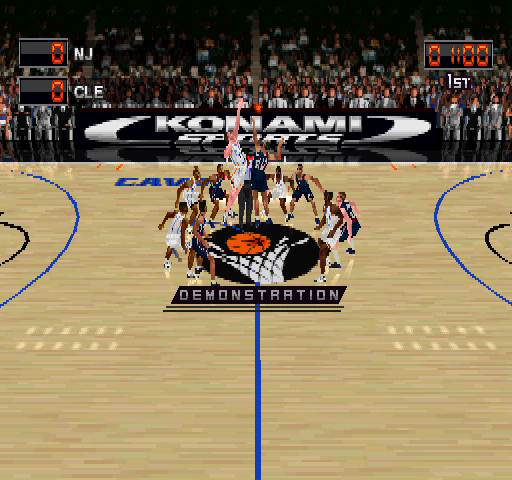
Insert the NBA IN THE ZONE 2 disc and close the disc cover. Insert game controllers and turn on the PlayStation game console. Follow on-screen instructions to start a game.
PlayStation Top View
Rules
This game basically follows the official rules of the NBA.
Abbreviations
•
BLK . . . . Shots blocked
•
PTS . . . . Total points
•
3FG . . . . 3-point field goals
Game Length
Games are played using a four-quarter system. The overtime period is repeated as often as necessary to determine a winner.
Time Outs
When a time out is taken, you can substitute players and check their stamina levels. You can call a time-out during the game if your team has the ball by pressing the Select button.
Both teams can take advantage of a time-out, regardless of who called it.
Substituting Players
•
Move the cursor to the active player you wish to replace and press the button.
•
Move the cursor to the player you wish to bring in and press the button. If you select a player who is already playing, the two players will swap positions.
•
Move the cursor to a player and press the FORMATION 1 button or FORMATION 2 to set that player to that button.
Checking Stamina
Stamina is an element of this game. The faster the action, the more of a player's stamina is used up. If it drops below a certain level, the player will no longer be able to use the speed burst (the POWER button).
If the player is returned to the bench to rest, he will gradually recover his stamina. Some stamina is also recovered at the end of each quarter, and when a time-out is called.
•
You can check a player's stamina on the Substitution screen.
Fouling Out
A player who gets 6 fouls is ejected. He can't return to play in that game. You will be taken to the Substitution screen to select a replacement.
Multiplay
This game can be played by multiple players playing on the same team (maximum of 5 per team) or against each other. With extra players, you need extra controllers and the Multi tap™ (sold separately). Four controllers can be connected with one Multi tap.
Equipment Needed
•
2 players: 2 controllers
•
3-5 players: 1 controller for each player and 1 Multi tap
•
6-8 players: 1 controller for each player and 2 Multi taps
Multi-tap Connections
Notes on using the Multi tap
When connecting controllers to a Multi tap, always connect a controller to Terminal A of the Multi tap first, followed by Terminals B, C, and D. It is strongly advisable to use only controllers specified for use with the Multi tap.
Mode Selections
You can select one of the following three selections listed on the title screen. Use the Directional button to highlight the selection and press the button.
Title Screen Options
Selecting a Game
Selecting GAME mode from the title screen takes you to the GAME mode selection screen. Highlight a selection with the Directional button and press the button.
Exhibition Games
Play against a team of your choosing. By using Multi taps, as many as 8 players can participate, up to 5 per team or against each other.
1. Review each setting in the menu before starting a game and make any changes that you wish. Then select CONTINUE GAME and you will enter the Match-Up screen.
2. Player substitutions and team comparisons can be made, then choose START GAME and get ready for the action!
3. When the game is finished, you can view the stats before returning to the title screen.
Continue a Game
Continues a game that has been saved.
1. Selecting CONTINUE GAME will take you to the Memory Card Screen. Here you can choose which saved game you wish to continue (and load in its data).
2. Then select CONTINUE GAME, and you will enter the Match-Up Screen.
3. If you wish, you can go through and change each of the settings in the Match-Up screen. You may wish to substitute players for your starters, for example. Then choose START GAME and return to the action!
4. When the game is finished, you are taken to the End of Game screen where you can choose to save your data or to continue on to the next game.
Note on Continuing Games
Some of the settings cannot be changed in this screen. When there is no data that can be loaded, you
.png)

.png)


.png)



.png)




.png)




.png)
.png)