General Menu Operation
On a menu screen, use the Directional buttons to highlight an option. Press the button to select it.
A small arrow icon on the right of a menu bar indicates that you should use the LEFT and RIGHT Directional buttons to scroll through the setting. Pressing the button exits the current screen and returns you to the previous menu.
Main Menu
At the Main Menu, use the UP and DOWN Directional buttons to highlight one of the following three choices and press the button to confirm.
•
FRIENDLY MATCH: Play against a friend or the computer in an exhibition match. If the match is drawn, you will have the opportunity to resolve it.
•
TOURNAMENT: This single-player game mode lets you play a variety of international tournaments. See the "Playing a Tournament" section for more details.
•
OPTIONS: Customize game settings. See the "Options" section for more details.
The Team Select Screen
This is the first screen you see when selecting a Friendly Match. The uniforms of the currently selected teams are shown side by side.
There are three option bars on the left. Use the UP and DOWN Directional buttons to highlight one, then use the LEFT and RIGHT Directional buttons to change its setting.
•
The top bar lets you specify who controls the selected team: "CONTROLLER 1", "CONTROLLER 2", or "CPU".
•
The middle bar lets you specify the geographical region of the team: "EUROPE", "SOUTH AMERICA", "NORTH AMERICA", "AFRICA", "AUSTRALASIA", or "SECRET" (accessed after success in a tournament).
•
The bottom bar lets you select a team from within the chosen geographical region.
Next, use the button to switch to the team select menu for the opposition and repeat the procedure.
•
Press the START button to begin the match.
•
Press the button to visit the Formation Squad Setup Screen if you want to change your team's formation or players first.
•
Press the button to go to the Options Menu.
•
Press the button to return to the Main Menu.
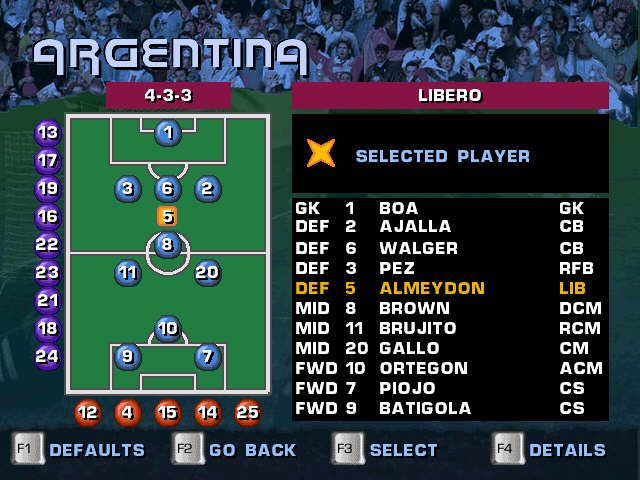
The Squad Setup Screen
This screen allows you to change your team's formation or make changes to the starting eleven. You can visit this screen before a match or at any time during a match via the Pause Menu (triggered by pressing START).
A plan of the pitch appears on the left, with each player's position shown by a blue dot bearing his number. The five substitutes are shown along the lower edge of the pitch, while the reserves (the remaining nine players) appear on the left of the pitch. Once the game has begun, you can only bring on your substitutes.
On the right of the screen is the team line-up, listing each player's role (GK-Goalkeeper; DEF-Defender; MID-Midfielder; FWD-Forward), shirt number, surname, and preferred position. The default formations for each team are as they normally play, using their favored starting line-up.
Comparing the Players
Use the Directional buttons to select a player on or around the pitch plan; the currently selected player is highlighted with an orange flashing cross. The player's position appears at the top right of the screen above the information box.
The information box displays a key of the graphics used on this screen, as well as the currently selected player's attributes. Each player is rated in 16 different skill categories, 20 different skill and style categories, 12 of which are displayed across the screens. The two sets of attribute listings can be viewed by pressing the button. All player attributes are listed and explained in Appendix B.
Changing Formation
To change a player's position, select him and then press the button. You can now move the player around the pitch using the Directional buttons. When you are happy with his new position, press the button a second time.
When you select a player, four spinning dots appear, usually close by. These mark the player's preferred position. Many teams' default formations have certain players placed outside of their regular positions to remain faithful to real-life formations.
Any changes made to the user's team during a tournament will be saved to the memory card. Changes made during friendlies will not be saved.
Making Substitutions
To make a substitution, highlight the player on the pitch you wish to remove. Press the button, then use the Directional buttons to move him over the player on the bench (along the bottom of the pitch) that you wish to bring on. Finally, press the button a second time, and the substitution is made.
As long as the match hasn't started, you can also bring any of your reserves into the squad.
Exiting Squad Setup
You can return to the default formation at any point by pressing the button. Press the button or START to exit the Squad Setup Screen when you are happy with your changes.
Shooting On Goal
While in the attacking half of the field, pressing the button makes your player kick the ball towards the goal, regardless of the direction he is facing. Pressing the Directional buttons at the same time will aim the ball to a particular point in the goal mouth. For example, pressing UP and RIGHT Directional buttons will place the ball towards the top, right corner of the net.
The ball will go towards the goal mouth at the moment the player kicks or heads the ball, not at the moment the button is pressed. The best time to aim is when the player is winding up for a shot. When taking free kicks or penalties, the ball goes to where the target is when you press the button.
Passing the Ball
The ball
 (En,Fr,De,Es,It).png)

 (En,Fr,De,Es,It).png)