STARTING THE GAME
Console Components
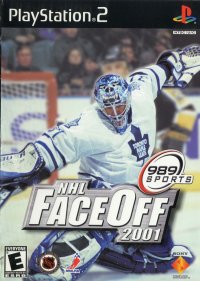
Game Setup
1. Set up your PlayStation® game console according to the instructions in its Instruction Manual. Make sure the power is OFF before inserting or removing a compact disc.
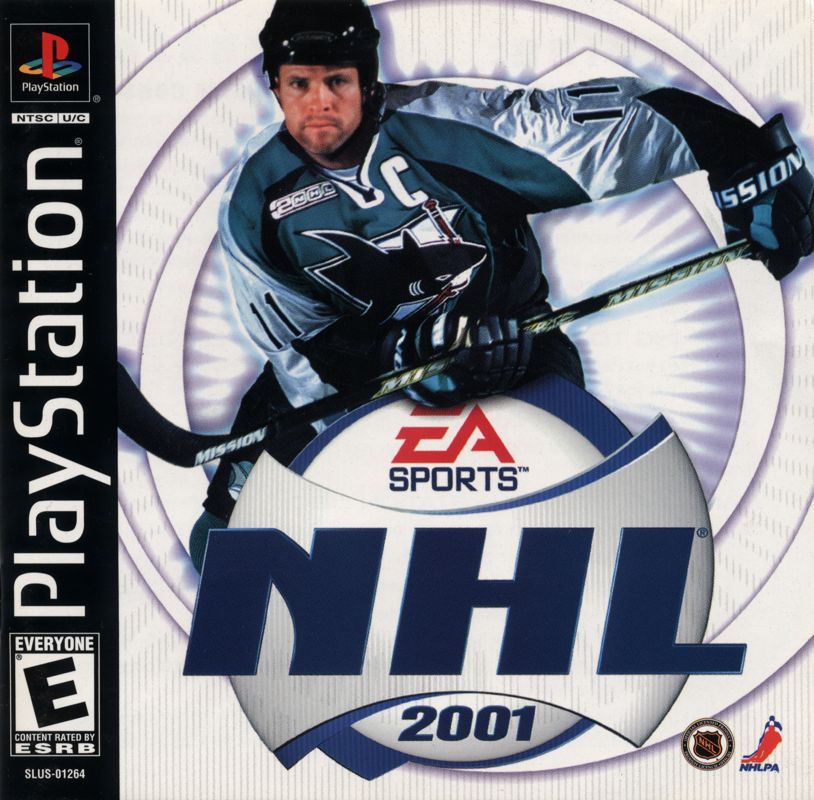
2. Insert the NHL® 2001 disc and close the Disc Cover.
3. Insert game controllers and turn ON the PlayStation game console. When using the Multi-Tap, at least one controller must be connected to port 1-A.
4. Following the introductory video, the Game Setup menu appears.
COMMAND REFERENCE
DUALSHOCK™™ Analog Controller
•
Directional Button (D-Button)
MENU CONTROLS
•
D-Button ↑: Highlight menu items
•
D-Button ↔: Cycle choices/Move sliders
•
✖: Select/Go to next screen
•
▲: Return to previous screen
SINGLE GAME MODE
Lace up the skates and take the ice.
QUICK START
Skip all the pre-game activities and QUICK START a game from the Game Setup menu. The Controller Setup screen appears with two pre-selected teams. Choose a team, adjust the advantage, and get ready for the face-off.
EXHIBITION GAME
To start a Single Game:
1. From the Game Setup menu, choose BASIC SETTINGS and press ✖. The Basic Settings screen appears.
2. To choose a matchup, D-Button through the team names. To toggle between Home and Away teams, D-Button.
•
To select teams at random, press L1 or R1.
3. Select your game settings and then press START to advance to the Controller Setup screen.
4. From the Controller Setup screen, D-Button to position the controller icon under the team you wish to control, then press START to get on the ice.
From the User Option, you can select a Userlog, lock yourself at a specific player position, change your controller configuration, and save settings. You can also save, load, and delete a Userlog.
EA TIP
Give your team an advantage by pressing L1 or R1 from the Controller Setup screen. When the highlighted arrows point in your team's direction, you have an edge over your opponent.
ON THE ICE
After the pre-game adjustments are made, you're "In the Game."
GAME SCREEN
PAUSE MENU
Take a break from the action by pressing START during gameplay.
•
RESUME GAME: Get back on the ice.
•
NHL CHALLENGE: View a list of accomplished NHL Challenge tasks.
•
INSTANT REPLAY: Replay the on-ice action from the last few seconds of gameplay.
•
STATS CENTRAL: Read the Box Score, home, away and team stats from the current game.
•
GOALIE: Switch or pull your starting goaltender from the lineup.
•
EDIT LINES: Edit your offensive, defensive, powerplay and short-handed lines.
•
CONTROLLERS: Change your controller setup and view your controller map.
•
RULES AND OPTIONS: View your rules and options for the current game plus select the camera view, audio options and game strategies.
•
QUIT: Return to the Game Setup menu.
GAME MODES
Experience the NHL to its fullest. In addition to Quick Start and Exhibition games, NHL 2001 has four other game modes: Season, Playoff, Tournament, and Shootout.
ADVANCED OPTIONS MENU
From the Advanced Options menu you can choose any game mode (including Exhibition) and adjust all options and settings.
Default options appear in bold in this manual.
•
SELECT MODE: EXHIBITION, SEASON, PLAYOFF, TOURNAMENT, or SHOOTOUT.
•
SELECT LEVEL: BEGINNER, ROOKIE, PRO, or ALL STAR.
•
RULES: Set period length, adjust the sliders for penalties, big hits and fighting, use the toggles for other rule options.
•
OPTIONS: Adjust game speeds, the Momentum bar, turn the NHL Challenge ON/OFF, camera views, toggle shot meter ON/OFF, and more.
•
ROSTERS: Manage your team through line edits, trades, creating players, and more.
•
STATS CENTRAL: Review team, player, or user stats, and more.
•
CONFIGURE CONTROLLER: Change the controller button assignments.
•
LOAD/SAVE: Save and restore Rules, Options, Controller Configurations, User Logs (including User Stats and User Names), Default Teams, and Saved Games.
PLAY LEVELS
The four play levels in NHL 2001 range from Beginner to All Star. Rookie level is for NHL 2001 beginners who are new to the game while ALL STAR level gives hockey gamers the biggest challenge.
HOCKEY RULES!
•
PERIOD LENGTH: Choose 5-, 10-, or 20-minute periods.
•
PENALTIES: Adjust the amount of penalties. When the slider is closer to the right, penalties are called more frequently during gameplay.
When playing with Position Lock ON, players may be forced to serve a penalty, causing the CPU to control the game for the
.png)

.png)



.png)
.png)
.png)

.png)