GETTING STARTED
•
disc tray Standby/RESET button
1. Set up your PlayStation 2 console according to the instructions in its Instruction Manual. 2. Make sure the MAIN POWER switch (located at the back of the console) is turned ON.
3. Press the Standby/RESET button. When the power indicator lights up, press the OPEN button and the disc tray will open.
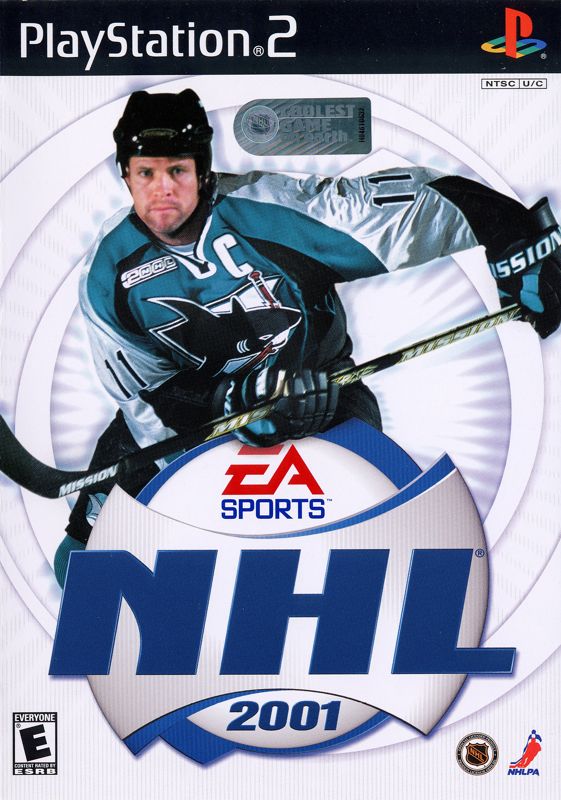
4. Place the NHL® 2001 disc on the disc tray with the label side facing up. Press the OPEN button again and the disc tray will close.
5. Insert game controllers and other peripherals, as appropriate.
6. Follow on-screen instructions and refer to this software manual for information on using NHL 2001.
When using the Multitap (for PlayStation 2), at least one controller must be connected to controller port 1-A. STRATEGY
•
Line change: R2 (repeat as needed)
•
Pause game: START button
ADDITIONAL CONTROLS
In addition to the above controls, the following controls may be mapped to controller buttons using the Configure Controller option: Skate Backwards, Call For Deflection/Block Shot, Pull Goalie, and Free Skate.
SETTING UP THE GAME
NHL 2001 has many modes and customizable options, allowing you to play the way you want to play. From a fast rookie Quick Game to a full, grueling Season, there's a challenge for every NHL gamer out there.
MAIN MENU
From the Main menu, you can start a Quick Game, access other game modes, change Game Settings, and more.
•
Press to select your mode.
•
Play against the opponent of your choice in an NHL pre-season type game.
•
The Advanced Modes screen lets you start a new Season, Playoff, Tournament or Shootout.
•
Inside EA SPORTS allows you to check out game credits and upcoming EA SPORTS titles. •
Press START to advance to the Quick Game setup screen.
•
Customize almost every aspect of your game.
STARTING THE GAME
A Quick Game lets you adjust all of the options and play one NHL game with your choice of teams.
QUICK GAME
A Quick Game is your fastest way to the rink.
To play a Quick Game:
1. From the Main menu, choose QUICK GAME. The Quick Game Setup screen appears.
2. Press the D-Button to assign a controller to a team.
To choose a new team, press the D-Button or press L1/R1 for random away and home teams, respectively.
To access the Game Settings pop-up screen, press.
3. Once you have the game setup the way you want it, press START to advance to the Team Options screen.
If you press START without assigning a controller to a team, the CPU simulates a game between the two chosen teams.
4. At the Team Options screen, choose the team jerseys, set your Line Change and Shot Aim options, access the Coaching Strategies screen, and adjust Player Boost and Goalie Boost.
EA TIP
Use PLAYER BOOST and GOALIE BOOST to even the playing field between two NHL gamers of different skill levels. Move the more skilled player's slider to the left or the less experienced player's to the right.
5. Press START and get ready for the faceoff.
BASIC GAME SETTINGS
The game settings below can be found on the Game Settings pop-up in Quick Game mode. For more advanced settings, see Game Settings on p. 11.
To access the Game Settings pop-up in Quick Game mode, press at the Quick Game Setup screen.
NOTE
Default options are listed in bold in this manual.
When a computer player has the puck, he is marked with a black circle and his name.
The player you are controlling has a blue circle (red for player 2). When this player has the puck, the circle is shaded.
NOTE
If you are using a Multitap (for PlayStation 2), each of the players have different colored circles. When one team has the Momentum Meter way up, the player with the puck has red, flashing shading in his circle. The Momentum Meter bar itself flashes as well.
PAUSE MENU
The Pause menu lets you access and change game settings, view instant replays, and quit the game.
To access the Pause menu, press START.
RESUME
Return to the game.
RULES & OPTIONS
Change the rules, game options and sound options.
STATS CENTRAL
View team, player, and game stats.
CAMERA
Change the camera and various camera settings such as Autozoom and Auto Replay.
<TEAM NAME> OPTIONS
Change your Team Options, adjust your strategies, or edit your lines.
To edit a line from the Pause menu:
1. Press the D-Button to select a desired line.
2. Press the D-Button and press to select a player to replace.
3. Press the D-Button to highlight a substitute for this player.
To view the players' different ratings, press the D-Button. View what positions and lines the highlighted player is already on at the bottom of the menu.
4. Press to process the position swap.
CONTROLLER SETUP
Re-assign a controller to the other team or
.png)


.png)



.png)
.png)


_1.jpg)





_1.jpg)


.png)


.png)


_1.png)