Setting Up Your PlayStation
Set up your PlayStation™ game console according to its Instruction Manual. Make sure the power is off before inserting or removing a compact disc. Insert the NHL® Powerplay™ '96 disc and close the CD door. Insert game controllers and turn on the PlayStation™ game console. Follow on-screen instructions to start a game. To use two Multi-Taps, plug one unit into joyport 1 and the other into joyport 2. Two Multi-Taps are needed for a six-player game.
Console Top View
Console Front View
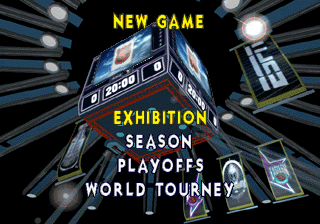
Main Menu Options
Exhibition Mode
Exhibition Mode allows one or multiple users to play a customized single-game matchup. Any teams can be chosen, including the NHL®, All-Star, and World Tourney teams.
This mode is mainly used for head-to-head play and also allows the novice a chance to get accustomed to the game.
Exhibition Mode Game Settings
Starting an Exhibition Game
•
Move controller(s) to team(s) you wish to control.
•
Adjust Game Settings, Edit Lines, Coach Team, Game Controls, or Goalie Auto/Manual (all optional, but recommended).
•
Start game. When game is complete, view Game Stats, Player Stats, Goalie Stats, Scoring Summary, and/or Penalty Summary.
•
Select Rematch to play the same Exhibition matchup again.
Defending Plays
•
AGGRESSIVE FORCHECK CHANCES
Season Mode
Season Mode allows you to control one team throughout a variable-length NHL® Season. This mode is for the more advanced player, creating a true team atmosphere as you experience the ups and downs of an NHL® Season.
This can include wins and losses, overtime games, ties, and player injuries, even for multiple games. Like a real NHL® Season, the NHL® Powerplay™ '96 season culminates in properly seeded NHL® Playoffs and the eventual crowning of a Stanley Cup® champion.
Season Mode Example Schedule
Entering Season Mode
•
Select Season (new) or Continue Season (saved season).
•
Select Season Length of 11, 21, 41, or 82 games (new).
•
Select Playoff Series Length of best of 1, 3, 5, or 7 games (new).
•
Select one team to control throughout the Season (new).
•
Adjust Edit Lines, Coach Team, Game Controls or Goalie Auto/Manual (all optional, but recommended).
•
Adjust Game Settings (new). These settings will be saved and will be unalterable for the duration of the Season, so it is essential that careful consideration is given to the Game Settings before the start of the first Season game.
•
View Season Standings (optional). Standings can be viewed by Eastern or Western Conference or for the entire NHL®, and reflect all played and simulated games up to that point in the Season.
•
View Season Calendar (optional). The Calendar shows all games played and remaining for the chosen team in Season Mode. Games highlighted in blue are home games, and games highlighted in red are road games. Games already completed include the final score of each game.
•
Play game. When game is complete, view Game Stats, Player Stats, Goalie Stats, Scoring Summary, and/or Penalty Summary.
•
Season Mode will save all game results automatically.
•
For Season Mode playoffs description, see Playoff Mode section.
•
If the system is reset or powered down while in a Season, the game will be recorded as a loss for the user's team.
Playoff Mode
Playoff Mode allows you to skip the grind of the NHL® Season and jump directly to the pressure-packed NHL® Playoffs. Playoff Mode allows you to select one team to play through a variable-length Playoff Series.
Playoff Mode randomly seeds and matches up teams for a different experience every time. The Playoff Mode also culminates in the crowning of a Stanley Cup® Champion.
Accessing Playoff Mode
•
Select Playoff (new) or Continue Game (saved playoff).
•
Select Playoff Series Length of best of 1, 3, 5, or 7 games (new).
•
Select one team to control throughout the Playoff (new).
.png)

.png)
.png)
.png)
.png)
