Saving or Restarting the Game
The CD icon on the Options Menu is the Load/Save/Quit button, used for loading or saving games. Only PlayStation systems with memory cards can save games. Pressing the SAVE button opens the Save Menu. There are four save positions, and the game will be saved with the current scenario's name and turn number. Select a save position and press the <X> button. Pressing the <S> button returns to the Options Menu without saving.
To abandon the current game and return to the beginning:
•
Hold down the Select button, then press and hold down the Start button for two seconds.
•
Alternatively, press and hold down the Start button, then the Select button. This prompts for confirmation to continue or abandon the game.
Tutorial/Quick Start
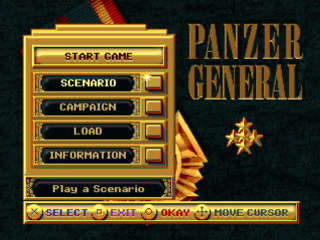
This tutorial offers step-by-step suggestions to quickly familiarize you with the basic menus, options, and units in the first scenario of the North Africa campaign. From the Start Game Menu, your choices are SCENARIO, CAMPAIGN, LOAD, or INFORMATION. Use the directional buttons to highlight SCENARIO, then press the <X> button to activate it.
Setting Preferences
The Set Scenario and Set Control menus appear when you press the Scenario button. The Set Control menu has human and computer control buttons for each side. The Set Scenario menu has buttons for changing difficulty, selecting a scenario, starting play, and exiting without changes.
The difficulty level defaults to EASY. Pressing the button next to this setting opens the Set Difficulty and Settings menus. The Set Difficulty menu can be set to EASY, MEDIUM, HARD, or CUSTOM.
The CUSTOM setting allows you to adjust the computer's "Artificial Intelligence" (AI) by choosing the experience and prestige it receives. Activating Enhanced AI alters the Allied General's AI, increasing the computer player's tendency to retreat and take replacements rather than fighting it out. In some cases, this may make the "Enhanced" player easier to defeat.
If you play games between two human players or set the game to play itself, a two-panel screen appears where you can adjust prestige and experience for both sides.
Press Exit to return to the Set Scenario Menu. Once there, press the button next to Sidi Barrani. The Scenario Description menu appears, offering six scenarios. The currently selected scenario is at the top, its description in the large box, and the other six choices at the bottom. The ? button in the lower right corner opens a window with the scenario briefing.
From the Set Scenario menu, press Exit to return to the Scenario Description menu. With difficulty set to Easy and scenario to Sidi Barrani, press the Start button to begin play.
Once chosen, the scenario's title screen displays the turn number, date, current weather, and turns remaining. Press any button to proceed beyond the title screen and start your first turn. The Tactical Map, representing the battlefield, appears. The game begins with the Unit Information preference on. As each unit is highlighted, important information is displayed in the screen corners. Lighter colored hexes are visible to your troops. Your British units are green and ready for action.
Game Turns
Each scenario in Allied General consists of a number of "turns." In each turn, you and your opponent can perform activities such as moving units, attacking enemy units, and resupplying units.
When your turn is done and all your units have moved or received orders, press the <C> button to open the Main Menu, then highlight and press the End button. Afterward, the enemy moves its units and completes its turn.
Highlight any Allied unit and press the <X> button to make it ready for orders. On the map, lighter colored hexes indicate where the selected unit can move. The unit's statistics are shown in the screen corners. An active unit cannot move to a hex occupied by another unit (unless one is an air unit and the other is a ground or naval unit).
Press the <S> button to drop the active unit without taking any action. With the Unit Information preference on, highlight and activate other units to see their summary information. You can also use the highlight to view statistics of visible enemy units. Press the Unit Information Mode button on the Unit Menu to turn this preference off.
For now, press the <S> button to drop a selected unit and press <C> to go to the Main Menu. When you highlight a menu button, its function is displayed in the text at the bottom of the menu. Use this feature to verify button functions until you are familiar with them.
From the Main Menu, simply press the <C> button, or highlight and press the button, to go to the Options Menu. Then highlight and press the Turn Weather On/Off button so your first game is unaffected by weather.
View Strategic Map
As the Allied General, it is always a good idea to start every battle by viewing the Strategic Map and formulating a battle plan. You can view the Strategic Map in two ways:
•
Switch to the Main Menu using the <C> button and press the View Strategic Map button.
•
Zoom out using the <T> and Next buttons, then press the <T> button.
A map appears displaying the entire battlefield: your Allied forces with gold stars, Axis units with black and white crosses, and your victory objectives outlined in gold. Green outlined hexes are objectives you have already won and must hold. It may be necessary to use the directional buttons while pressing the <T> button to scroll around larger campaign maps.
To view a portion of the map up close, press any button to return to the Tactical Map, or press the <T> button while pressing the Previous button to zoom in. To see the rest of the
.png)