Console Top View
Console Front View
PlayStation Setup
Set up your PlayStation™ game console according to the instructions in its Instruction Manual. Make sure the power is off before inserting or removing a compact disc. Insert the Pitball disc and close the disc cover. Insert game controllers and turn on the PlayStation™ game console. Follow on-screen instructions to start a game. Special Attacks
▲▲■ Special Attack
This attack varies in style and effect from player to player. Some characters fire powerful projectiles, others vanish in a burst of lethal energy or create huge plasma shields to ward off other players.
See Character Profiles for details on the various characters' special attacks.
XXX Jump Attack
This special attack can only be performed when your character is in mid-air. Like the other attacks, each race has their own style of jump attack. See Character Profiles for details.
▲▲L2 Super Special Attack
Only available when your character has collected special crystal orbs. Also activates your character's slammer move. See Crystal Orbs section later in this manual. Using The Multi-Tap
If your multi-tap is plugged into controller port one, all four multi-tap ports are used on a four-player game.
If your multi-tap is in port two, player one's controller is plugged into controller port one on the PlayStation™ itself. Player two is in multi-tap port A, player three in port B, and so on. Modes of Play
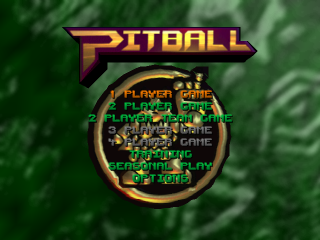
Once Pitball is loaded you will be presented with a variety of different ways to play the game.
One Player Game
The player controls one character from team 1 (left-hand team at the start of the match). The player's team-mate is controlled by the computer.
If the player's team is defeated, he is permitted a number of rematches – five in Easy Mode, three in Medium Mode, one in Hard Mode.
Two Player Team
The rules for this are the same as the one-player game. A two player team has identical objectives as a one-player game.
Two Player Versus Mode
Players one and two control one character from each team and play head-to-head.
Three and Four Player Game (With Multi-Tap Only)
In three player mode players one and two control team 1, with player three taking control of one character from team 2, the remaining character is computer-controlled. In four player mode all the characters are under player control.
Like Versus mode, these head-to-head matches are recorded on a league table.
Training Mode
Recommended for first-time players, training mode takes place on a specially-constructed holographic pit.
The training pit shows slam zones in front of each goal. Inside these zones, the characters can use their slammers to score a goal.
To leave the hologram pit, press START and follow the on-screen instructions.
Team Selection Screen
Once the mode of play is selected, the team selection screen appears. Use the direction pad to highlight your chosen team from the selection of badges shown. Press X or START to select your team.
•
On two player team mode, player one selects the team.
•
On three and four player mode, players one and three select the teams.
Venue Selection Screen
On this screen, player one uses left and right on the direction pad to highlight the desired planet. Press X or START to start the match.
Each planet has its own gravity and surface friction so be careful which you choose.
General Rules of Play
Pitball features two teams of two players. Each player is equipped with a power glove - the only safe way of carrying the ball, which is generated from pure energy. Players attempt to score points for their team by gaining possession of the ball and shooting it into the opposing team's goal. The team with the most goals at the end of the time limit wins the match.
Players are permitted to use any force necessary to retrieve or defend their possession of the ball. Players can only lose the ball when punched hard enough to knock them over. Their glove will then release the ball. The Game Screen
Once the main game is loaded, the match begins. On the match screen, the following information is constantly displayed: Team Badge, Goals, Energy, and Time Remaining.
What It's All About
Energy Bars
Two separate bars showing each team member's energy. A character under human control has his energy bar highlighted in white. Energy is lost when a player is punched or hit by a bomb. The energy bar slowly re-fills if a player avoids such unfortunate events.
Player Tag
When a human-controlled player runs off the screen and out of view a tag at the screen's edge gives an indication of where he is. In addition, large colored circles under a character's feet indicate if he is a player-controlled character.
Scanner
A diagram of the court showing where all the characters are positioned. Objects are also shown, as colored dots.
Pausing The Game
Pressing the START button will pause the game. Once paused, you will be offered a menu which allows you to: continue, quit, or change camera view.
A player can score from anywhere on
.png)

.png)





.png)
.png)