PLAYING SHEEP RAIDER
Once the intro movie is over, select START GAME to begin a new game. You are now ready to enter the crazy world of sheep stealing, but first, you'll need to do a little training.
TRAINING ZONE
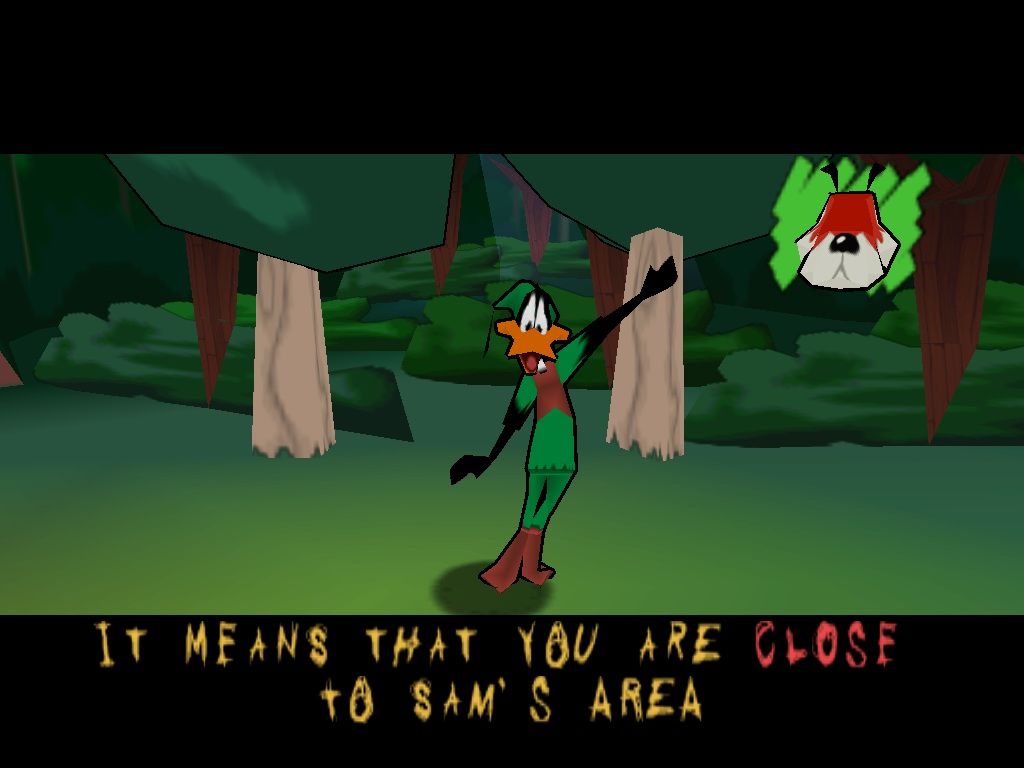
Daffy Duck™ will guide all new players through the ACMEM Training Zone before the real game begins. This will help you get the hang of some of the basics including walking, running and using the camera.
Make sure you pay attention, or you could find Sam Sheep-dog feeding you a Knuckle sandwich sooner than you expected. Once you've completed the Training Zone, you'll be ready to get into the game. Don't worry, there'll be plenty of help along the way when you encounter new objects or when new skills are needed.
THE TV STUDIO
When you've finished the Training Zone, you'll return to the TV studio where you can enter the next level. To reach it, go through the open door and press the button when prompted.
When you complete a level, a door will appear in the studio which takes you back to that level so you can play it again in the future.
CONTROLLING RALPH WOLF
Use the directional buttons to walk around the landscape. This is fine if you don't need to get anywhere in a hurry or you don't need to be especially quiet.
To creep around like a sneaky wolf, hold down the Rl button while you walk. This is useful when normal walking is too noisy, especially if Sam Sheep-dog is on patrol. When you need to pick up speed, repeatedly tap the button as you press the directional buttons. When you're running, you can zoom across crevices and gaps. Don't stop tapping that button, or you'll end up as wolf pulp.
A single press of the button will make you leap up in the air. Get a little higher by pressing the button again at the top of your jump for a double jump. Combine jumps with the directional buttons to direct yourself.
CONTROLLING THE CAMERA
Rotate the camera left or right using the L2 button and R2 button respectively. This helps you look around the landscape to decide on your best course of action. To see exactly what Ralph is seeing, hold down the button while using the directional buttons to scan the scene.
TALKING TO CHARACTERS
There are characters who can give you useful information. To talk to them, go up to them until TALK appears in the top left corner, then press the button.
If you press the button again, you can scroll up or down through the speech using the directional buttons. Press the button for a third time, and you will skip the speech completely. (It's not wise to do this unless you've already heard everything they've got to say).
Sometimes, characters will ask you questions. Use the directional buttons to select your answer, then press the button to confirm.
READING SIGNPOSTS
Signposts with question marks are dotted around the place and may or may not tell you something useful. To read them, go up to them until READ appears in the top left corner, then press the button.
INTERACTING WITH OBJECTS
You can use various objects for sheep thievery. To find out precisely how to use individual objects, refer to the Inventory (read the section called USING THE INVENTORY for more information).
In most cases, you will need to press the button to pick up and use an object. A nearby character may also help you to use an object if you're not sure what to do.
To carry sheep, walk up to one until CARRY appears in the top left corner, then press the button. Press the button again to put the sheep down.
ORDERING ITEMS
Certain interactive items have to be ordered from a letterbox (mailbox). You can find the location of letterboxes on the map (read the section called USING THE INVENTORY for more information).
Walk up to a letterbox and press the button when ORDER appears in the top left corner. The item connected to that letterbox will appear somewhere on the landscape ready for you to pick up.
USING THE INVENTORY MENU
The Inventory Menu contains all the items you have collected ready for use. To view the contents, hold down the L1 button and use the left and right directional buttons to scroll through them.
•
Placing Items in the Inventory
Pick up an item by standing in front of it and pressing the button when TAKE appears in the top left corner. The item will automatically be placed in the Inventory.
•
Taking Items from the Inventory
When you want to use an item you have collected, hold the L1 button and use the left and right directional buttons to highlight the item. When it's highlighted above your head, release the L1 button.
To see the Inventory, press the SELECT button. It shows you all the objects available on a level along with a map marking important items and locations.
Use the up and down directional buttons to scroll through this list of available objects. Remember that before they can be used, you need to order them from the appropriate letterbox. To find out which letterbox you need, highlight the object and a red circle will mark the correct one.
Blue and white objects are ones available on the level which have not yet been collected. Colored objects are
 (En,Fr,Es,Pt).png)


.png)
 (En,Fr,Es,Pt).png)
