PlayStation® Game Console Setup
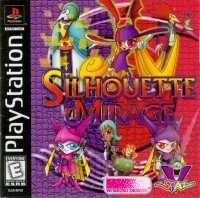
Set up your PlayStation® game console according to its Instruction Manual. Ensure the power is off before inserting or removing a compact disc. Insert the Silhouette Mirage™ disc and close the Disc Cover. Insert game controllers and turn on the PlayStation game console. Follow on-screen instructions to start a game. Console Diagram Labels
LUNAR 2: Eternal Blue Movie
To access the LUNAR 2: Eternal Blue movie, press and hold down the L1 button after turning on the PlayStation® game console until the movie plays. Starting the Game
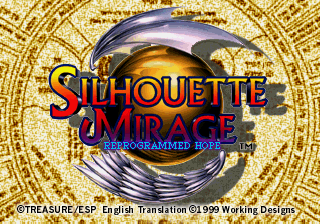
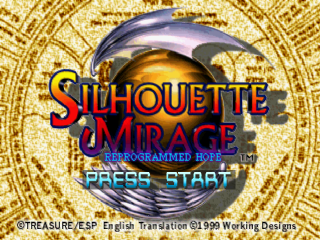
Pressing the START button during the opening animation will display the Title screen. The Title screen displays the option: GAME START.
Press the button at the Title screen to access the following options: NEW GAME, LOAD GAME, OPTIONS, and STATUS. These four options are described below.
New Game
Start the game from the beginning. To start the game for the first time, or to start over, select "New Game". Press the button. The game will then load.
Take the time to go through the Tutorial Program so that all of Shyna's combat skills can be mastered; otherwise, it won't be long until the Game Over screen will be displayed. Load Game
Continue from a previously saved game. There can be only one Silhouette Mirage save data file per Memory Card. If two Memory Cards are inserted, use the L1 and the R1 buttons to select which Memory Card to use, “Card 1” or “Card 2”. Press the button. The game will then load.
The game can also be saved in between areas. Choose "Save Game" to save the game, or “Don't Save” to cancel the save. If "Save Game" is selected, choose “Overwrite" to save the game and continue to the next level, or “Back" to return to the previous screen, in order to decide whether or not to save the game. Use the L1 and R1 buttons to choose which Memory Card will be used to save the game.
Options
There are eight different options on the Options screen: Vibration, Difficulty, Shop Items, Stage Select, Char Resize, Game Speed, SE Test 0-0, and Exit. However, only two options, Vibration and Exit (described below), can be selected initially. The other options will become available when all five possible paths are successfully completed.
Option Mode Screen
Vibration
To turn on or off the Vibration for the DUALSHOCK™ analog controller. To play the game with vibration, make sure that the option reads, “Enabled". To turn off the vibration, change the setting to "Disabled”.
Exit (Options Screen)
Leaves the Options screen and returns the player to the Title Screen.
Status
The Status screen shows the vital statistics for Shyna, as well as how many paths have been successfully completed. In order to access all five paths, the game will have to be replayed a number of times; however, the reward for doing so will be well worth it! Status Screen Details
•
SILHOUETTE: 2 of 5 paths completed.
•
MINATE: Press any button....
Hare Warez (Shops)
Items can be purchased or sold at the many different shops that are located in each area. Some areas will have multiple shops in which to purchase parasites or healing items, or sell unwanted items. Make sure to search for hidden shops in order to purchase the special items.
There are three shop options: Buy, Sell (both described below), and Exit (which leaves the Shop screen, and returns the player to the game).
Buy
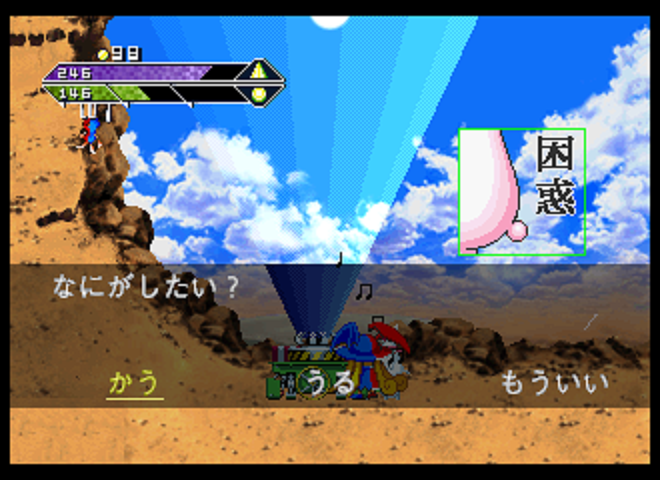
Purchase goods. After finding the shop rabbit, press the button to talk to him. He will then display three options: Buy, Sell, and Exit. To purchase items, select “Buy”.
Next, the shop rabbit will show you his wares. Use the Up or Down Directional buttons to scroll through his inventory items.
The name of the item, its level, and price will be displayed at the top of the message window. To confirm the decision to purchase that item, select "Buy". Press the button. The item will be purchased.
To cancel a purchase, simply select the negative response and press the button. NOTE: Shyna can only possess three parasites in her inventory. If she already has three, one of the parasites must be sold before purchasing another. .png)

.png)


 (En,Fr,De,Es,It) (No EDC).png)
 (En,Fr,De,Es,It) (v1.1).png)