GETTING STARTED
Set up your PlayStation®2 computer entertainment system according to its Instruction Manual. Ensure the MAIN POWER switch (located on the back of the console) is turned on.
•
When the power indicator lights up, press the (OPEN) button.
•
Place the Baldur's Gate™: Dark Alliance™ II disc on the disc tray with the label side facing up.
•
Press the (OPEN) button again to close the disc tray.
•
Attach game controllers and other peripherals as appropriate.
Follow on-screen instructions and refer to this manual for information on using the software.
PlayStation®2 Connections
HOW TO START THE GAME
The opening movies can be skipped by pressing the START button or the button on the controller.
MAIN MENU
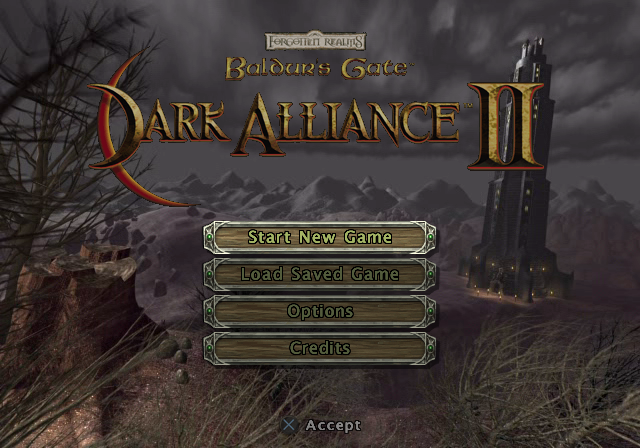
On the opening menu, you will be presented with four options:
Start New Game
Select this option when you are ready to begin playing. You will be asked to choose either a one-player or two-player game. If you want to transfer a character from another game, see "Transferring Characters from Other Games."
Once you have selected a new game, you can choose the game difficulty: Easy, Normal, or Hard. Play on Easy if you're just getting your bearings; Hard if you're looking for a challenging experience.
After selecting the difficulty level, you (and the second player if applicable) will be taken to the Character Selection Screen. Use the directional buttons to cycle through your five choices. A small icon will appear above each character as you cycle through the choices.
•
Allessia the Cleric of Helm
•
Borador the Dwarven Rogue
•
Ysuran the Elven Necromancer
The advantages and disadvantages of each choice are listed under "Heroes of Baldur's Gate."
Load Saved Game
This option allows you to load a previously saved Baldur's Gate: Dark Alliance II game from your memory card (8 MB) (for PlayStation®2).
Options
Select this option to customize your controller's configuration, adjust sound options, and other game options.
Credits
Selecting this option will allow you to see the creators and contributors to Baldur's Gate: Dark Alliance II.
•
Press the button to select an option.
•
Press the button to go back.
TRANSFERRING CHARACTERS FROM OTHER GAMES
If you have a pre-existing character from another Baldur's Gate: Dark Alliance II game, you can import your current character. You will need a Memory Card with a saved game containing your character. To do this, select "Change Players" from the In-Game Pause Menu.
OPTIONS MENU
Move up and down the Options menu by pressing up and down on the directional button.
Music
When highlighted, you can press left and right on the directional button to adjust the music volume in the game.
SFX
When highlighted, you can press left and right on the directional button to adjust the sound effects volume in the game.
Vibration
Certain events within the game will cause the controller to vibrate. This can be switched on or off, depending on your preference.
Controls
This selection takes you to the Controller Configuration screen, where you can choose a configuration that best suits your style of game play.
Stereo
This option allows you to choose whether you want stereo sound or monaural (for single speaker televisions).
Dialog Text
When this is off, you will not see the text spoken by characters you speak to in the game (although you will see your own responses). When Dialog Text is on, characters' speech will be displayed at the bottom of the screen as they are speaking.
Damage Text
When this is on, you will see the number of hit points of damage you cause stream off a target when you hit. The number is colored yellow for a critical hit, red when the target is resisting damage, blue when the target is vulnerable and takes extra damage, or green when the target is receiving Hit Points (being healed). Damage Text defaults to off.
Game Actions
You cannot cast spells in towns or other "safe" areas. Some spells and feats require a certain amount of Magic Energy to use.
Action
The button allows you to perform almost any other action other than jumping, casting spells, or attacking.
•
Press this button to speak to people, open doors, chests, pull levers, pick up items, or save your game at save pedestals.
•
This button also opens secret doors or hidden entrances where there is no on-screen indication.
Selecting Spells and Feats
Your character will gather multiple spells and feats. To change your currently-selected spell or feat, press up or down on the directional button to scroll through your list (which appears in the lower left-hand corner).
You can also use the new Shift system to set up to four different Shift Slot spells and feats.
•
Hold down the L1 button to bring up the Shift Slots.
•
Press up or down on the directional button to bring up the list of available spells and feats.
•
Continue to press up or down once the list appears to select a specific spell or feat.
•
To assign the currently selected spell or feat to a Shift Slot, press the corresponding

_1.png)

.png)

.png)
.png)
.png)


