Your Quest Begins
Once you create your character, your adventure begins!
Main Game Screen
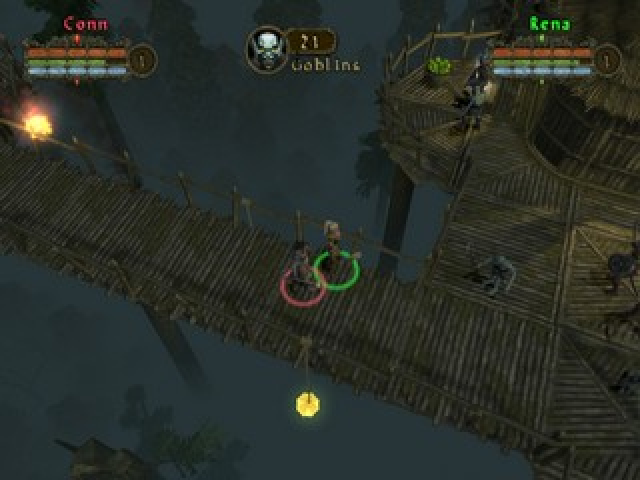
This is the main game screen. The three bars in the upper left corner track your character's vital statistics.
•
Health (red bar): This displays your character's hit points. If this bar is depleted, your character will die.
•
Experience (green bar): This displays the progress toward your next level. When this bar fills completely, you will attain a new level.
•
Mana (blue bar): This displays your character's pool of magical energy, which is used to activate special abilities.
Auto-map
Press the R3 button once to bring up a large, transparent auto-map (if available in your character's location). Your character will be marked with a triangle on the map.
Press the R3 button a second time to reduce the auto-map size. Pressing the R3 button a third time will close the auto-map.
Spell Book and Quick Ability Menu
The Spell book is opened by pressing the button on the special abilities screen. A radial menu will appear; this is your character's spell book. Special abilities may be placed in this spell book, and you may select special abilities to be included here.
From the main gameplay screen, a Quick Ability Menu may be opened by pressing any direction on the directional pad. Your spell book will appear as a radial menu.
You may assign a quick use button to two of your special abilities, either the button or the button. Simply move the highlight around the radial menu to a special ability using the directional pad, and then press the Quick Ability button you wish to assign to the selected ability. You may change these button assignments at any time.
Character Detail Screens
During gameplay, press the SELECT button to view your character's important details, such as weapons, armor, items, quests, and skills. These are each represented by an icon in the tabs at the top of the screen.
You may move between the screens by pressing the R1 or L1 buttons, or moving the pointer and clicking on a tab.
On any of the inventory screens, you may equip or unequip an item by pointing at it and pushing the X button. You may also drop items by pointing at them and pressing the button.
Controlling Your Character
Here are the basics of moving your character through the world, performing actions, and using special abilities.
•
Moving: You direct your character's movement by using the left analog stick on your controller.
•
Attacking or Breaking Items: To attack a creature with an equipped weapon, position your character for the attack (move close and face your target for melee attacks, or face your target for ranged attacks) and press the X button.
•
You may break or smash items like barrels and boxes that you find by pressing the X button.
•
Pushing Items: Some items you encounter in the game can be moved by pushing them. Simply move your character against the item, and he or she will push it in the direction you wish (not able to push items during online game play).
•
Performing Actions: To interact with NPCs, such as shopkeepers, or perform other actions, such as opening chests, pulling levers, and picking up items, press the button.
•
Blocking: You may block some attacks against your character by holding the R1 button.
•
Dodge: Give ground and avoid attacks by holding R1 and pressing L1.
•
Rotating the Camera: Use the right analog stick to shift and adjust the position of the view camera.
Saving Your Game
As you progress through the game, you will encounter large stone pedestals, atop which rest stone spheres. These are save points.
The save points become active the first time you approach them. Press the Action button (default button is the) when standing near one to save your game.
Pausing the Game
You may pause your game by pressing the START button. This will open the Pause Menu:
•
Return to Game: This will return you to your active game.
•
Use Gate Scroll: Choose this to use a gate scroll from your inventory and return to a safe point.
•
Load Game: Choose this to load up a previously saved game.
•
Options: Adjust your settings and preferences from the menu.
•
Add/Remove Players: This will allow your friends (up to 4 players) to join your game by importing their saved characters into open player slots.
•
To add players and import their characters, their controller and memory card must be connected to an available slot in the PlayStation®2 system.
•
Exit to Menu: This will return you to the Main Menu.
Portals
Throughout the game you will encounter stone pedestals that can be used as portals. These pedestals look similar to the save game pedestals, except a diamond-shaped crystal rests at their tops. As your character approaches them, the portal pedestals will become active.
With portals, your character may travel from one portal location to another instantly, saving you travel time, particularly when you wish to return to a city to sell items, for example. When you approach a portal pedestal, press the Action button (default button is the). You will be given a list of portals you have activated. Choose which you'd like to travel to and press the X button. You will be transported to your chosen portal location.
Gate Scrolls
Gate scrolls will whisk your character from whatever location he or she is in and deposit them at a safe point. The safe point location will depend on which leg of the storyline you are currently exploring.
You must possess at least one Gate scroll in your inventory to use this option. There are two ways
.png)

.png)

.png)

.png)
.png)
.png)

_1.png)


