Health
This indicates your current hit points. You can use your medipack to heal.
Armor
This indicates how much armor you are wearing. Armor can be found throughout the level and picked up off of dead enemies when searched.
Stamina
This indicates your current stamina. Sprinting and picking up objects deplete your stamina. Stamina regenerates over time.
Waypoint Indicator
The Waypoint Indicator directs you to the present primary objective. As you get closer, the arrow will change and indicate your distance in feet.
Grenade Inventory
This shows you what grenades you currently have equipped and ready for use.
•
Quickly scroll through your grenade inventory: Circle button (Default Controls)
Secondary Weapon
This is your secondary weapon; you are carrying it but it is not equipped. You can carry only two weapons at a time. The available ammo is in the lower right.
•
Arm this weapon: right directional button (Default Controls)
Primary Weapon
This is the weapon you are currently equipped with. The available ammo is in the lower right-hand corner.
Combined Items
You can see what combined items are available in a level by viewing the Recipe Cards in the in-game Pause Menu.
When you acquire a new component part for each combined item, the empty slots will fill in. For example: To create a Molotov cocktail, you need a rag, a bottle, and a fuel can.
In the menu at the beginning of a level where the Molotov is found, you will see the recipe card with an empty slot for each component part. As you acquire each part, the slots fill in.
Once you have all the parts, the New Item Available Indicator on your HUD will flash. Access the menu to quickly assemble the combined item.
•
Note: Some component parts can be used in different items. For example: Both Molotov Cocktails and Fire Bombs require fuel cans.
Multiplayer
Split-Screen
You can play with up to four friends in split-screen mode with the same options and game modes found online.
•
Note: multitap (for PlayStation®2) is required for split-screen games of more than two players.
Online
With a network adapter (Ethernet/modem) (for PlayStation®2), a memory card (8MB)(for PlayStation®2) containing a valid Your Network Configuration file, and a broadband Internet connection (DSL, cable modem, or higher-speed), you can join and host online games.
Use the Network Adaptor Start-Up Disc to create, edit and save a network configuration. Cold Winter is also compatible with the USB Headset (for PlayStation®2).
Game Types
There are six different modes of multiplayer gameplay:
•
Deathmatch: Only kills matter in this mode - the more the better.
•
King of the Hill: Race against the other players to capture "the node." Five points are awarded for every time you successfully capture it. Kills aren't counted in this game.
•
Flag Tag: Find the flag and hold onto it for as long as you can. You can't shoot opponents while carrying the flag. Kills aren't counted in this game.
•
Domination: Capture, defend and retain as many Objective Points in the level as possible. A point is awarded every five seconds for every point held.
•
Last Man Standing: You have a set amount of lives; once they're gone, you're out. Outshoot and outlast your opponents to win.
•
Head Match: A gruesome variation of Flag Tag.
Creating a Player Profile
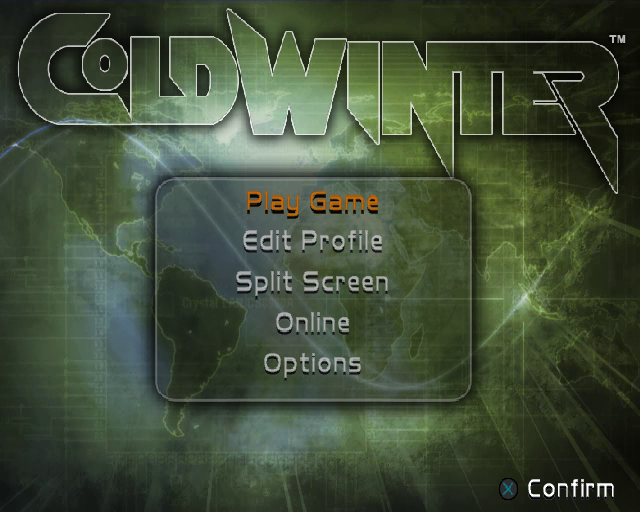
1. Select Edit Profile from the Main Menu OR Select Online from the Main Menu.
2. Using the directional buttons, select New Profile.
3. Name: To change your profile name, select Name by pressing the X button and use the directional buttons to use the keyboard that appears.
4. Player Model: You can alter your avatar's appearance.
5. Aim Assist: You can get a little help with your aiming skills with this feature.
6. Pitch: You can change the Look controls to Invert or Normal.
7. Controller Configuration: You can alter your controller configuration to any of the preset configurations here.
Joining an Online Game
You can join an already-hosted game at any time.
1. Insert a memory card (8MB) (for PlayStation®2) containing a valid Your Network Configuration file into MEMORY CARD slot 1.
2. Select the Online option from the Main Menu.
3. Select or Create a Profile.
4. Accept the User License.
5. Select the Your Network Configuration file you would like to use.
6. In the Online Game Select Screen (Lobby), choose any listed game by highlighting it.
7. The game type and parameters are displayed in the lower portion of the screen. Press the X button to join.
8. If a game is Password Protected, you'll be required to know the password in order to join.
9. You will be taken to a secondary Lobby that lists all the players who have currently joined that particular game.
10. When the game is launched by the host, you will be prompted to Connect by pressing the X button to join.
Creating (Hosting) an Online Game
You can host and play in a peer-to-peer online game. As the host, you select the game parameters of your choosing. For hosting, we recommend a higher broadband connection.
1. Press the X button to Create Game in the Online Game Select Screen (Lobby).
2. Password Protection
.png)

.png)


_1.png)

_1.jpg)

.png)
.png)

