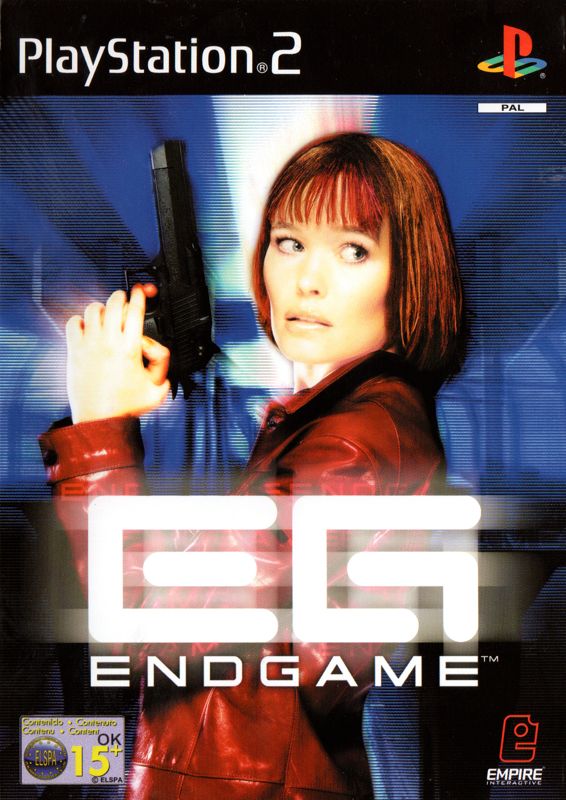
ENDGAME
•
i.S400 (i.LINK) connector
SETTING UP
Set up your PlayStation®2 computer entertainment system according to the instructions in its instruction manual. Make sure the MAIN POWER switch (located in the back of the console) is turned ON.
Press the RESET button. When the power indicator lights up, press the open button and the disc tray will open. Place the “ENDGAME™” disc on the disc tray with the label side facing up. Press the open button again and the disc tray will close.
Attach game controllers and other peripherals, as appropriate. Follow the on-screen instructions and refer to this manual for information on using “ENDGAME.”
MEMORY CARD (8MB) (FOR PLAYSTATION®2)
“ENDGAME” lets you save games at their current level of play onto a Memory Card (8MB) (for PlayStation®2), and resume play on previously saved games. A Memory Card (8MB) (for PlayStation®2) is required.
Insert a Memory Card (8MB) (for PlayStation®2) into Memory Card slot 1 on the PlayStation®2 game console BEFORE starting play.
Important
Do not switch off the MAIN POWER switch, remove or insert a Memory Card (8MB) (for PlayStation®2), or Controllers while saving or loading games. Doing so could damage the game data.
USING A GUNCON™ & GUNCON™2 TOGETHER
To use the Guncon™ and Guncon™2 light guns together, make sure they are not connected to the controller port and USB connector of the same player.
For example, if the Guncon™2 is connected to the bottom USB connector, the Guncon™ should be connected to controller port 2. The top USB connector will override a Guncon™ connected to controller port 1.
LANGUAGE SELECTION
"ENDGAME" will automatically select the language set in your Playstation®2 system configuration. To change the language, please refer to the instructions in your Playstation®2 instruction manual.
GETTING STARTED
Gun Calibration
Before you start playing, you should calibrate your light-gun device for more accurate shooting. The gun calibration screen is accessed by selecting the Controller Options choice from the Options Menu.
To calibrate your gun, aim and shoot at the center of the target on screen. A crosshair will appear. Check when pointing the gun at the center of the target, check that the crosshair moves there.
If this crosshair is in the center of the target, your gun is calibrated. If it isn't, repeat the process by aiming and shooting at the center of the target on screen until the cross hair appears in the correct place.
When your gun has been calibrated, press the A Button to confirm the process and return to the Options Menu.
SAVING
Insert a memory card (8MB) (for PlayStation®2) into MEMORY CARD slot 1 to load a saved game or start a new Endgame game file.
The game will automatically check for a suitable memory card in MEMORY CARD slot 1 when the game is started. If a memory card (8MB) (for PlayStation®2) is present in MEMORY CARD slot 1, the saved ENDGAME data will automatically be loaded.
When a suitable memory card (8MB) (for PlayStation®2) is present in MEMORY CARD slot 1, the ENDGAME game file will automatically be saved by default. To save manually, change the autosave option in the Options Menu.
MENUS
Various types of games and settings can be selected from the Main Menu. To pick a menu option, shoot your selection.
If you are using a DUALSHOCK®2 analog controller, highlight your selection using the left analog stick and press the X button.
PLAYING ENDGAME
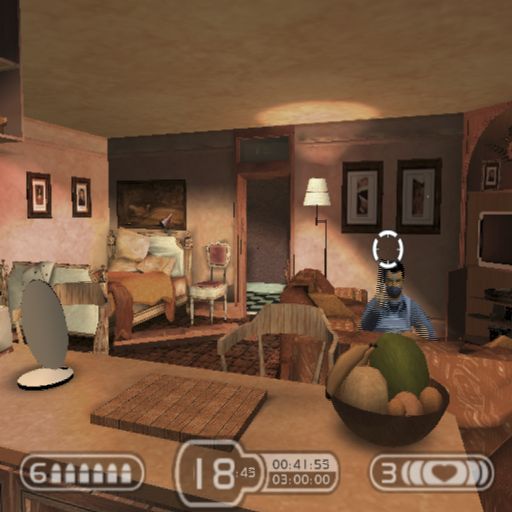
As you fire your weapon, you will use up bullets. To reload, use the reload button.
You will duck behind a wall or other protective objects to take cover while reloading your gun. Taking cover is also very useful when trying to avoid getting hit by enemy fire.
OPTIONS MENU
•
CALIBRATE GUN (Guncon™ and Guncon™2 only)
Select this to recalibrate your gun(s). Shoot at the center of the target to calibrate your gun. If you have changed the aspect ratio or the screen position, you may want to recalibrate the gun.
•
SET BUTTON MODE (Guncon™ and Guncon™2 only)
Change which button is used for Reload.
•
CONTROLLER MODE (DUALSHOCK®2 analog controller only)
Choose between Novice Mode and Expert Mode. Novice Mode is easy to use but a little slower than the Expert Mode, which is harder to master but allows for more responsive control.
AUDIO OPTIONS
Select this option to change the volume of the sound effects and the music.
This will enable you to choose from the different audio output modes.
VIDEO OPTIONS
Choose between Wide Screen (16:9) and Full Screen (4:3) options.
Select this to center the position of the screen. Shoot the appropriate arrows to move the screen position around. Shoot the tick to accept the new screen position; shoot the cross to
.png)

.png)
