Starting a Game
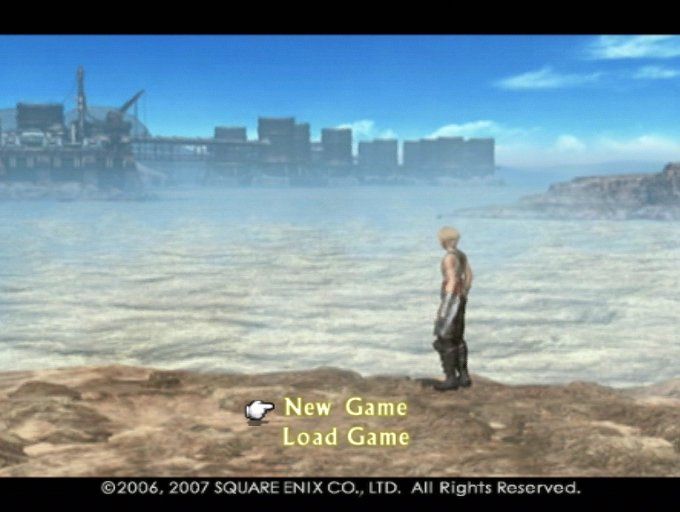
After the game loads, a demo movie will play, followed by the FINAL FANTASY XII title screen. You can press the button during the demo movie to bring up the title screen.
Select "New Game" to start FINAL FANTASY XII from the beginning. Choose "Load Game" to continue from a previously saved game.
Adjusting Settings
When starting a new game, you can adjust config settings. These settings can also be changed at any time from the Config section of the Party Menu. Once finished, select "Begin the Game" to start your adventure.
Toggle the DUALSHOCK®2 analog controller's vibration function ON/OFF.
Turn the screen shake effect ON/OFF for scenes where the screen shakes.
Turn cut-scene subtitles ON/OFF.
Set the screen size to normal (4:3) or widescreen (16:9) aspect ratio.
Turn the screen flicker filter ON/OFF.
Change the game audio to monaural, stereo, or Dolby® Pro Logic II.
Adjust the horizontal and vertical position of the display using the directional buttons. A guide is provided to help adjust screen brightness.
Restore all settings to their default values.
Sound Settings
Adjusting sound settings to match your audio environment enhances gameplay.
Suitable for audio/video equipment without stereo input/output.
Suitable for audio/video equipment with 2-channel input/output.
This game is presented in Dolby® Pro Logic II. For dynamic surround sound, connect your game console to a sound system with Dolby® Pro Logic (for 4 channel sound) or Dolby® Pro Logic II (for 5 channel sound) decoding. Refer to your sound system's instruction manual for details.
Dolby, Pro Logic, and the double-D symbol are trademarks of Dolby Laboratories.
Saving and Loading
At least 100KB of space is required on a memory card (8MB) (for PlayStation®2) to save your game. Refer to page 15 on how to save your game while playing.
To continue from a previously saved game, select "Load Game" at the title screen. Choose the MEMORY CARD slot containing your data. Your save file(s) will appear; select the one you wish to load and press the button.
Insert a memory card (8MB) (for PlayStation®2) into either MEMORY CARD slot to save or load data.
Exiting a Game
To end a game, press the START button to pause. While paused, pressing the button will return you to the title screen. Exiting this way will not save your data, so ensure you save your progress before quitting.
Game Over
If all your characters are KO'd or incapacitated, the game ends and returns to the title screen. Select "Load Game" to resume play from your most recent save point.
Exploring Ivalice
Ivalice spans three main continents: Valendia, Ordalia, and Kerwon. Here is some advice to help you on your travels.
Basic Movement
Use the left analog stick to move your character. Tilt the stick slightly to walk, and fully to run.
Camera Movement
Use the right analog stick to rotate the camera around the party leader. Pressing the button will reset the camera directly behind the party leader. You can also lock and center the camera on the party leader's current target by holding down the button.
Adjusting the camera during battle allows you to confirm party member positions and scan for foes. Using the camera to your advantage assists in heated battles with multiple targets.
Action Icons
When moving, an exclamation mark (!) may appear over your character's head, indicating an "action icon." This means something important, like a door, switch, or treasure, is nearby.
When you approach the object, the action icon will change. Press the or button to interact with the object.
Talk Icon
You can only speak with NPCs who have a talk icon above their heads. To start a conversation, approach an NPC and press either the or button.
When a appears in the log window, you can press the button to review previous pages of text. Use the and buttons or the up/down directional buttons to change pages.
Traveling the World
There are several ways to make your way around Ivalice.
Afoot
Walking requires the most time but offers the most rewards for gathering information or collecting treasure, especially on your first visit to an area.
Chocobos
In many villages and towns, you can hire a chocobo for a small fee. Controlling a chocobo is similar to walking, but with key differences.
Chocobos are significantly faster, and you won't be attacked by monsters while riding. However, riding time is limited. When time runs out, you automatically dismount, and nearby monsters may attack. Keep an eye on the clock in the lower right of the screen in dangerous areas.
You can dismount at any time by pressing the button. Once dismounted, you cannot remount, regardless of remaining riding time.
Pressing while riding a chocobo
.png)

.png)

.png)

.png)
.png)
.png)

_1.png)


