GETTING STARTED
Set up your PlayStation®2 computer entertainment system according to its Instruction Manual. Ensure the MAIN POWER switch (located on the back of the console) is turned on.
Press the RESET button. When the power indicator lights up, press the open button and the disc tray will open. Place the (Fireblade™) disc on the disc tray with the label side facing up. Press the open button again and the disc tray will close.
Attach game controllers and other peripherals, as appropriate. Follow on-screen instructions and refer to this manual for information on using the software.
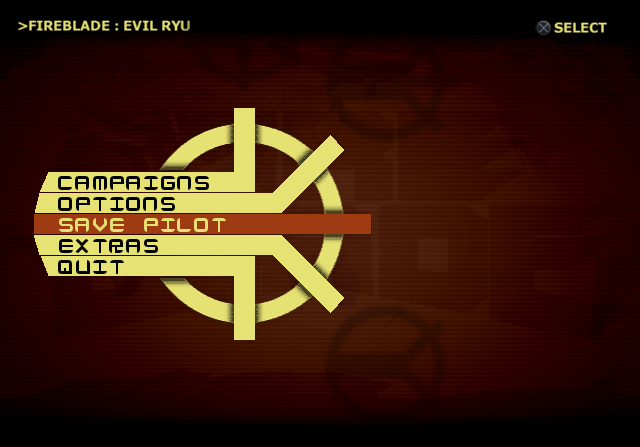
MAIN MENU
CAMPAIGNS
This sub-menu allows a pilot to access their next mission. Highlight CAMPAIGNS and press the ✔ button.
Next, highlight Campaign 1, 2, 3 or 4 and press the button again. Only currently unlocked campaigns will be accessible. To gain access to a campaign, you MUST successfully complete the previous campaign!
OPTIONS
The Options Menu allows you to change and configure a variety of game settings. There are three sub-menus in the Options Menu.
VIDEO controls the video settings of the game. It allows you to position the screen to fit your monitor and turn the game's subtitles ON or OFF.
CONTROL allows you to view the layout of your controller and adjust three controller settings. You can turn the VIBRATION ON or OFF, and change the ALTITUDE and SNIPER AIM functions from NORMAL or INVERTED (reversed).
AUDIO is the final sub-menu in the Options Menu. The Audio Menu allows you to adjust the volumes of the audio features in the game.
To adjust an audio setting, press Up or Down to highlight the setting you wish to change. Next, press Left or Right to Lower or Raise the volume of the game's MUSIC, SOUND FX or SPEECH settings. You may also change the audio Mode from STEREO, REVERSE (switching left/right stereo channels) or MONO.
NOTE: Adjusted options are saved to your Pilot Profile.
SAVE PILOT
To continue playing the game later, you will have to save your pilot's progress. This Main Menu item allows you to do just that.
Highlight SAVE PILOT and press the button. Next, choose whether or not you want to save your pilot data and press the button. After you have made your selection, you will return to the Main Menu.
EXTRAS
The Extras sub-menu is where you can view unlocked movies from the game as well as view the credits. Located in the Movies section is an awesome documentary on the history of combat helicopters called "Roar of War", so be sure to check it out!
QUIT
Selecting QUIT will return you to the Pilot Profile Menu. It is HIGHLY RECOMMENDED that you SAVE your pilot's progress at the Save Pilot menu first. This will ensure that you properly save your game data for future use.
PLAYING THE GAME
YOUR FIRST CAMPAIGN
Now that you've joined the ranks of Fireblade, it's time to take to the air. Flying the attack helicopters of Fireblade takes some practice at first, but most importantly, it takes skill.
Your first Campaign will get you familiar with the controls of an attack helicopter as well as give you some practice in using the helicopter's vast array of weaponry. Your mentor on this first campaign will be Heather Brooks, one of Fireblade's finest pilots. Follow her instructions and listen to whatever she says if you want to make it as a pilot!
CAMPAIGN OBJECTIVES
Before each campaign begins (loads), you will be briefed on what the upcoming campaign objectives are. Pay close attention during this time for vital information on what to do and what to watch out for. Failure to do either could result (most likely will result) in Mission Failure and could cost you your life!
If you wish to skip the briefing, you may do so by pressing the button.
COMPLETING MISSIONS
MEDALS AWARDED
Upon completing a mission and depending upon how well you did, you may receive a medal for your bravery and skill (Gold, Silver and Bronze).
PAUSE MENU
During the game, press the START button to access the game's Pause Menu. To navigate through the Pause Menu, press Up and Down on the Left analog stick or directional buttons.
To access a sub-menu, press the button. To return to the previous screen, press the button.
CONTINUE
This allows you to return to the game and exit the Pause Menu. Highlight CONTINUE and press the button.
MISSION MAP
One of the most useful features in the game is the Mission Map. Highlight MISSION MAP and press the button. This will display a map that contains not only a list of objectives in the mission, but also a map showing the locations of each objective.
The top half of the Mission Map shows in text, the list of objectives in the mission. They are listed in order of priority from top to bottom.
The bottom portion of the Mission Map shows the map itself. Each objective and your location are displayed via
.png)

.png)







_1.png)

_1.png)