Starting the Game
•
Note: Illustration may not match all PlayStation 2 console types. For owners of SCPH-70000 series PlayStation 2 systems, refer to the setup instructions supplied with your system. 1. Set up your PlayStation®2 computer entertainment system according to the instructions in its Instruction Manual.
2. Make sure the MAIN POWER switch (located at the back of the console) is turned ON.
3. Press the RESET button. When the power indicator lights up, press the OPEN button and the disc tray will open.
4. Place the Rugby 2005 disc on the disc tray with the label side facing up. Press the OPEN button again and the disc tray will close.
5. Attach game controllers and other peripherals, as appropriate.
6. Follow on-screen instructions and refer to this manual for information on using the software.
PlayStation®2 Computer Entertainment System
Multitap
•
multitap connector (for PlayStation®2)
Setting Up the Game
Create a User Profile to track and save your settings preferences, stats, and favorite international team. After selecting a favorite team, it becomes the default choice in Play Now and Practice modes.
Play Now
After selecting PLAY NOW from the Main menu (for the first time), you must complete a rugby tutorial to help get you familiar with the basic controls and tactics. Once these exercises are complete, you'll have access to the Game Modes menu.
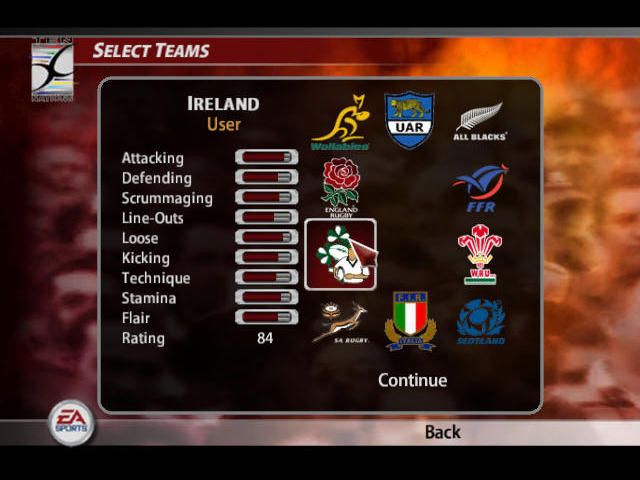
Controller Select Screen/Team Select Screen
From the Controller Select screen press the D-button to move the controller icon over to the team you wish to play for. When playing with two players, you can choose to play cooperatively or against each other. You can play as any INTERNATIONAL, SUPER 12, EUROPEAN, or REPRESENTATIVE squad.
Once the teams, location, and match parameters are set, you can edit your lineup and change your default Kicker (K) and Captain (C).
•
To swap players press the D-button to highlight a squad member. Press the button to view his stats; press the button to select him.
•
Press the D-button to highlight the player to swap with and press the button. The two players swap positions.
•
NOTE: Substitutes are numbered 16-22. Reserves, who cannot be used in a match, are shown with the letter R next to their name.
•
To change your Kicker or Captain, highlight the player you wish to take on that role, then press the R1 button or the L1 button respectively. Select DONE to continue to the kick-off.
Playing the Game
Lightning-fast backs, 300-pound forwards, huge hits, and no pads ... this is Rugby in its greatest glory.
Game Screen
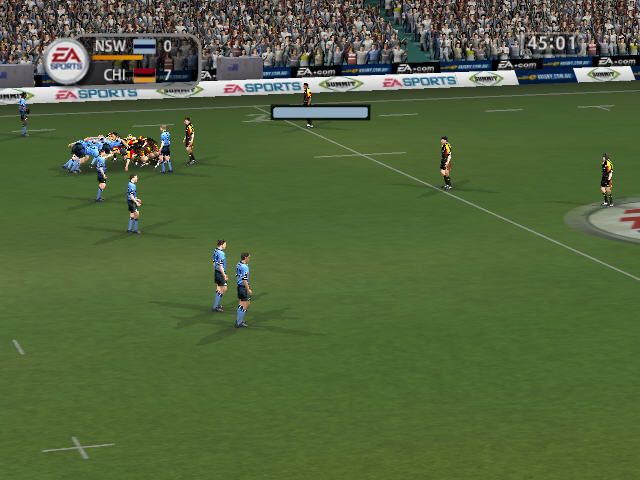
The Momentum Meter
The Momentum gauge displays the team currently in the ascendancy in the match. Retain control of the ball to fill the gauge and further increase your chances of keeping it. Constantly recycle possession in order to build team momentum and disrupt your opponent's efforts with big hits and by finding touch.
The gauge is affected by such factors as the participation of a commanding player, home advantage, previous results and the opposition's skill.
The Scrimmage Bar
During a ruck, maul, or scrum, bars in the colors of both teams appear above the scrimmage, indicating the amount of control each team possesses at that moment. The amount of control a team can seize is affected by several factors, including which team went into the scrimmage with the ball in their possession, the ability and number of the players binding in, and general team ability.
Set Plays
During scrums and mauls, both the attacking and defending teams can employ set plays when the ball is loose. The Set Play indicator displays the options available to the attacking team.
To Initiate a Set Play
Scrums
1. Before the ball is played out from the scrum, the attacking team (with the feed) selects one of four attacking set-play moves by pressing the D-button. The defending team selects one of the four defensive set-play formations, depending on what he thinks the attacking team will do with the ball once released.
2. If the ball is successfully hooked by the attacking team, the Scrum Half initiates the chosen set play automatically when he passes it out to the backs. The marker above the Scrum Half's head flashes red when his players are not in formation for the set play. Once the marker turns green the set play can be initiated.
3. Four button icons briefly appear over four separate players' heads. Press the corresponding button to select one of these players to control.
•
EA SPORTS TIP: The Pocket play is a kick-based set play, so no icon appears. Rucks
Once the ball is won in the ruck and before the ball is released from it, the attacking team can select one of four attacking set-play moves by pressing the D-button. Similar to a scrum situation, the marker flashes red when players are
.png)


.png)