Startup Information
Set up your PlayStation®2 computer entertainment system according to the instructions in its instruction manual. Make sure the MAIN POWER switch (located on the back of the console) is turned on. Press the RESET button.
When the power indicator lights up, press the open button and the disc tray will open. Place the SHIFTERST™ disc on the disc tray with the label side facing up. Press the open button again and the disc tray will close.
Attach game controllers and other peripherals, as appropriate. Follow on-screen instructions and refer to this manual for information on using the software.
If you wish to load or save information during play, insert a memory card (8MB) (for PlayStation®2) with at least 500KB of free memory in MEMORY CARD slot 1. It is advised that you do not insert or remove peripherals or memory cards (8MB) (for PlayStation®2) once the power has been turned on. You may need to press the reset button once to get the game to load.
Look Around
•
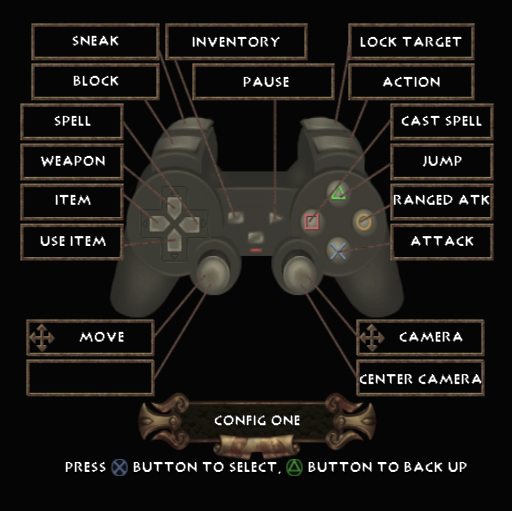
Move/Center Camera: Press any direction on the right analog stick.
•
Center Camera: Press down on right analog stick (R3 button).
Interacting with the World/Pick Up an Item
Approach the item to highlight it, then press the R1 button to pick it up and add it to your inventory. In the case of armor, shields and weapons, they will be automatically equipped.
Opening Chests and Doors
Face the chest or door to highlight it, and press the R1 button to have Alleron open it.
Interacting with People
To interact with people or creatures, face them and press the R1 button. Press the X button to skip a conversation.
Destroying Objects
Use either spells or weapons to destroy objects in the game that can be damaged by a direct attack.
Encountering Traps
Be careful, your journey is dangerous and likely wrought with traps. These are sometimes difficult to see. They are known to throw fireballs or lightning, causing significant harm...you've been warned!
Menus
Hot Menus
There are 3 Hot Menus in the game. They provide the ability to quickly switch Items, Spells and Weapons.
Items
1. Press and hold the directional button to pause the game and display items.
2. Use the right analog stick to cycle through the items. The last item left in the display circle becomes the currently active item.
Spells
Follow the steps above, but press the directional button.
Weapons
Follow the steps above, but press the directional button. Weapons are centered at the top of the screen.
Current Item
You can hold objects like potions to "ready" them for use. In the case of keys, stand next to the object to be opened, and press either the R1 button or the directional button.
1. Access the item in the Inventory Screen, or press the directional button until the Items Hot Menu appears.
2. Press and hold the directional button as you use the right analog stick to page through items until the item you want is selected.
3. Once the item is selected, release the directional button.
4. Press the directional button to use the item.
Current Spell
Press the directional button. The current spell is indicated in the small circular icon near the Mana Bar.
1. To ready a new spell, press and hold the directional button.
2. While holding down the directional button, cycle through the spells with the right analog stick, until the spell you want to use is selected.
3. Release the directional button.
4. Press the button to cast the spell.
Note: You must have enough Mana to cast the spell.
Pause Menu
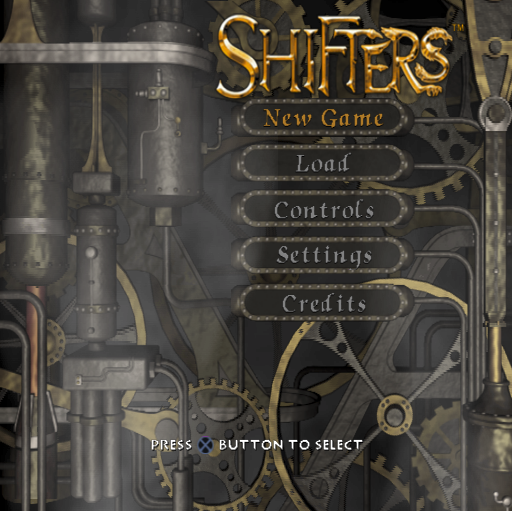
Press the START button to pause the game and enter the Pause Menu.
•
CHARACTER STATS: Press to activate.
•
Inventory: Open the Inventory screen.
•
Abilities: Distribute earned Ability Points to increase the Spirit, Mind and Body statistics.
•
Forms: Distribute earned Form Points, gain form promotions, and make sub-form selections for third tier sub-forms.
•
Quests: See your current and completed quests.
•
Map: View a general map of the area that you are traveling in.
•
Save: Save up to four games on your memory card (8MB) (for PlayStation®2). See Saving and Loading.
•
Load: Load a saved game. See Saving and Loading.
•
Controls: Enter the Controller Menu.
•
Settings: Modify game settings.
Inventory Screen
To access the Inventory screen, press the SELECT button, or choose Inventory from the Pause Menu. The figure of Alleron's body in the lower center of the screen is a visual representation of the Armor, Shield, and Weapon that he is currently using.
•
Press to change selected equipped item, A backs up
Change Equipment
1. Use the directional buttons to cycle other inventory items into the Selector Ring.
2. When the desired item is selected, it is equipped.
3. Press the directional buttons to cycle through the equipment.
Each item
.png)

.png)
