Setting Up Your PlayStation 2
Set up your PlayStation 2 computer entertainment system according to the supplied instructions. Ensure the system is turned on (the on/standby indicator is green). Press the OPEN button to open the disc cover. Place the TNA IMPACT! disc with the label side facing up in the disc holder, then close the disc cover. Attach game controllers and other peripherals as appropriate.
Follow the on-screen instructions and refer to this manual for information on using the software.
Memory Card (8MB) for PlayStation 2
To save game settings and progress, insert a memory card (8MB) (for PlayStation 2) into MEMORY CARD slot 1 of your PlayStation 2 system. You can load saved game data from the same memory card or any memory card (8MB) (for PlayStation 2) containing previously saved games. Autosave
TNA IMPACT! uses an Autosave feature. When saving to the memory card (8MB) (for PlayStation 2), a prompt will appear on screen. Do not remove the memory card or turn off your PlayStation 2 computer entertainment system while saving. Autoload
With saved TNA IMPACT! data on an inserted memory card, the game will automatically load your saved data each time you turn on your PlayStation 2 computer entertainment system to start a new TNA IMPACT! game. DUALSHOCK 2 ANALOG CONTROLLER CONFIGURATIONS
This game does NOT recommend or support "Analog Joystick" controllers that are not DUALSHOCK 2 analog controllers.
Menu/Sub-Menu Navigation
Throughout this manual, ↑, ↓, ← and → will signify pressing Up, Down, Left and Right on the directional buttons.
To navigate through the game menus (i.e. Options), use the directional buttons (↑, ↓, ← or →) to highlight a selection.
Quitting a Game in Progress
•
During the game, press the START button to display the Pause Menu.
•
Press the directional buttons ↑ or ↓ to select Quit.
Exhibition
STANDARD
1 vs 1 with victory achieved by pinfall or submission within the ring.
TAG TEAM
2 vs 2 with victory achieved by pinfall or submission within the ring.
FREE FOR ALL
Every man for himself with victory achieved by pinfall or submission within the ring.
ULTIMATE X
Every man for himself with victory achieved by unlatching the X from above the ring.
ULTIMATE X FFA
1 vs 1 vs 1 Every man for himself with victory achieved by unlatching the "X" from above the ring.
SUBMISSION
1 vs 1 with victory achieved by submission within the ring.
FALLS COUNT ANYWHERE
1 vs 1 with victory achieved by pinfall or submission anywhere within the confines of the arena.
FALLS COUNT ANYWHERE TAG
2 vs 2 with victory achieved by pinfall or submission anywhere within the confines of the arena.
HANDICAP
1 vs 2 with victory achieved by pinfall or submission within the ring.
Story
Help Suicide rise again. After you Load or Create your Profile, you can follow the game's Riches to Rags storyline as Suicide. Whether Suicide rises again is up to you.
Options
CONTROLS
Press the directional buttons ◄ or ► to view the controller settings for the various situations your wrestlers will encounter.
AUDIO
Highlight an option, then press the directional buttons ◄ or ► to adjust volume levels for Music, Commentary, Crowd or SFX (Sound Effects).
GAME
Press the directional buttons ◄ or ► to adjust game Difficulty, view Subtitles and/or turn Autosave On or Off.
Main Menu
TNA Extras
TRAINING
View any of the four training videos.
GAME TRAILERS
View the trailer for NBA Ballers®: Chosen One™.
GAME CREDITS
View the names of those who worked long hours to bring you TNA IMPACT!
Pre-Match Setup
Choose a Team
Press the directional buttons ⬅ or ➡ to select the team you'd like. This screen changes based on the game type you choose.
Each player must select a color-coded team slot before you can move on to the Character Selection screen.
Choose a Character
Press the directional buttons ⬆ or ⬇ to select a character. This screen also changes based on the game type you choose.
Press ◎ to view a highlighted player's biography.
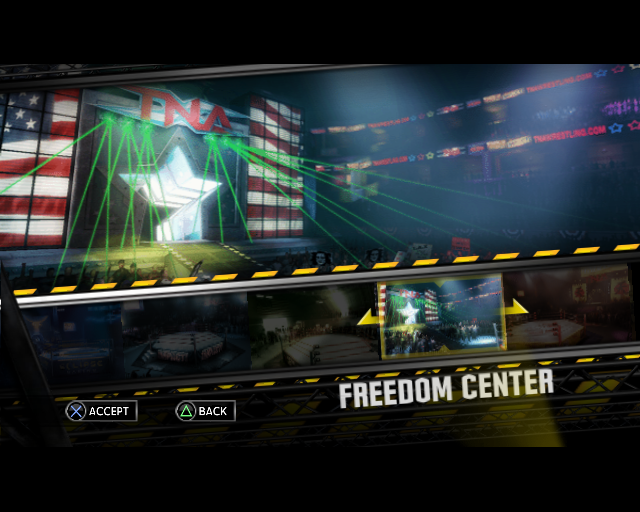
Choose an Arena
Press the directional buttons ⬅ or ➡ to scroll through the available arenas. A preview of each arena is displayed as you scroll.
Screen Elements
.png)



.png)
.png)


