GETTING STARTED
*Note: Illustration may not match all PlayStation 2 console types. For owners of SCPH-70000 series PlayStation 2 systems, refer to the setup instructions supplied with your system.* Set up your PlayStation®2 computer entertainment system according to the instructions in its Instruction Manual. Make sure the MAIN POWER switch (located on the back of the console) is turned ON.
Press the RESET button. When the power indicator lights up, press the OPEN button and the disc tray will open. Place the THE MATRIX: PATH OF NEO disc on the disc tray with the label side facing up. Press the OPEN button again and the disc tray will close.
Attach game controllers and other peripherals, as appropriate. Follow on-screen instructions and refer to this manual for information on using the software.
Memory Card (8MB)(for PlayStation®2)
To save game settings and progress, insert a memory card (8MB) (for PlayStation®2) into MEMORY CARD slot 1 of your PlayStation®2 system. You can load saved game data from the same memory card or any memory card (8MB) (for PlayStation®2) containing previously saved games.
GAME MENUS
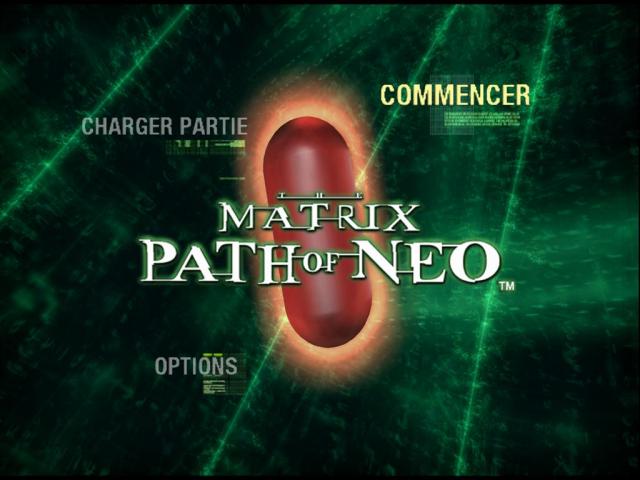
Main Menu
•
Start Game – Choose an empty file slot to begin a new game.
•
Load Game – Load a previously saved game. You must have a memory card in MEMORY CARD slot 1 with a saved game on it.
•
Options – Open the Options Menu.
Game Menu
Once you have started a new game or loaded a previously saved game, you can access the Game Menu. This menu can also be accessed at any time from the Pause Menu while playing The Matrix: Path of Neo.
•
Continue Game – Resume the game at the start of the last previously saved level.
•
Level Select – Replay a previously saved level.
•
Extras – Open the Extras Menu.
•
Quit – Quit the Game Menu and open the Main Menu.
Options Menu
The Options Menu allows you to customize several game settings. You can access the Options Menu via the Main Menu and the Pause Menu. Press the X button to save settings. Press the A button to return to the Main Menu.
Audio
•
Music: Adjust the volume of the music soundtrack.
•
Sound Effects: Adjust the volume of the sound effects.
•
Voice: Adjust the volume of the voiceovers.
Video
•
Brightness: Adjust the brightness levels.
•
Aspect Ratio: Set the aspect ratio, either 4:3 (normal television settings) or 16:9 (widescreen format).
•
Lighting Detail: Adjust the detail level of the game's lighting and normal mapping detail.
Languages
•
Subtitles: Toggle subtitles ON/OFF.
Controller Options
•
Invert Y and Invert X: Customize the Y- and X-axis controls.
•
Vibration: Turn Vibration ON/OFF.
•
Target Lock: Customize the target lock.
•
Center Camera: Adjust the camera controls.
Controller Configuration
Choose from one of the available controller configurations.
Videos and Cinematics
The Matrix: Path of Neo tells its story with live-action film footage, in-game cinematic scenes and gameplay. Clues and instructions appear in these cinematic scenes.
Extras Menu
The rabbit hole has plenty of surprises. The Extras Menu is accessed via the Game Menu, and offers a variety of extra content.
•
Movies Play the game's movie clips, featuring footage from the Matrix trilogy and the Animatrix, as well as additional surprises.
•
Special Combos View some of the game's most effective fighting combos. It's not a complete list there are plenty of secrets that you can discover while playing.
•
Media Viewer View additional artwork from the game and its development process.
•
Cheats Toggle and manage the game's unlockable cheats.
•
The Making of... Go behind the scenes and get a special glimpse at the making of the game, with movies and special features.
Pause Menu / Objectives
At any time during the game you can press the START button to open the Pause Menu.
•
Resume Game Resume playing.
•
Objectives Review your current mission objectives.
•
Options Open the Options Menu (see Options Menu on page 6).
•
Retry Restart at the last saved checkpoint.
•
Exit to Menu Exit the current game and return to the Game Menu.
MOVING AROUND
Camera Controls
The right analog stick controls the game's camera - your view of the action. The camera automatically follows Neo throughout the game, but you can manually control the camera by moving the right analog stick to position the camera for a better view of your surroundings.
Jumping and Climbing
Press Jump (X button) to jump over various objects. As the game progresses, you will unlock the ability to perform a Double Jump - press the X button at the peak of a jump to perform a Double Jump that carries Neo even higher.
Neo will automatically step over low objects. To climb onto taller objects or to reach ledges, move or jump toward the object to perform a ledge hang, and move the left analog stick to climb up. When hanging from a ledge, you can also move the left analog stick to shimmy along its edge.
To climb ladders, move the left analog stick to move toward the ladder and climb up and down. Press Jump (X button) to quickly slide


_1.png)