Getting Started
Switch the Nintendo® Game Boy® Advance system OFF. Never insert or remove a Game Pak while the Game Boy Advance is ON.
Insert the Backyard Hockey™ Game Pak into the slot on the Game Boy Advance. Press firmly to ensure the Game Pak is correctly inserted.
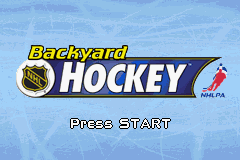
Switch the Game Boy Advance ON. The title screen should appear. If the title screen fails to appear, return to the previous step.
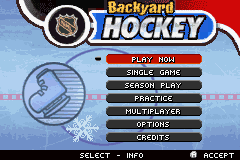
When the title screen appears, press START to proceed to the Main Menu.
For multiplayer games, connect two Game Boy Advance systems (each with a Backyard Hockey Game Pak) via a Game Boy® Advance Game Link® Cable. See "Multiplayer" on page 19 for details.
Main Menu Options
•
Season Play: Lead your team through the rigorous 14-game Backyard Hockey League season and take a shot at the BHL championship. See "Single Game and Season Play Setup" on pages 10-15.
•
Practice: Practice your hockey skills in a 3-on-1 game. You can also play a quick game of air hockey. See "Practice" on page 18.
•
Multiplayer: Play against another player. See "Multiplayer" on page 19.
•
Options: View and modify game settings. See "Options" below.
•
Credits: View a list of the people who helped create Backyard Hockey.
Options
Select Options from the Main Menu to view and modify the following game options:
•
Music: Toggle background music ON/OFF.
•
Graphic FX: Toggle graphical menu effects ON/OFF.
•
Commentary: Toggle the text commentary of Sunny Day and Buddy Cheque ON/OFF. During a game with Commentary set to ON, press the A Button to advance commentary or press START to skip it entirely.
•
Display Player Name: Toggle player name initials ON/OFF.
•
Auto Save: Toggle the game Auto Save feature ON/OFF. When set to ON (default), the game automatically saves progress after each game in Season Play mode. When set to OFF, you are prompted before saving.
At any menu or selection screen, press SELECT to bring up Info Buddy. This displays useful information about menu items and controls. Press SELECT again to hide Info Buddy.
Single Game and Season Play Setup
Difficulty Level Screen
Choose from three preset difficulty levels: Easy, Medium, and Hard. Depending on the level, specific settings are toggled ON/OFF. You can also change these settings individually.
•
Period Time Set: Choose from 2-, 4- or 6-minute periods.
•
Fatigue: Toggle player fatigue ON/OFF. When ON, players will tire during the game, making line changes necessary.
•
Penalties: Toggle penalties ON/OFF. When ON, players can be called for penalties and sent to the penalty box, resulting in a power play for the opposing team.
•
Off-sides: Toggle off-side calls ON/OFF. When ON, off-side calls result in a faceoff.
•
Power-ups: Toggle power-ups ON/OFF.
•
Rock, Paper, Scissors: Toggle this feature ON/OFF. When ON, non-penalty disputes are settled by playing Rock, Paper, Scissors. The losing player sends a player to the penalty box. In case of a draw, there is a faceoff at center ice.
Coach Sign-In Screen (Season Play only)
You can create a new coach or sign in with an existing one to resume a season.
•
Create New Coach: Select New to create a coach and begin a new BHL season. The name can be up to seven characters. Select OK and press the A Button. Press A again to confirm and sign in.
•
Sign In Existing Coach: Select an existing coach and press the A Button to confirm and sign in.
•
Copy Coach: Select Copy Coach and press the A Button. Select the coach to copy and press A. Highlight the destination slot and press A. Select YES and press A again to confirm.
•
Delete Coach: You can have up to two saved coaches. Select Delete Coach and press A. Select the coach to delete and press A to confirm.
Player Select Screen
Select seven players for your team. A player counter shows how many picks you have made. Use the D-pad to cycle through available players, and press the A Button to view a particular player's card. In Single Game mode, Player 1 and Player 2 alternate picks.
•
Player Cards: Check out player cards to learn about skills and background. To pick a player, select YES at the Player Card screen and press the A Button. Select NO to return to the Player Select screen.
•
Custom Players: Select the “?” player icon and press the A Button to go to the Custom Player screen. Choose a nickname and physical attributes, then press A to accept. Use the D-pad to distribute skill points across skill options, and press A to finalize.
Note: During player selection, press START at any time to have the game select random players for the remaining open slots.
Team Strategy Screen
Set your player positions and lines at the Team Strategy screen. When satisfied with your choices, press the B Button to exit.
•
Player Positions: To change a player's position, use the A Button to select the player. Move the player to a new position using the D-pad Up/Down, and press the A Button to confirm.
•
Configure Lines: There are four available line configurations:
•
Offense 1: One Center, one Defensive player, one Forward,


.png)
.png)
.png)



 (En,Fr,De,Es,It).png)
.png)

_1.png)
.png)

.png)


.png)
.png)


 (En,Fr,De,Es,It).png)
.png)