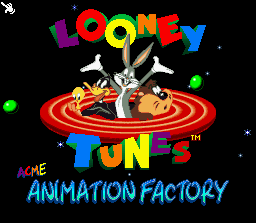
Welcome to the Looney Tunes ACME Animation Factory
This Game Pak allows you to create, color, and animate your own characters, or make your own animations using the Looney Tunes characters. This manual will introduce you to all of the drawing and animation tools.
Each section begins with a quick reference page so that you can see which tools are available in the different sections. After the quick reference pages, all of the drawing and animation tools are explained in detail.
Special Note to Parents & Teachers
Although this Game Pak is designed to help young animators bring their creations to life with motion and sound, it teaches many sophisticated computer functions, such as:
•
Using a mouse to click on and drag objects.
•
Selecting different choices from menus and "tool bars".
•
Computer editing techniques, like copy, paste, and rotate.
•
Familiarity with using different computer "tools" and program sections to accomplish different tasks.
You will find this program has many of the same functions as sophisticated graphics, music, and document composition programs.
Main Menu
At the main menu screen, click on one of the following icons, then click on the start button to go to that section of the Animation Factory.
•
Drawing Board: Porky Pig will guide you to the Drawing Board, where you can create your own backgrounds, characters, or messages.
•
Animation Studio: Daffy Duck is in charge of the Animation Studio, where you can color and edit your favorite Looney Tunes characters, or create and bring to life your own creatures.
•
Game Arcade: Wile E. Coyote invites you to take a break from animating and play the game Looney Tunes Mix 'N Match.
•
Save/Load: Marvin the Martian makes it quick and easy to save and load drawings, animations, or music that you have created. You can even save a creation, turn off your Super NES, and finish your masterpiece at a later date!
•
Mission Control: Speedy Gonzales helps you to set the Animation Factory Controls and cursors the way you want them.
•
Music Hall: Conductor Bugs Bunny and the Looney Tunes band orchestrate your musical compositions while you watch or while you draw and animate.
Basic Controls
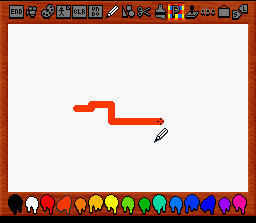
Each of the Icons at the top of the screen represents a different tool or function. When you click on a tool icon, it will light up to let you know which tool you are using.
•
Use the Left Button on the mouse or the Y Button on the controller to select a tool to use.
•
Use the Right Button on the mouse to access the tool's or function's sub-menu. Please note that not all functions have a sub-menu.
•
To Erase, hold the Right Button on the mouse or the A Button on the Controller. The cursor will change into an eraser. Hold the Eraser button and move the cursor to erase.
Navigation Icons
•
END (Return to Main Menu): Allows you to go back to the Acme Animation Factory Main Menu so that you can enter a different area of the factory.
•
Camera: Takes you to the Animation Studio. You can go back and forth between the Drawing Board and the Animation Studio so that you can work on an animated character and their background at the same time.
•
Palette: Takes you to Bugs Bunny's Acme Color Selector, which allows you to change the colors in your color palette. Here you can mix new colors, move old ones, and do wacky color effects. Your current color palette is shown at the bottom of the screen.
Mix Your Own Colors
Because the ACME Animation Factory uses light on your television screen as a canvas, colors must be created using three basic colors: RED, GREEN and BLUE.
Click on a color you wish to modify and it will appear in the Color Selector Machine. You can change the color by adjusting the amount of paint in the red, green and blue tubes. The higher a tube is filled, the more of that particular color there will be in your final mix.
To create colors other than the three basic ones, you can combine two or more colors together:
•
ORANGE = RED filled all the way, GREEN filled half way
The shade of your color is determined by how high the tubes are filled. The higher the tubes are filled, the lighter your color will be.
•
WHITE = All three tubes filled completely.
•
BLACK = All three tubes left completely empty.
•
GREYS = All three tubes equally filled in the middle area.
•
BROWN = RED set higher than GREEN, and BLUE set lower than GREEN.
Color Effects
On the right side of the Acme Color Selector Machine, there are six Color Effects Buttons. Any changes you make to your color palette will change colors that you have already drawn. It is usually best to mix and edit colors BEFORE you start to draw.
•
Color Copy: Click on one color, then click this button, then click on a second color in your palette. The first color you clicked will be duplicated, replacing the second color.
•
Color Swap: Click on one color, then click this button, then click on a second color in your palette. The first color and the second color will swap positions.
•
Color Cycle Selection: Click on a starting color, click this button, then click on an ending color. All colors between them on your palette are now part of your Cycle Selection.
•
Cycle Start/Stop: Click this to make your selected colors cycle continuously. If you return to the Drawing Board, anything painted with those colors will cycle.
.png)


.png)
.png)



.png)
.png)
.png)







.png)