Connecting Controllers
•
For 1- or 2-Player Games
•
The Player 1 controller goes into Control Port 1 of the Super Nintendo unit. •
The Player 2 controller goes into Control Port 2.
•
For 3- or More Player Games
•
The Player 1 controller goes into Control Port 1.
•
The Super NES Multitap goes in Control Port 2.
•
Connect controllers to the multitap in order.
Starting Up
•
Insert the game pak and turn on the Super NES®. After the Title screen there is a game demo. Press Start at any time to call up the Game Mode options.
•
The control pad moves the cursor to an option, and the A button selects it.
Open Game Settings
•
Select OPEN GAME with the control pad.
•
Select Open Game, Short League or Short Tournament.
•
Select the number of players with the control pad and press the A button.
•
Select the country block you wish to play in. The L and R buttons change the area of the globe displayed. The control pad changes the country, and the A button selects it.
•
Select the stadium (field type) and change the weather conditions. L and R buttons cycle through the Stadium choices, the control pad changes the weather type. Press the A button to confirm your setting changes.
•
Set the Handicap next. The "happier" the condition icon, the better shape your players will be in. Press the A button to confirm your selection. You can also select the skill level of your goalkeeper. Use the control pad to select the level and press the A button to confirm.
International Cup Game Settings
Compete in the International Cup "round robin" tournament.
•
Select the country block to play in. The L/R buttons change the area of the globe displayed. The control pad changes the country, and the A button selects it.
•
Use the control pad to select the various game settings, the A button selects which settings you wish to edit.
•
First you will find your team in the All Team League. All 36 teams compete in 12 blocks for the cup. If you win your block (or qualify with points) in the All Team League, you will move on to the Intro League. Here the remaining 24 teams will play in blocks of 6. Win your block (or qualify with points) to move on to the International Cup Tournament. The remaining 16 teams will play each other in an elimination tournament for the cup.
World Series Game Settings
Compete in a World Series of soccer.
•
Select the country block to play in. The L/R buttons change the area of the globe displayed. The control pad changes the country, and the A button selects it.
•
Use the control pad to view the day's games. Press the A button to enter the Match Options screen.
In the Match
•
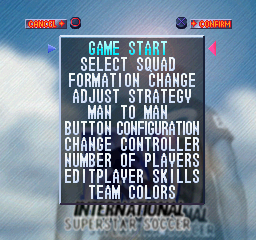
In the Match Options screen, select the game and team conditions. Press the A button at the "Game Start" option to start the game.
•
Confirm game settings. The A button confirms the settings, the B button returns you to the Match Options screen. Note: Make sure you know the various cursor types used in the game for multi-player games.
•
Next is the coin toss, to decide which team starts with the ball.
Screen Identification
Game Rules and Option Settings
•
All game modes follow standard Soccer rules.
•
Press Start during the game to display a mark beneath the score. This means that when the ball goes out of play you automatically enter the Match Options screen.
•
You can substitute up to four players during the game (except players who have been sent out for a Red Card penalty).
•
The team that has been fouled against receives a free kick against the fouling team.
Rules for Specialty Fouls
•
Two Yellow cards count as one Red Card. Receive three Yellow cards (in any number of games) and that player cannot compete in the match which follows the one which the third foul was committed.
•
A Red Card means that player is benched for the remainder of the game (no replacement is allowed), and he misses the next match, as well.
•
In Open games the Yellow and Red Card rules do not apply.
Change Settings in Edit Screen
•
Edit Screen button options: D-pad cycles through choices, A selects, B returns to previous screen.
•
Setting screen shows default settings.
•
SELECT SQUAD: Change Team Members.
Substitution, Free Kick and Corner Kick Settings
•
The L button shows number and position, the R button checks Yellow and Red Cards.
•
Use the control pad to select a substitute from the Substitute list. Press left on the control pad to gain access to the list. Press the A button to confirm your selection. Next, choose the player you want to sub out. Press the A button to complete the switch.
Formation, Position, and Strategy Settings
•
The control pad sets formations. Reset reverts the settings to default. The A button confirms settings.
•
Positioning Window (Player Position Chart)
•
The control pad picks players. Press A to confirm.
•
The control pad positions players. Press A to confirm.
•
When you're finished, highlight OK, Cancel or Reset. OK selects settings, Cancel resets to previous settings and Reset reverts all settings to default.
.png)

.png)
.png)
.png)



.png)
.png)










.png)
.png)











_1.png)