Loading
1. Make sure the power switch is OFF.
2. Insert the NFL™ QUARTERBACK CLUB™ '96 Game Pak as described in your SUPER NINTENDO ENTERTAINMENT SYSTEM® instruction manual. If you wish to play a game with up to five players, plug in a Super Multitap™ (sold separately) at this time as described in its instruction manual. Note that NFL™ QUARTERBACK CLUB™ '96 supports the Super Multitap™ only. Other multi-player adapters will not work with this game. 3. Turn the power switch ON.
When the NFL™ QUARTERBACK CLUB™ '96 title screen appears, you will then be able to choose your game mode and set Pre-Game Options. Press the START BUTTON to see the game mode screen.
On Screen Help
Most screens include an On Screen Help feature to guide you through the game.
As a rule, press UP or DOWN on the CONTROL PAD to highlight a desired option, and LEFT or RIGHT on the CONTROL PAD to select the desired setting. Once you have set an option, continue to the next until all are set to your satisfaction. Pressing the SELECT button will continue to the next screen.
Practice Mode
Practice Mode gives you the chance to hone your skills in actual game play situations. In practice mode, you bring a 10 man team onto the field for Offensive, Defensive or Special Teams practice. Bring in your favorite team and transform yourself into a virtual winning machine!
You can even create your own team of custom players! Bring in a custom player and rev up his attributes by running him through skill-enhancing drills. Save a custom player's enhanced skills, then bring him into Preseason mode! You can practice tackling, receiving, kicking, passing—any situation your 10 team members may face.
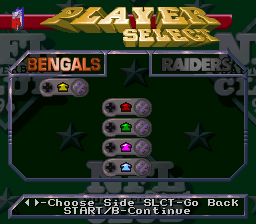
Once you select Practice mode, you will see a screen featuring each player's controller, and to the right, the team you will bring into training. Each player in turn presses LEFT or RIGHT on the CONTROL PAD to scroll through the available teams until the desired team appears. Initially, there will be spots for 5 custom teams. Any custom team is available to any player, as are all 30 NFL™ teams. Highlight NO TRAINING if you don't wish to participate in training. Press the START BUTTON to select a team. If you've chosen a custom team, you will then see the Custom Team/ Player screens. Otherwise you will go straight to the practice category screen.
In a Team practice, player(s) choose which team to control in any of the many available practice scenarios, all of which can be repeated until mastered. You'll be using the actual NFL™ players on each team.
In a Custom practice, you can create up to 10 custom players. Perform successfully in a practice event to increase a custom player's attribute level. The difficulty at which you play determines the level of attribute increase, with Very Easy contributing some increase and Very Hard a substantial amount.
Creating a Custom Player
This screen is where you create or modify your team of 10 custom players. The first player position to appear is the quarterback. Press LEFT or RIGHT on the CONTROL PAD to scroll through player positions. Press UP or DOWN on the CONTROL PAD to highlight the various option boxes and the Y or B Button to cycle through each associated option.
You can set which hand a player throws with, which foot he kicks with, his skin tone, number and uniform. Note that once a uniform is set, all team members will automatically share that color. View On Screen help for details on how to set your options.
If you choose not to create a player for one of the positions, the computer will supply a default player. Once you've set or modified your custom team options, the team is ready to bring into practice. Press the START button to get to the Category Screen.
The Practice Category Screen
Practice mode is broken up into three broad practice categories: Offense, Defense, or Special Teams. Each has several option branches that open up still richer areas of practice options.
Press the CONTROL PAD to highlight the desired practice category, then press the B BUTTON to select it and set the practice options specific to the chosen category. To jump right into Offensive, Defensive or Special Teams practice at the default settings, press the START BUTTON. If Quit is highlighted, pressing START will bring you to the quit screen, from which you can view a Custom Progress Report detailing the attributes status of all your custom players.
Custom Progress Report
This is where you can view each custom player's old and new attributes to gauge his progress. Press LEFT or RIGHT on the CONTROL PAD to view each player. Once you've viewed all players, press the START BUTTON to return to the pause menu.
Practice Mode Pause Options
To use pause options, press the START BUTTON when on the field. Press UP or DOWN on the CONTROL PAD to highlight an option, and the B BUTTON to select it. Press the START BUTTON again to return to practice.
•
INSTANT REPLAY: See the last 30 seconds of action.
•
PRACTICE SET UP: Change your Offensive, Defensive or Special Teams practice set up.
•
MAIN MENU: Return to Main Menu screen to change setting.
•
VIEW PLAYER PROGRESS: If you're using custom players, select this to see your Custom Progress Report.
•
QUIT/SAVE: If you select Quit, you will see a final player progress report. Pressing the START BUTTON will bring you to the Save screen, where you can save up to five teams.
NFL™ Play Modes
NFL™ PLAY gives you 8 exciting game mode options
.png)

.png)




.png)







.png)
.png)


.png)

 (En,Fr,Es,It).png)