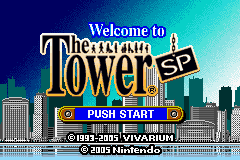
Game Start
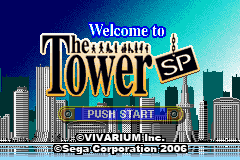
Insert the game cartridge into the Game Boy®Advance SP slot. Turn the power on to display the title screen.
Press START or the A Button on the title screen to select how you want to start the game.
How to Start the Game
Select a mode from the menu and press the A Button.
Saving a Game
Select "Save" in the System Menu to save your progress. Note that game progress will be lost if you quit the game without saving.
•
Restart: You can restart the lesson by pressing Start during the tutorial. Select "Restart the lesson" or "Exit the lesson" from the Pause Menu.
Start a New Game
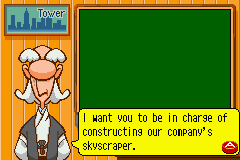
When you play for the first time, the "General Office Building" scenario begins automatically. Yama will instruct you on basic rules and techniques.
Continue from the Saved Game
Select "Yes" to continue a saved game. The game starts from 5am of the day you saved.
If you succeed in building the General Office Building up to "TOWER", the "Commercial Building" becomes available. Types of tenants and upgrade conditions differ from the General Office Building.
How to Play
You are in charge of constructing and managing a building. Create a skyscraper to attract many visitors and residents.
Build a "TOWER"
Expand the building and place items, such as tenants and transport facilities. Use money collected from tenants to make the building bigger. Your goal is to reach a population of 2000 and obtain the "TOWER" rating.
You can keep playing after obtaining the "TOWER" rating.
1. Extend the Lobby: Start by extending the Lobby horizontally on the 1st floor to allow item placement on upper and lower floors.
2. Place Tenants: Place tenants like Offices and Condos on adjacent floors. Do not forget facilities like Toilets and Cleaning Rooms. 3. Place Transport Items: Connect each floor to the Lobby with Stairs and Elevators. 4. Population Increase: More people will visit tenants over time, increasing population and income from rent. Use this income to expand the building.
5. Upgrading: When the population reaches a certain level, the building upgrades, allowing new items. Place items to attract more customers.
Be Careful Not to Run Out of Funds
There is no "Game Over," but running out of funds with no expected income halts progress. Refer to Yama's Advice and restart if this happens.
Basic Rules
This section explains building expansion and the flow of time.
Rules on Expanding the Building
•
General Office Building: Can be built up to 50 floors high and down to B5F.
•
Commercial Building: Can be built up to 35 floors high and down to B5F.
•
Both buildings can be as wide as the construction site.
•
Floors cannot extend wider than the Lobby on the 1st floor.
•
Floors above ground cannot extend wider than the floor below them.
•
Deregulation: As the building upgrades, the construction site expands.
Flow of Time
Time passes faster in the game than in real life.
● Flow of a Day
A day consists roughly of 8 time zones with different speeds.
•
5am - 7am (Early Morning): Fast
•
7am - 8am (Morning): Fast
•
8am - 12pm (Late Morning): Fast
•
1pm - 12am (Afternoon): Slow
•
12am - 1am (Night): Slow
•
1am - 2am (Late at Night 1): Slow
•
2am - 5am (Late at Night 2): Fast
● Flow of a Year
1 Year = 4 Quarters (Q). Each Quarter consists of 2 weekdays and 1 weekend day.
•
Spring, Summer, Autumn, Winter
•
WD1 (Day 1), WD2 (Day 2), WE (Weekend)
Checking Tenant Information
Press the B Button in the main screen to switch the cursor to the Magnifying Glass. The information of the selected tenant is displayed in the Information Window.
Magnifying Glass
•
Tenant Address and Name: Displays the address and name.
•
Tab: The number and type of tabs differ by tenant.
● General Tab
View evaluation by residents, Maintenance Costs, and sales performance. You can name tenants and change settings here.
•
Evaluation: Changes color based on level.
•
Yellow: Feeling a little stress
Note Tab
Check requests from tenants and current status.
Resident Tab / Customer Tab, etc.
Check information on residents. You may name one resident. Named people appear in blue, and their thoughts appear in speech bubbles.
Naming a Person
The Naming Screen appears when naming a tenant or person. Use up to 4 letters.
•
Use "Up/Down" to switch between Uppercase/Lowercase.
•
You can only name one person.
Elevators
Elevators are the most important transport items. Master their management for smooth building operation